ServiceDesk Simulator

The Support Toolkit · Module 1 of 16

Your first shift

What a service desk actually is, how one ticket moves across it, and which console owns which answer. Read this before any other module in this path.

A service desk is where every technology problem in a company arrives first. This module covers what the desk is for, how a ticket moves across one, and which console in this app stands in for which real product.

Part one

On the job

What the desk is, how one ticket moves across it, and who owns which answer in a real company.

What the desk is for

A service desk is the single point of contact between everybody who works at a company and everybody who runs its technology. Payroll is down, a laptop will not charge, a new starter arrives Monday with no account: it all arrives at the same place first.

Two things follow. Every interruption is written down in one system, and one team sees every problem in the company before anyone else does. The second is why the desk is the best first job in IT: every part of the estate, meaning all the company’s IT, calls you at some point, so you end up learning all of it.

How the work arrives

Web portal A form that opens a ticket by itself. On a desk with a portal worth using, most of the volume.
Email A message to the desk address, which also opens a ticket by itself. Most of the rest.
A direct message Somebody messages you in the company chat. It feels like the fast lane, which is why people use it, and the record of it starts when you open the ticket yourself.
Phone Fewer, and more urgent. Somebody who picks up the phone has usually already waited for something else to work.
An alert Machine to machine. A monitoring system opens a ticket on its own when a server goes down, a disk fills up, or a backup fails, often before anyone has noticed.
Six people covering five hundred staff take several hundred contacts a week. The channel tells you something before you have read a word: somebody picked up the phone for a reason, and a direct message only becomes a record when you raise the ticket for it.

Most of the job is the same twenty problems. Expired password, locked account, mailbox that will not stop asking for credentials, print queue stuck, shared drive not mapped, VPN refusing to connect, a second monitor that went black, a new starter, a leaver. They repeat because the environment is the same for everybody in the building.

Learn the twenty properly and you clear most of a queue quickly, which leaves the hours for the ticket nobody has seen before.
Tiers, and where your line sits

How support is layered depends entirely on the size of the place. A small IT team is usually flat: one or two people wear every hat, from the password reset to the server in the cupboard.

Bigger organizations, with enough IT staff to split the work by depth and access, are where formal tiers show up: a first line that takes the contact and fixes what a documented procedure covers, a second line with deeper rights and far more time per ticket, and the engineers and vendors behind them.

What each of those is allowed to do moves between companies, so the thing to learn is where your own line sits: what you are trusted to touch, and what you hand on.

At one place first line resets passwords and nothing else. At another it has real rights over the directory and closes eight tickets in ten. Ask where that line is in your first week: working outside it means breaking something you have no rights to put back.

Escalation is a handover

Escalating means routing a ticket to the people who can finish it, as soon as it is clear you cannot. Hold one for two days before handing it on and the user waits those two days on top of everything else.

Functional escalation
Sideways, to the team that owns the thing and holds the rights it takes. Most escalations are this.
Hierarchical escalation
Upward, to a manager. It is about time, priority, or a customer who is about to complain higher up.

A good escalation says what was reported, what you checked, what that ruled out, who is affected and since when, and what you want the next team to do. It reads like "checked: account enabled, not locked, password set 3 days ago, expiry ruled out, needs a mailbox-level trace": four facts and a direction, written for the person who picks it up next.

The bad version is "user says it is not working, please advise". It goes to the bottom of another queue and comes back two days later with a question you could have answered yourself.

Hand over everything you already have, because you have been on this with the user and the next tech should not start from nothing. Attach the screenshots, paste the exact error string word for word, and write down the shape of the fault: how often it happens, what time of day, how long it has been going on, what it is stopping the user from doing, and whether this is the first time or it keeps coming back. Five minutes of that spares the next person the questions you have already asked.

Work the ticket as far as your rights and the documentation take you before you escalate, because most tickets a first line hands off could have been closed by a first line that kept going.

When you genuinely cannot get there, or it has taken far longer than the ticket is worth, escalate. Hand it to the people who pick up what a documented procedure cannot close.

When a ticket you handed off comes back solved, read the resolution notes before you move on. Next time that fault turns up you will be able to close it yourself.

A ticket is the record

A ticket is the record of the work you do to help a user, and the thread that tracks their issue from the first report to the fix. It usually starts as a message, a call, or a form somebody fills in, and the discipline is the same whichever way it lands: every one of those becomes a ticket. The ticket is what makes the work visible to everybody who needs it later.

Somebody will open it long after you have moved on, and it has to make sense to them. The technician on the next shift, who has to pick your ticket up cold. The one who meets the same fault next month and searches the system for it. A manager counting how many times that printer has broken, because six tickets is the argument for replacing it. An auditor who wants to see that access was approved before it was granted.

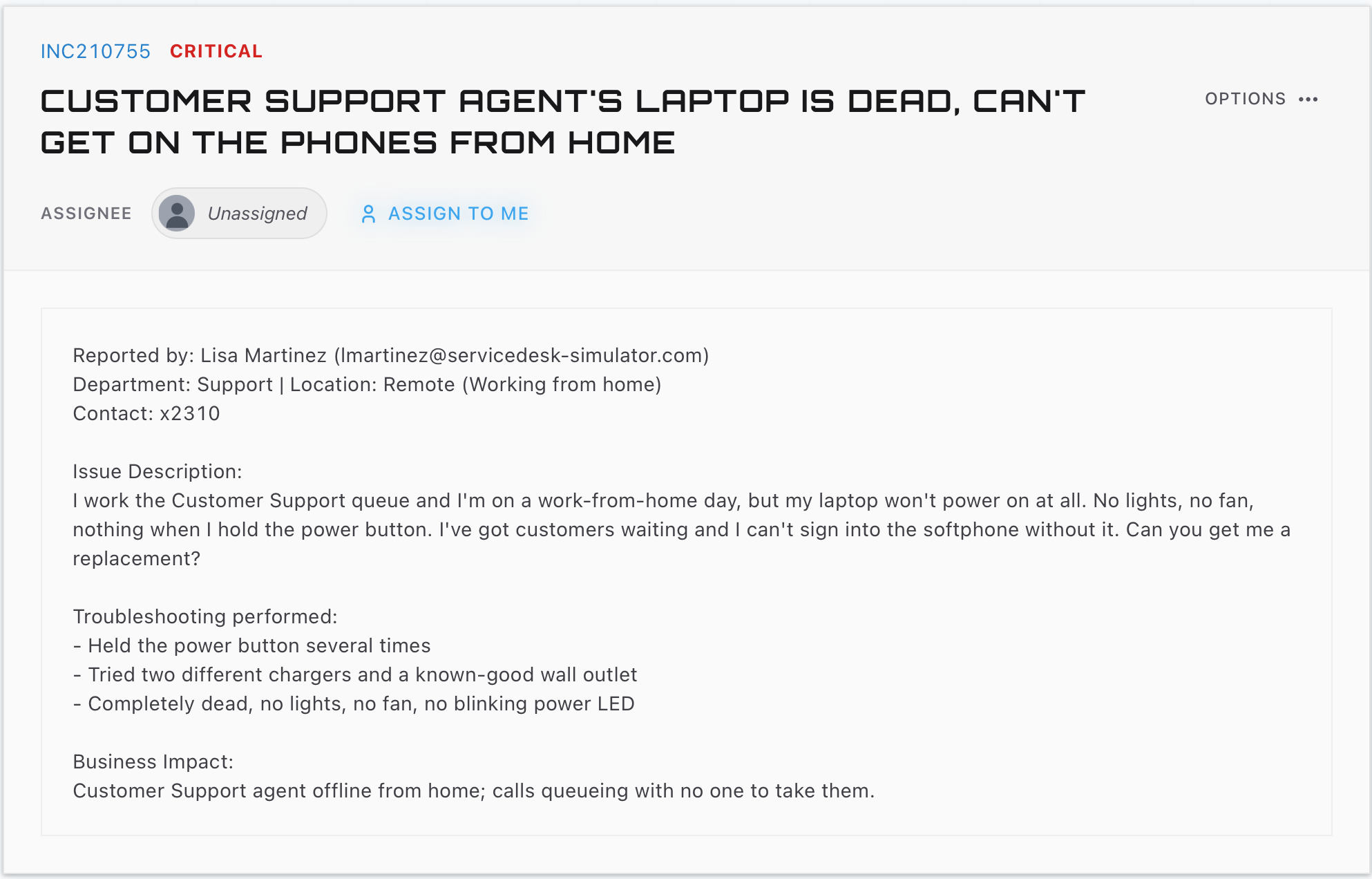
An open ticket: the reference INC210755 and the word Critical, the title, an Assignee row reading Unassigned beside an Assign to me control, then a body giving the reporter, department, location, contact extension, issue description, troubleshooting already performed, and business impact.
The whole record on one screen. Read the last two blocks first: what they already tried stops you repeating it, and the business impact is what actually sets the priority.

The system holding those records is an ITSM tool, for IT service management. ServiceNow is the one most large companies run. Jira Service Management and Freshservice turn up constantly in smaller ones. They differ in layout and price, and underneath they hold the same parts.

Queues and views
Filtered lists of tickets. Unassigned work, your work, your team’s work, anything reported today.
Work notes
Internal notes, visible to the desk only. Where the diagnosis goes.
Public reply
The comment that is emailed to the requester. Different box, different audience, and mixing them up is a genuine incident at some companies.
Assignment group
The team that owns a ticket. On a real desk, escalating usually means changing this field to another team’s queue.
Resolution notes
How it ended, written up when you close the ticket. Make these detailed enough that anyone who pulls the ticket up later for a similar fault can follow your notes and fix it fast, and that includes future you, because you reference your own old tickets more than you would think. They are also the only reason anyone can tell you what the top five causes were last quarter.

Write every ticket so somebody who was not there can follow it without phoning you. The phrase you will hear on any desk is if it is not in the ticket, it did not happen.

Incident or service request

Every ITSM tool splits the work into kinds, and the split decides which clock runs, who has to approve it, and which report it lands in. Two of the four are most of your day.

The two you will meet all day

Incident

  • Something that worked is broken, or degraded.
  • The goal is restoring service, so a workaround that gets somebody typing again counts as a fix.
  • "I cannot get into the finance folder any more."

Service request

  • Somebody wants something new. A folder, a laptop, software, a mailbox for a new starter.
  • Everything still works, so the goal is delivering it correctly, usually after an approval.
  • "Please add me to the finance folder."
Same folder, two records. Access that existed and stopped is an incident. Access asked for the first time is a request, and the owner of that data says yes first.
Problem
The underlying cause behind a set of repeating incidents. A separate record with a longer life, owned by someone who is allowed to spend a week on it. When a wave of tickets comes in about the same fault, you raise one problem ticket and link them all to it, so you work the single cause once and update all twenty requesters in one pass.
Change
The formal name for a planned, approved modification to the environment, raised and signed off in advance as a change request, or RFC. Updating the firmware on a switch (the low-level software inside a network switch), a server reboot, a new group policy (a central setting pushed to every machine at once). Changes are raised above first line, and the ticket that reaches you is the one saying a change caused the outage.

Filing them wrong is the standard beginner error. A request logged as an incident starts a restore clock nobody can meet, and it shows up as a breach in a report. An incident logged as a request buries an outage in an approval queue behind a manager who is on vacation.

A shift, and the handover

Desks run on shifts because the phones have to be covered at 08:00 and at 18:00, and somebody has to be there when the overnight batch, the scheduled jobs that run while the office is closed, fails. A large company runs follow-the-sun, where the queue passes between countries as each office wakes up.

How a shift runs

Read the handover
Your own tickets
The open queue
Write the handover
Your own tickets come before the open queue because somebody is already waiting on each of them. The two busy periods, first thing and straight after lunch, land on the two middle steps: your own tickets, then the open queue.

The handover is the part beginners skip. Some desks make a ritual of it, saying at the end of a shift what is still open and hot, what you promised and to whom, and what you are waiting on from another team. On plenty of desks it stays informal, and that barely matters, because the real handover lives in the tickets. Write each one detailed enough that if the user calls back while you are off shift, whoever picks up can open your ticket and either finish the fix or close it from your notes alone, without phoning you at home.

Two things get noticed at the end of a shift. What you closed, and whether the rest is in a state somebody else can pick up cold.

Who owns what

Any company big enough to have a desk has split the technology between teams, and each team owns its own kit, its own change window (the scheduled slot when it is allowed to make changes), and its own queue.

The service desk
Intake, identification, and the first-line fix for anything on this whole list. The desk touches a bit of every area below: it resets a password, remediates a compromised account by resetting it, reboots the router and power-cycles a switch, chases a mail flow, calls the ISP when the line drops, remotes into a machine to fix it, and swaps hardware. It hands a ticket to the team that owns an area only once the fault runs deeper than a first line can take it.
Desktop or field support
Hands on hardware. Swaps, builds, the person who walks to the third floor.
Infrastructure
Servers, storage, virtualization, backups, the directory itself. If it lives in a rack or a cloud tenant, the company’s own walled-off space inside a cloud provider, it is theirs.
Networking
Switches, wifi, firewalls, VPN, and the link to the internet provider.
Security
Identity governance, phishing, malware, and incident response. They are also the team that deliberately disabled the account you were about to switch back on.
Applications
The systems the business actually runs on. Finance, the CRM, the warehouse system. Usually the vendor sits behind them.

How sharp these lines are depends on the size of the shop. In a small IT team one person does a bit of everything and wears every hat: intake, the fix, the server in the cupboard, the switch under the desk. On a bigger service desk you still touch a little of everything, and you only escalate once an issue runs deeper into a department than your rights or your time can reach. Either way you try the ticket first, then route what is genuinely not yours.

What the symptom looks likeWhose it is
One person, one machine Yours, start to finish.
A whole floor at once Usually a network fault, but first line still responds: power-cycle the switch or access point, or walk a user through it, and hand to Networking only if it runs deeper.
Everybody in the company, one system Infrastructure, or the team that owns that application.
Who should be able to reach what Identity work, and it needs an approval before it needs a technician.

Work out who owns it before you start. Ten seconds deciding whose problem this is saves the afternoon you would otherwise spend on a ticket that belonged to another team.

Part two

How this works here

The same work in this app: the queue you pick from, and the real product behind every console in the menu.

The queue you pick from

This app sits you in a first-line seat at that same company of five hundred people, with the consoles a first-liner is trusted with. The queue is the front page: the Dashboard is where you land, and where you come back to after every ticket.

Under the Ticket Queue heading sits a card called Incidents, with a count beside it. Each row is one ticket: the title as the requester wrote it, their name underneath, and the priority word on the right. A row might read Cannot print to network printer with a name below it, which is about as much as a real queue gives you before you open something.

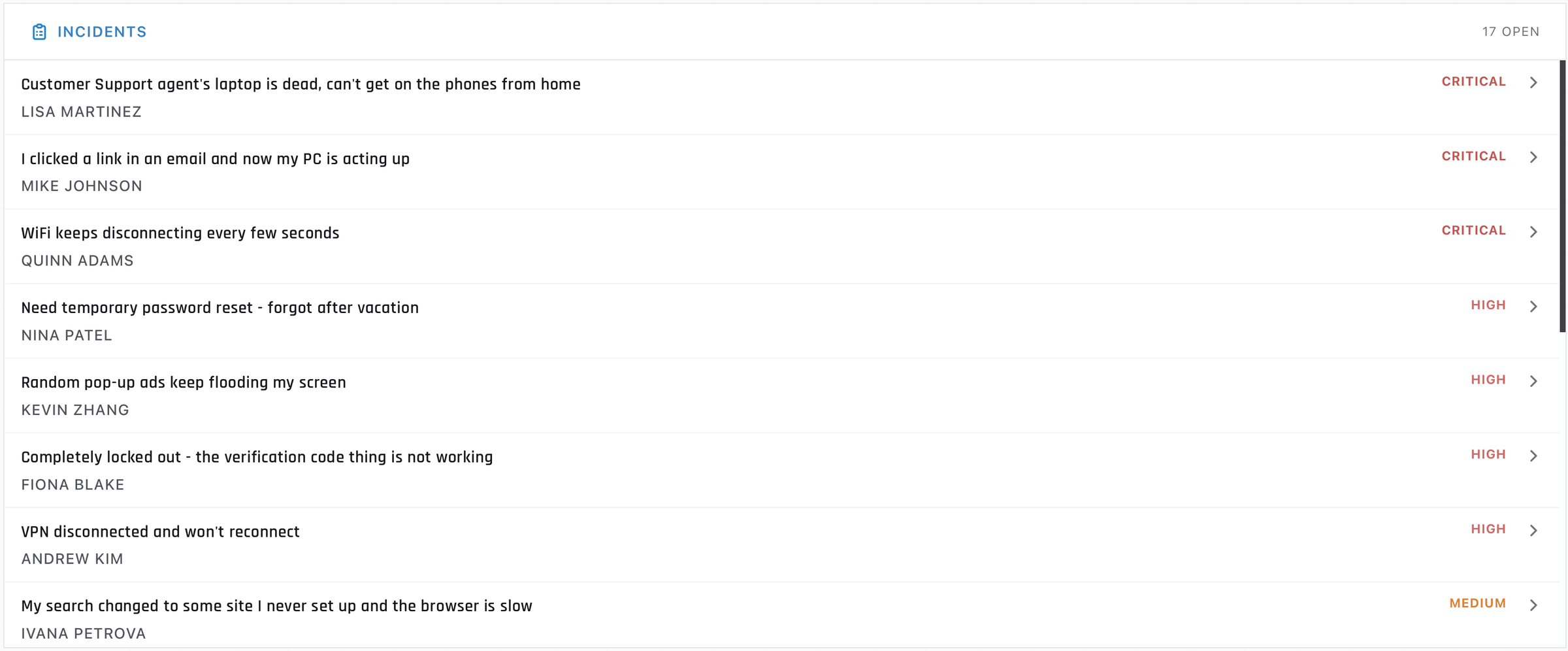
The Incidents card headed 17 OPEN, listing eight tickets, each with the title, the requester name beneath it, and a priority word of Critical, High or Medium on the right.
The open list, sorted by priority. Each row gives you three things: the title, who raised it, and the priority word. Reading urgency from those three is most of what module 2 teaches. A real ITSM queue adds an age column and a clock counting down to the response target.

A row gives you a title in the requester’s words, a name and a priority. Everything about what is actually wrong is inside the ticket.

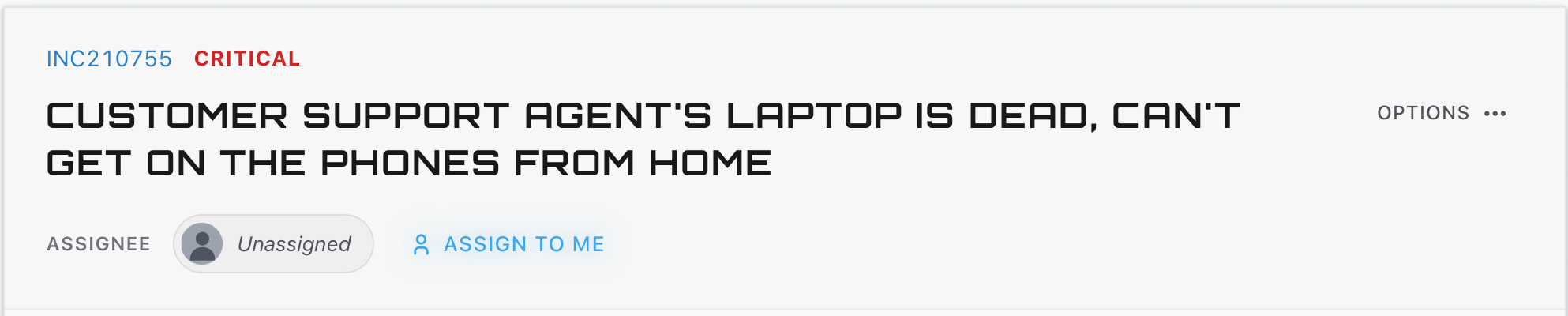
The head of an open ticket: the reference INC210755, the word Critical, the full title, and an Assignee row reading Unassigned beside an Assign to me control.
Open one and the row becomes a record with a reference number, an owner and an Options menu. Unassigned means the ticket still belongs to the queue, and it becomes yours when you take it.

Open a ticket and take it, and a second section appears above the queue: My Queue, marked Assigned to you. That is the whole ownership model here, and The ticket queue is about how to choose what goes in it.

One honest difference on the first screen. Everything here is filed under Incidents, including the ones that are plainly service requests. A ticket titled New employee starting Monday - needs account setup is a request in every real tool, with an approval in front of it. Here it sits in the same list as an outage.

The Tools menu, and what each console really is

Every console lives behind the Tools tab at the top of the screen. It opens as one panel split into four groups, which is the same split a real IT department uses when it decides who owns what.

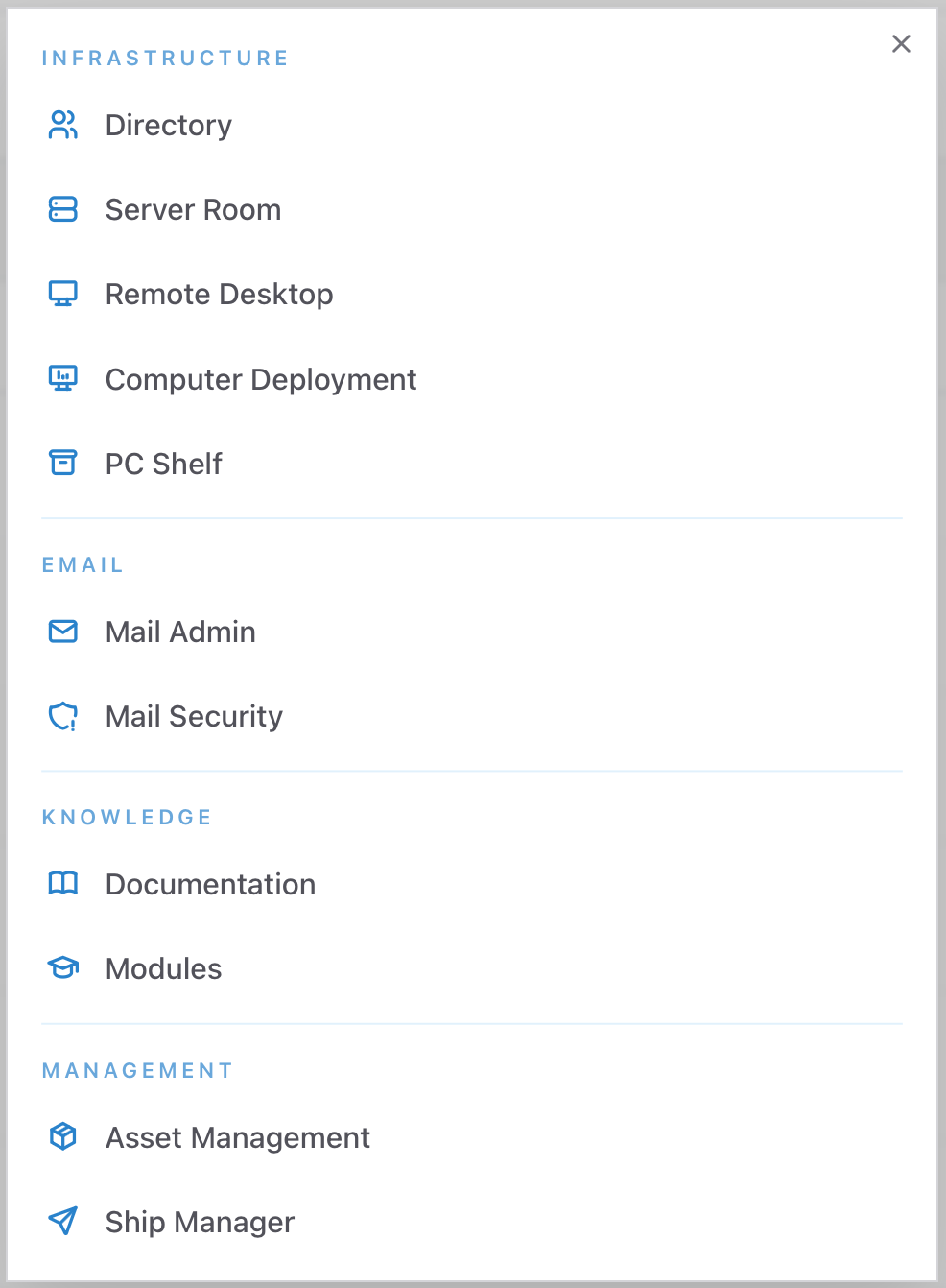
The Tools menu open, showing the Infrastructure, Email, Knowledge and Management groups and the consoles under each
Four groups, ten consoles. The groups follow the way a real IT department divides its teams.

Infrastructure holds Directory, Server Room, Remote Desktop, Computer Deployment and PC Shelf. Email holds Mail Admin and Mail Security, split the way the real products split. Knowledge holds Documentation. Management holds Asset Management and Ship Manager.

Each one stands in for something a real desk has open all day. The right-hand column is the one to memorize, because it is the column that appears in job ads.

In the Tools menuWhat it stands in for
Directory Active Directory Users and Computers, the console everyone calls ADUC and launches with dsa.msc
Server Room Infrastructure monitoring and the rack itself: a dashboard like PRTG, Zabbix or SolarWinds
Remote Desktop Remote control of a user’s machine: RDP, Remote Assistance, or a tool like TeamViewer
Computer Deployment Build and provisioning: a Configuration Manager task sequence, which everyone still calls SCCM, or Windows Autopilot
PC Shelf The stockroom, and the spares and loan pool tracked inside it
Mail Admin The mail server’s own admin console: message trace (following where an email went), mailbox properties, inbox rules. On most desks that is the Exchange admin center
Mail Security The filter in front of the mailbox: Defender for Office 365, Proofpoint, Mimecast
Documentation The knowledge base: Confluence, SharePoint, or the KB built into the ITSM tool
Asset Management An ITAM (IT asset management) register or the CMDB, the master record of every device the company owns: Snipe-IT, Lansweeper, ServiceNow Asset Management
Ship Manager Logistics for remote staff: courier bookings, tracking, and the return label

What is here

The one handover control here is Escalate, in the ticket menu. Every ticket here belongs to the one team, the IT helpdesk you are on, so Escalate is the single route out and it goes to Security. It is for genuine security concerns, and using it to shed a routine ticket costs you points.

The Escalate control from the ticket options menu, a shield icon beside the word Escalate.
A real desk has a stack of queues to escalate into. Here there is one route, so pressing Escalate flags the ticket as a security matter and hands it to Security to investigate. Reach for it when that is genuinely true.

The rest of the shift runs on the tools a first-liner uses all day. Company Chat to message the person who raised the ticket. Voice Call to phone them. Documentation to look up how this environment is put together. And Past Tickets, in the profile menu, where every ticket you close goes so you can find it again later.

The brands here are invented and the structure is real. The operating system is Workstation OS 11 Pro, the system folder is C:\WorkstationOS\System32, and the printers and headsets carry made-up manufacturer names. The event IDs, the log shapes and the error wording are the real ones, because those are the parts you will recognize at work.

Part three

Practice

One pass through the Tools menu, and three questions answered from it.

Open this module in the simulator