ServiceDesk Simulator

The Support Toolkit · Module 10 of 16

Mail Admin

Where did the message go? A message trace answers it in a minute, and almost nobody on a first desk knows how to read one.

Somebody says they never got an email. Somebody else swears they sent it. One of them is wrong, and there is a log that settles it in about a minute.

Part one

On the job

How mail really travels, and the one console skill that turns "it never arrived" into an answer you can prove.

How a message actually travels

A user types an address and presses send. The sending server looks up the recipient domain in DNS, the system that turns a name into an address, and asks one question: who accepts mail for this domain? The answer is the domain's MX records, short for mail exchanger, a list of mail servers with a preference number on each. Lowest number is tried first, and if none of them answer, the message sits in the sending server's queue and is retried for a few days before it gives up.

nslookup -type=mx company.com

The two servers then talk SMTP, the protocol for moving a message from one server to another. Server to server that is usually port 25; a mail client submitting a new message to its own provider uses port 587 with authentication. SMTP only ever pushes mail outward. Reading an inbox is a separate protocol: IMAP, or POP3 on an older setup, or a vendor protocol like MAPI or ActiveSync. Mixing those two jobs up is the single most common confusion on a mail ticket.

Which means a "cannot send" fault and a "cannot receive" fault are usually two different systems failing, even though the user describes both as "my email is broken".

One message, sender to mailbox

Sender
MX lookup
Filtering service
Mail server
Mailbox
The MX lookup is a DNS question, asked before the message moves. Every server that then handles the message stamps a Received: header on top, so the headers read bottom to top are the route it took with a timestamp on each handover. A long unexplained gap between two of them is where the delay happened.
Message ID
A unique string the originating server assigns, written like an address in angle brackets. Every log entry on every hop refers to the same message by that ID, so when two systems disagree about whether something was delivered, it is how you prove they are talking about the same email.
Received header
One line per hop, added at the top, so the oldest is at the bottom. Gives you the sending IP, the receiving host and the time.
Envelope sender
The address the servers actually negotiate with, also called the return path. It can differ from the From: address a user sees, which is exactly how spoofing works.
The message trace

Most people on a first desk have never run one, and it answers the most common email ticket in the world in under a minute.

A message trace searches the mail platform's transport logs for messages to or from an address in a time window, and tells you what the platform did with each one.

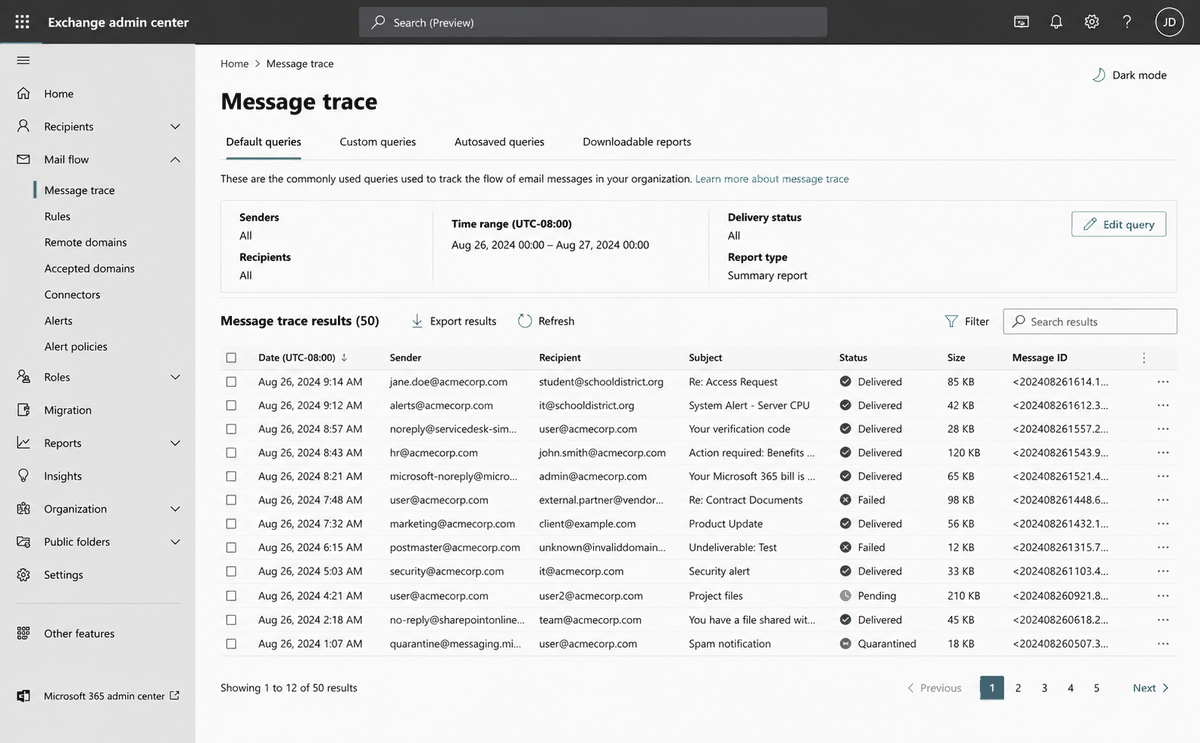
An illustration of message trace results listing messages by date, sender, recipient and subject, each with a status of Delivered, Failed, Pending or Quarantined.
An illustration of a trace result. The status column decides the ticket: Delivered means the mail reached the mailbox and the fault is a rule or the client, Quarantined or Failed means it never got there. Read it before you open anything else.

Microsoft 365 and Exchange are trademarks of Microsoft Corporation. ServiceDesk Simulator is not affiliated with, endorsed by, or sponsored by them.

Five verdicts, five different tickets

Delivered The platform accepted it and put it in the mailbox. The message exists, so whatever is wrong is inside the mailbox or on the user's device: rules, folders, the client.
Failed Rejected, and the sender got a bounce. The code says why, and the fix is nearly always at the recipient end: a full mailbox, a disabled mailbox, an address that does not exist, a policy block.
Quarantined The filter held it. It exists, the user cannot see it, and the explanation lives in the filtering console along with the control that releases it.
Pending Still sitting in the queue. Usually the receiving system is refusing new mail, so check whether other mailboxes are waiting behind it: that is a server ticket.
Expanded The address was a distribution group and the message fanned out to its members. Check the membership: a complainer missing from that list is the whole fault, and the fix is in the group.
Two of these end the ticket on the spot. Delivered means look in the mailbox. Quarantined means look at the filter.

The consoles you will actually be given

The tool has a different name at every employer, and they all do the same thing.

What it is calledWhere the trace lives
Exchange admin center Mail flow, then Message trace. Pick a sender or recipient and a date range, run it, click a row for the per-hop detail. This is the one most helpdesks are handed.
Exchange Online PowerShell Get-MessageTraceV2. The same data, scriptable, and the only sane option when you need the last week for forty people. It succeeded Get-MessageTrace, which is the name older documentation still gives.
Email Log Search Google Workspace's equivalent, in the admin console under Reporting. It reports the message status and which policy acted on it.
Exchange Management Shell (on-premises) On a mail server the company runs itself, like EXCH01 here, the transport logs live on the box and you read them there with Get-MessageTrackingLog. The server's own shell is what answers, and the logs default to thirty days of history.
Get-MessageTraceV2 -RecipientAddress jsmith@company.com -StartDate (Get-Date).AddDays(-2) -EndDate (Get-Date)
Get-MessageTrackingLog -Server EXCH01 -Recipients jsmith@company.com -Start (Get-Date).AddDays(-2)
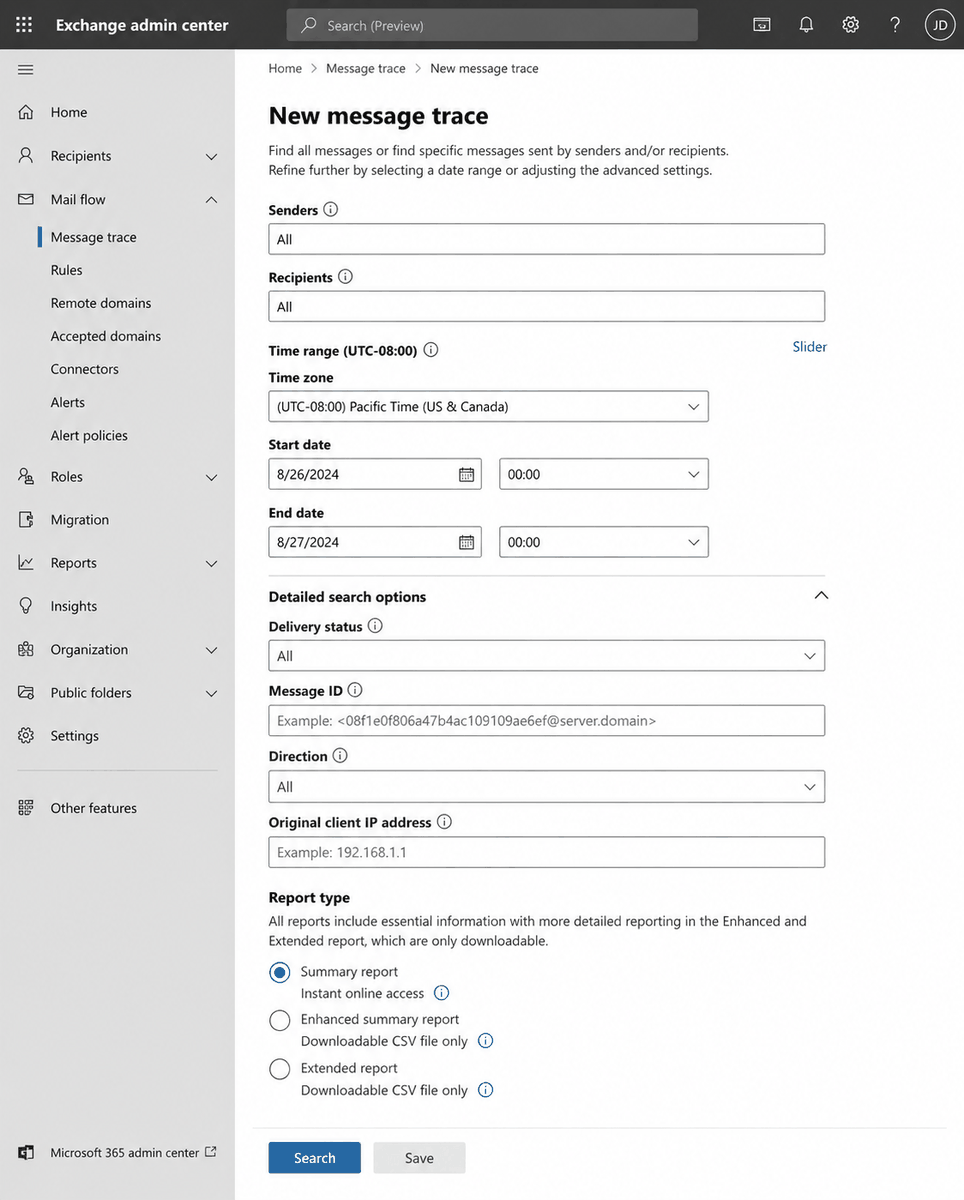
An illustration of a message trace form with fields for senders, recipients, a date range, delivery status, message ID and report type.
An illustration of the form those consoles put in front of you. Every trace needs a time window, and a trace that comes back empty usually means you searched the wrong day.

Microsoft 365 and Exchange are trademarks of Microsoft Corporation. ServiceDesk Simulator is not affiliated with, endorsed by, or sponsored by them.

Two practical warnings that catch everybody. The first is retention: trace data ages out, and how much of it you get depends on where the mail platform runs. On a cloud platform the vendor fixes the number and publishes it: Exchange Online holds ninety days, Google's Email Log Search thirty. On a server your own company runs, like EXCH01 in this environment, retention is your employer's setting, and the message tracking logs Get-MessageTrackingLog reads default to thirty days. The second warning is about how you reach the data, and it is a cloud quirk: in Exchange Online the ten-day limit people quote is the WIDTH of the window you ask for. Ask for ten days or less and the result comes back on the screen, anywhere inside those ninety days; ask for a wider range and the console queues it and hands you a downloadable report later. So a cloud message from two months ago is answerable while the user is still on the phone, as long as you narrow the dates. On-premises tracking logs take any width you ask for, inside the thirty days of history the server kept. Either way, traces are stamped in UTC while your user is describing their own morning, so convert before you decide that nothing arrived in the window they gave you.

Reading a bounce

When a message fails, the sending system generates a non-delivery report, an NDR. Users forward you the whole thing and ask what it means. The answer is almost always in one code near the top, and the first digit is the only part you have to memorize.

550 5.1.1 User unknown

The first digit: transient or permanent

What the sender doesWhat you do
4.x.x transient Keeps retrying for daysUsually just explain it
5.x.x permanent Gives up and reports backFix something, or it never arrives
5 is permanent: it will never work, stop retrying, something has to change. 4 is transient, and a receiving system being busy is rarely your ticket at all.
5.1.1
No such recipient. The address is wrong, or the mailbox was deleted. Check the spelling before you check anything else.
5.2.2
Mailbox full. The mailbox is over its quota and the server will not accept anything more for it.
5.7.1
Rejected by policy. Somebody, or some rule, decided this sender is blocked. The mail system did exactly what it was configured to do, so the fix is a policy change.
4.3.2
The system is not accepting messages right now. Transient, queued, and if it is happening to several people at once you are looking at a server problem.

A user who reports "my email bounced" has usually already been handed the answer by the bounce itself. Ask them to forward you the NDR before you open any console.

Mailbox properties that generate tickets

Once the trace tells you the message reached the mail server, the next place to look is the mailbox object itself. A handful of its properties cause most of the tickets you will ever see on a mail platform.

What a mailbox does on its way to full

Under quota
Warning
Send blocked
Send and receive blocked
Mail stops arriving at that last stage with no explanation the user can see, because the warning that told them landed weeks ago and was ignored.
Quota
Every mailbox has a size limit and a set of thresholds it crosses on the way to being full. Raising the quota buys three months. The archive is the durable answer.
Archive
A second mailbox, alongside the primary one, that old mail is moved into on a schedule.
Forwarding
A property on the mailbox that copies or redirects everything to another address. Set by an admin, invisible to the user, and a real reason mail seems to vanish.
Delegation
Giving another person access to the mailbox. Full access lets them open it and read it. Send As lets them send mail that appears to come from the mailbox owner. Send on Behalf sends mail that says so, showing both names. People ask for one and mean the other constantly, so make them say which.
Litigation hold
A legal instruction that nothing in this mailbox may be permanently deleted, no matter what the user does. It quietly consumes space, and lifting it is a legal decision: a mailbox on hold that is full gets escalated.

Inbox rules, and the one that is a break-in

A rule is an instruction that runs inside the mailbox, after the message has been delivered. So the trace can say Delivered, the message can really be there, and the user still cannot see it.

The boring version is genuinely one of the most common causes of "I never got it". Somebody set a rule up two years ago to tidy project mail into a folder, the project ended, the condition is broader than they thought, and now half their mail lands somewhere they never open. There is a client-side variant that is worse to chase: a rule that only exists in the desktop client and only runs while that client is open, so webmail shows the mail sitting in the inbox, the desktop moved it an hour later, and the two never agree.

Two rules that look identical in a list

Housekeeping

  • A narrow condition: one sender, one subject, one project.
  • Files mail into a folder inside the mailbox.
  • Switch it off and the ticket is finished.

Evidence of a break-in

  • Catches everything arriving: the condition is every incoming message.
  • Forwards to an address outside the company, or buries anything mentioning invoices, payments or password resets so the owner never sees the replies.
  • Delete it and the record of how the mailbox was being read goes with it. It is a security incident: escalate it the moment you read the action, because mail is leaving the company while the rule runs, and let Security switch it off.
Read the condition and the action. The first thing an attacker does after taking over a mailbox is create a rule, and it sits in the same list as the newsletter filters under a name just as dull.

Part two

How this works here

The same three jobs in this product, which tab holds each of them, and what our console shows that a real one does too.

The console, and its three tabs

In this company the mailboxes live on EXCH01, the on-premises mail server listed on the Server Room panel, and its admin console is at Tools, under Email, as Mail Admin. It opens on three tabs, in the order the diagnosis actually runs.

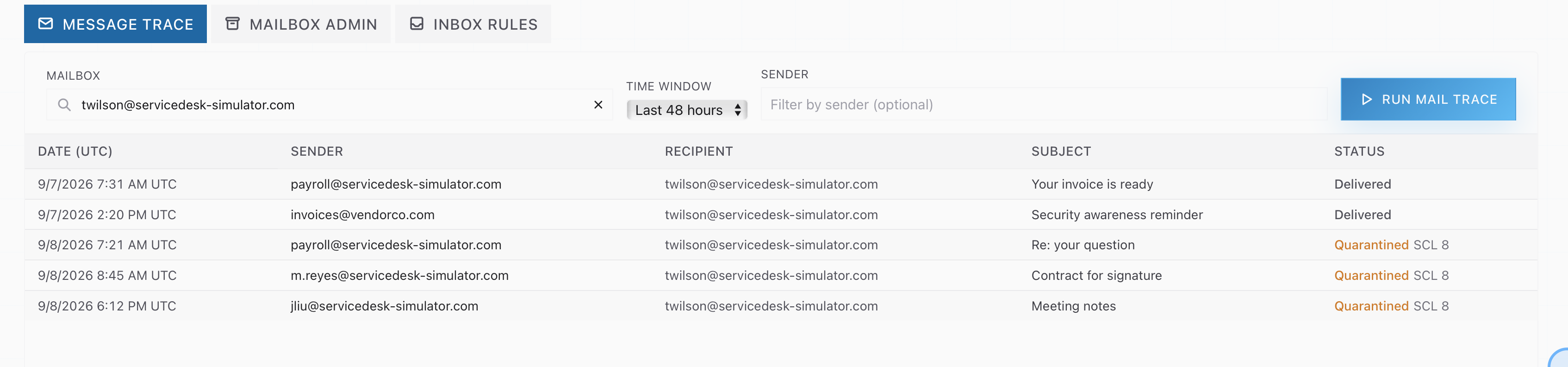
The Message Trace tab with a mailbox queried over the last 48 hours, listing five messages by date, sender, recipient and subject, two Delivered and three Quarantined at SCL 8
Message Trace over the last 48 hours. Two of these arrived; the filter held the other three, and those three belong to a different console.
Message Trace
The read-only log. Type a mailbox, pick a Time window of Last 24 hours, Last 48 hours or Last 7 days, optionally filter by sender, and press Run Mail Trace. You get one row per message with the date in UTC, sender, recipient, subject and status.
Mailbox Admin
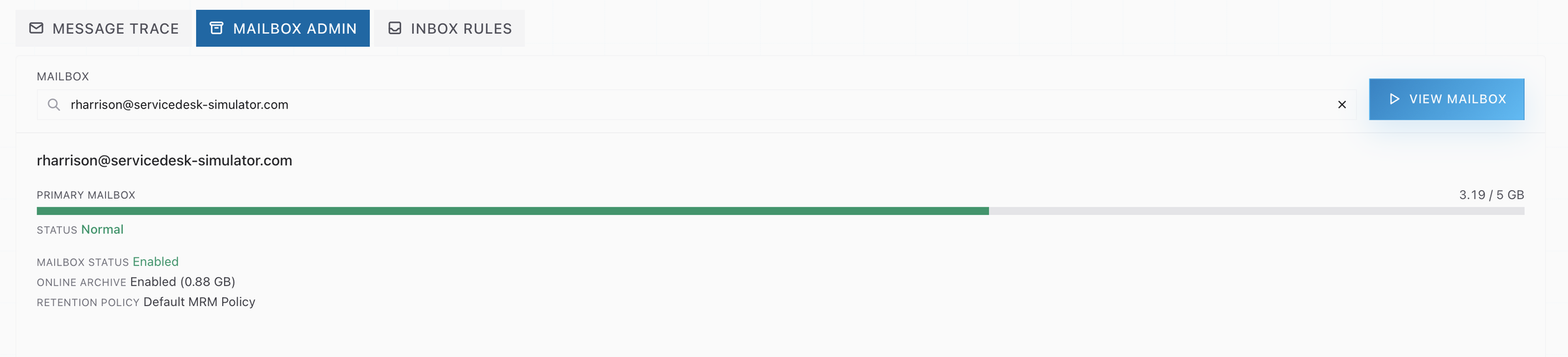
The mailbox's own properties. Type a mailbox and press View mailbox for its storage bar, its status, its Online Archive and its Retention policy. A healthy mailbox reads Normal; one that has filled up reads Prohibit Send/Receive (over quota).
Inbox Rules
The rules running inside that mailbox. Type a mailbox and press View rules. Each rule shows its name, its condition and its action.

A row that did not deliver carries the reason beside it: Failed and Pending rows show the real SMTP code, a Quarantined row shows the spam confidence level, or SCL, the filter gave it, and a Delivered row carries nothing. So a failed row reads 552 5.2.2 mailbox full and a blocked one reads 550 5.7.1 Message rejected by policy, exactly as part one described them.

The Mailbox Admin tab showing rharrison's mailbox at 3.19 of 5 GB, status Enabled, archive Enabled and the Default MRM retention policy.
A mailbox that has stopped accepting mail looks exactly like a delivery fault to the person reporting it. The storage bar and the status line settle that in one look, so read them first.

What maps to what

Three tabs, three real consoles. The table below says which real one each tab stands in for.

This consoleWhat it stands in for
Message Trace Message trace in the Exchange admin center, or Get-MessageTraceV2 in Exchange Online PowerShell. Google Workspace calls it Email Log Search.
The status column with its SMTP code The delivery status and the NDR code in a real trace result. The codes are the real ones.
Time window The date range picker, and the same warning about trace retention and about UTC.
Mailbox Admin The mailbox properties page in the Exchange admin center: storage, quota state, archive and retention.
Prohibit Send/Receive (over quota) The Exchange quota threshold of the same name, the point at which incoming mail is refused.
Online Archive The Exchange online archive mailbox, enabled per mailbox.
Inbox Rules Mailbox rules, the ones a user sets in their client or an admin reads with Get-InboxRule.
A rule whose condition reads Apply to all incoming messages The scope line on a real rule. Narrow conditions are housekeeping; a rule that catches everything is the one to read twice.

A real console goes further in four directions, and all four are worth recognizing in a job description. A full trace opens each message into its per-hop detail and its Received: headers, so you can read the route the message actually took and quote a message ID that identifies that one message anywhere in the estate. It searches on subject and on recipient as well as on a mailbox and a sender, which is how you find a message when nobody can tell you who sent it. Its time window reaches back weeks, with a slower reporting mode for anything older than the live index. And the mailbox side carries three permissions that generate their own tickets: delegation, where somebody manages another person's calendar or inbox; Send As, where mail leaves under somebody else's address, which is a genuine audit question; and litigation hold, which freezes a mailbox so nothing in it can be deleted while a legal matter runs.

The line between this console and the filter

Inbound mail here is filtered in the cloud before it reaches EXCH01. It passes the filtering service first, and only what survives is handed to the mail server for delivery. That is why the Email group holds two consoles, and why picking the right one is part of the diagnosis.

The trace is deliberately read-only, exactly like the real one: it reports, and the fix happens in whichever console owns it. Where that is depends on what the trace said:

What the trace saysWhere the answer lives
Failed, 552 5.2.2 mailbox full Mailbox Admin. Enable the archive so old mail moves out of the primary mailbox.
Failed, 550 5.2.1 Mailbox cannot be accessed Mailbox Admin. The mailbox object itself is switched off.
Pending, 421 4.3.2 on several mailboxes The Server Room. A queue building for several mailboxes at once is the mail server refusing new mail, and it is worked on the server itself.
Delivered, every row, and the user still has nothing Inbox Rules, or the desktop client. The mail arrived, so something inside the mailbox moved it.
Quarantined, or 550 5.7.1 rejected by policy Mail Security. The filter held the message in front of EXCH01, and the control that releases it is on that console.

That last row is the boundary. If the message never reached the mailbox, the filter owns the answer. That console is Mail Security.

Part three

Practice

Run a trace on a quiet mailbox first, then take a ticket where the trace is the whole diagnosis.

Open this module in the simulator