ServiceDesk Simulator

The Support Toolkit · Module 8 of 16

Remote Desktop

Remote control is the most invasive thing a first-line technician can do. The technology is easy; knowing when you may is the module.

Connecting to a user's machine takes about ten seconds. This module is about the rest of it: whether you are allowed to, and what you are answerable for once you are there.

Part one

On the job

Remote support as it is really done: the three technologies behind "can you just take a look", the consent that comes before the connection, and what you are accountable for once you are on somebody else's screen.

Three ways onto somebody's machine

A user says "can you just take a look". Three different technologies sit behind that sentence and they behave differently enough that picking the wrong one is visible to the person on the other end.

Remote Desktop (RDP)
Microsoft's protocol, launched from mstsc.exe. It opens a session on the remote machine and, on a workstation, throws the signed-in user out to the lock screen.
Remote assistance and shadowing
Quick Assist on modern Windows, Remote Assistance (msra.exe) before it, the Remote Control feature in Configuration Manager (SCCM), Remote Help in Intune. These join the session the user is already sitting in and you both watch the same screen.
Third-party remote tools
TeamViewer, ScreenConnect (formerly ConnectWise Control), AnyDesk, Splashtop, LogMeIn Rescue. Agents on the endpoint that broker a connection through the vendor, so a managed service provider can reach a machine wherever it is, without needing a route into the company network first.
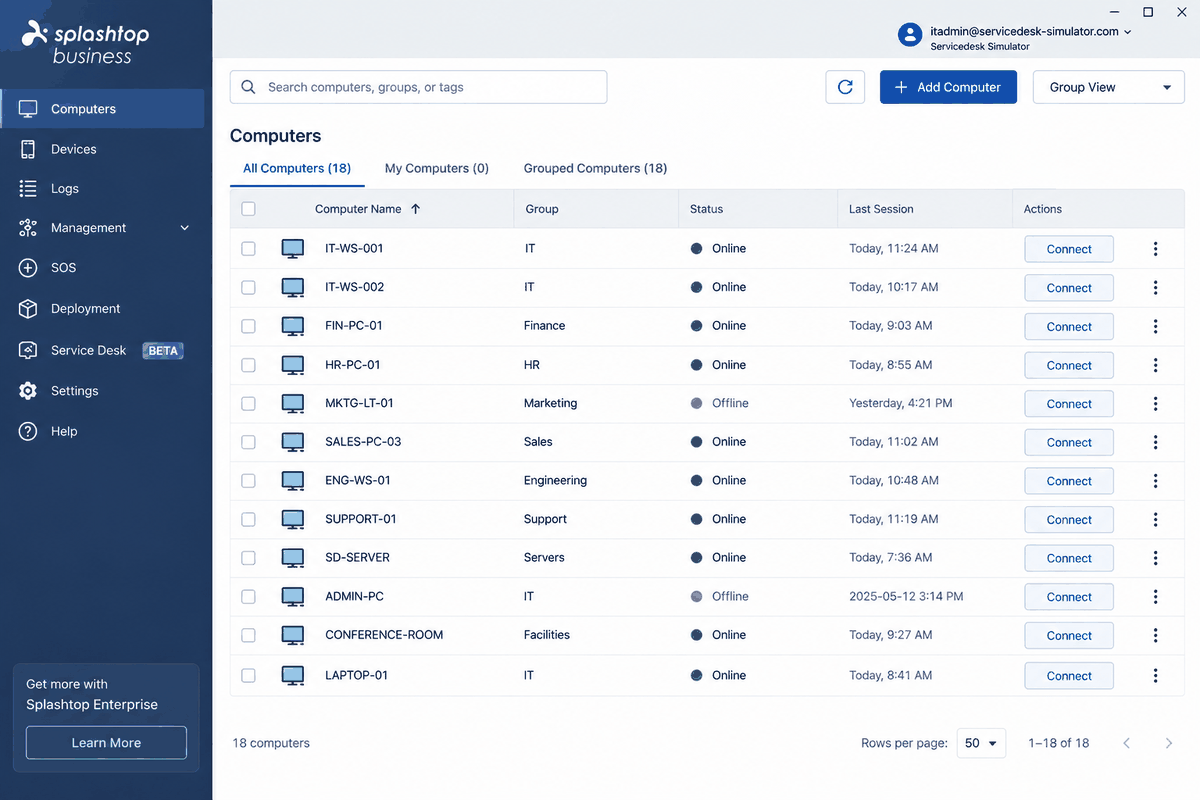
An illustration of a remote support console listing eighteen computers by name and group, with online status, last session time and a Connect button on each row.
An illustration of the third kind, drawn for this course. You can connect to any machine in a list like that one with a single click, and the console will not ask whether the user is expecting you, so ask them first.

Splashtop is a trademark of Splashtop Inc. ServiceDesk Simulator is not affiliated with, endorsed by, or sponsored by them.

The difference worth carrying into an interview

RDP takes the session

  • Opens a session of its own on the machine.
  • A Windows desktop allows one session at a time, so the person sitting there lands on the lock screen.
  • Which is why desks keep RDP for servers, jump boxes and machines nobody is sitting at.

Remote control shadows the session

  • You both watch the same screen, and their work stays on it.
  • The mouse stays theirs until they hand it over.
  • This is what a helpdesk uses on a person, and what the tools in the next section do.
The reason to know the difference: a user watching you work answers the question you did not know to ask, "that started after the update on Friday", "no, that folder was always there". Someone staring at a lock screen tells you none of that, which is most of why you will rarely RDP into a workstation with a person at it.

Consent comes before the connection

This is the part that gets people suspended. You are about to look at somebody's open email and their personal browser tabs, on a machine you were invited onto for one printer fault.

Four things, in this order, every time

Announce yourself
Get a yes
Take control
Hand it back
"I am going to connect to SD1028 and look at your printer settings, is now a good moment" tells the user which machine, what you will open, and when. That is what makes it consent. "Ok to remote in?" leaves all three to their imagination.

Get that yes somewhere that leaves a record. A line in the ticket or a message in the chat tool is enough: a verbal yes on a call you did not note stops existing the moment anyone questions the session.

Then narrate the cursor. "I am taking the mouse now", and later "that is yours again, try it". Users hate the moment it moves on its own with no warning.

Unattended access is a different decision. Connecting to a machine with nobody in front of it is sometimes allowed and sometimes forbidden, and the answer lives in your organization's policy, so read it before you connect. Where it is allowed, note in the ticket that the machine was unattended and why you went in.

What you can see, and what you are answerable for

The second the screen paints you may be looking at an open mailbox, a payroll spreadsheet, a letter from HR, a medical appointment in a calendar, a password manager somebody left unlocked, and a browser with forty tabs of their private life. You were sent to fix a printer, and all of it came with the screen.

The discipline, in the order the session runs

Before you connect Ask the user to close anything they would rather you did not see.
While you are on Open only what the ticket needs. Their file system, their tabs and the minutes they spend away from the desk all sit outside it.
If you see something Stop, close it, and follow the escalation route: usually your team lead, and for anything suggesting harm or fraud, whoever owns security or HR. Note in the ticket that you stopped. Reading more "to be sure" turns a disclosure into your problem.
Before you leave Take your own files back off their desktop, sign out of anything you signed in to, and close the elevated prompt behind you.
What you do in a remote session is logged against your admin account. If you take a screenshot to show what you fixed, look at what else is on the screen first: a shot of an error message can catch the spreadsheet open behind it, and now somebody's salary is sitting in the ticket.

In a hospital or a clinic, say it out loud before you connect. "Please close any patient records or anything with personal information on it." PII is personally identifiable information, meaning anything that identifies one particular person: a full name with a date of birth, a social security or national insurance number, a home address, an account or medical record number. PHI, protected health information, is any of that tied to somebody's care, diagnosis, treatment or the payment for it, and it is the category healthcare regulates. You can fix the fault without reading any of it, and opening a record you had no reason to open is a disciplinary matter in most hospitals and can be a reportable breach even when it happened by accident. Closing it first protects the patient, and it protects you. The same sentence travels to a school, where student records have their own protection (FERPA, in the United States), and to a bank or a law firm, with a different name on the data each time.

When not to remote in at all

Remote control is the most invasive tool on the desk, it is often the slow one, and some of the time it cannot reach the machine at all. Reaching for it first is a habit worth breaking early.

Do not remote in whenDo this instead
The fix is one setting and they can find it Talk them through it. Same two minutes, it teaches them where the setting lives, and it deflects the next three tickets from that floor.
The machine is off, or stuck before boot A phone call or a desk visit. Remote control needs a running operating system on the far end to accept the connection, and a machine with no power, one halted before boot, or one sitting at a pre-boot encryption prompt has yet to get there. Spotting that early saves twenty minutes of clicking Connect.
The fault is upstream of the workstation Check the infrastructure. If mail is down for the whole company, the answer is on a server and the workstation will only ever show you the symptom. Server Room is about telling those apart.
The machine is offline A remote session needs the machine on the network. Connect fails on a machine with no wired or WiFi connection, so talk the fix through on the phone or have the machine brought to a bench.

Part two

How this works here

The Remote Desktop tool in this app: how you connect, what you land on, and what each simulated program stands in for.

Connecting to a machine

The tool lives in the Tools menu as Remote Desktop. It opens on a search box headed Select a computer to connect, reading Search by asset tag, hostname, or owner, over an empty list that says Type to find a computer until you do. Type any of the three, pick the row, press Connect.

Read the requester off the ticket and type that name into the search box. Taking the name off the ticket every time is how you avoid spending ten minutes on the wrong PC.

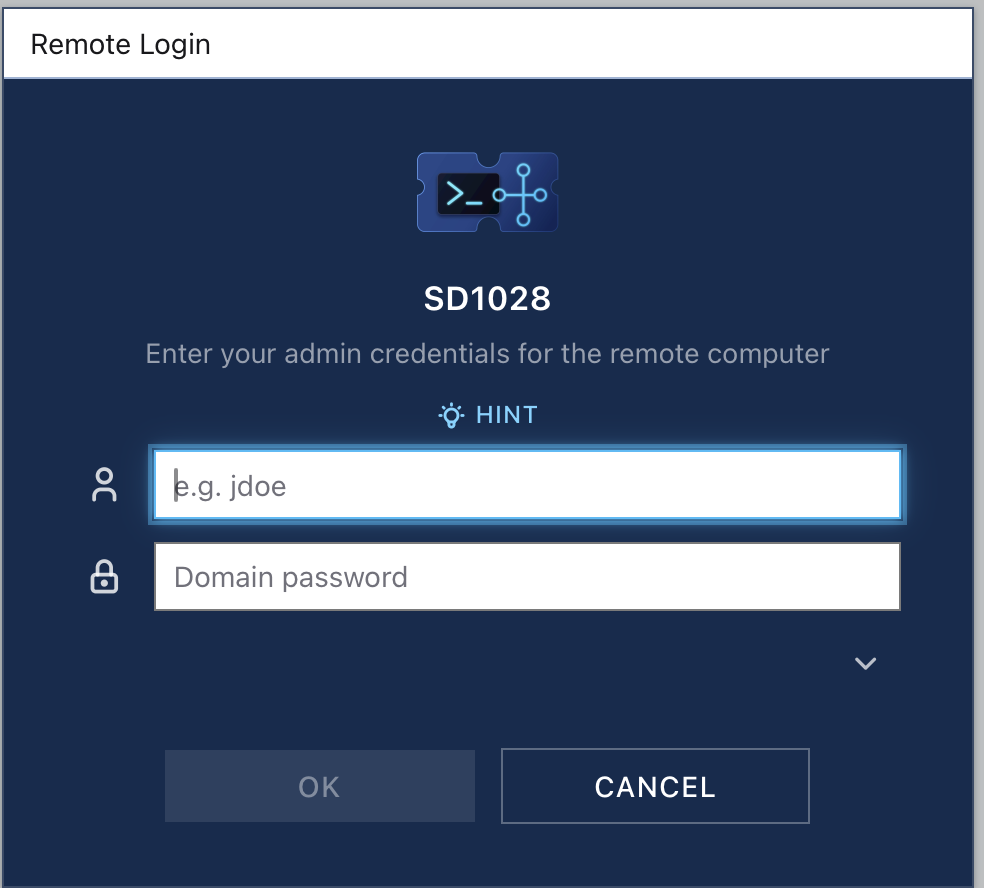
Then a credential prompt appears over the dimmed picker: Enter your admin credentials for the remote computer. Those are your own admin credentials. Sign in as the person whose ticket you are working and the app tells you so: Wrong credentials. Sign in with your own IT admin account, not the user's.

The prompt carries a Hint toggle that shows the username and password to type. On a real desk that username is a dedicated administrative login, the adm- account Directory had you run the console under (adm-jsmith), and every action in the session is attributed to it. The sim fills the Hint with your own name to keep the lab moving, but the account it stands in for is that separate admin login.

The remote login dialog for machine SD1028, asking for a username and a domain password.
The technician authenticates as themselves. Using the user's account to fix the user's machine destroys the only audit trail anyone has.

IT technicians are issued their own administrator credentials, separate from the account they sign in with every day. Those credentials carry elevated access on the machine: installing software, changing system settings, and the rest of the work that needs more than a standard account. When a machine asks for approval to do something privileged, that login is what you type. It is issued to you and it identifies you, so you keep it to yourself and type it only into a prompt you opened yourself.

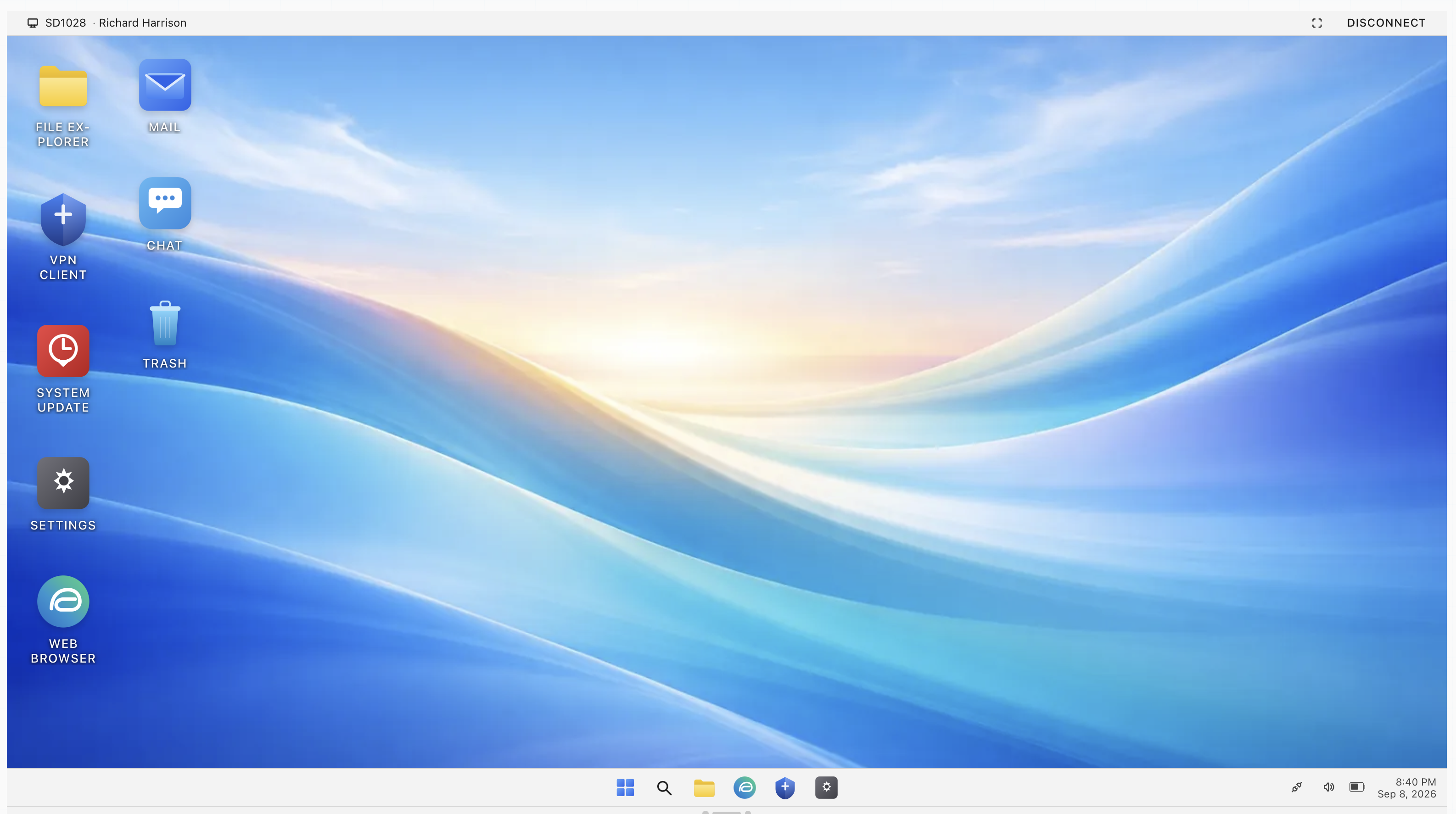
What you land on is a full desktop running Workstation OS 11 Pro. It behaves like a real one: a taskbar with a clock, a start menu, a search box, desktop icons, windows that open and close. System files sit under the usual root.

C:\WorkstationOS\System32

The clock in the taskbar shows the time on the machine you are connected to, and it comes from that machine's time zone setting, which lives in Settings under Time & Language. Time zone and region are separate settings in Windows and the clock follows the time zone. When it disagrees with the time where the user actually sits, the time zone is set wrong, and users never think to mention it.

Try to connect to a machine with no power and the picker tells you so: A machine that shows no signs of power cannot be repaired remotely. The next move is a phone call or a walk over.

What each program stands in for

Every program on this desktop stands in for something you will open in your first week on a real desk. Learn the pairing here and you will recognize the real tool when you meet it.

On the simulated machineWhat it stands in for
File Explorer Windows File Explorer, explorer.exe. Same drive letters, same mapped network drives.
Task Manager Task Manager, taskmgr.exe. The real one carries seven tabs; the three you work from here are Processes, Startup and Performance.
Event Viewer Event Viewer, eventvwr.msc, with the Application, Security, Setup and System logs.
Control Panel Control Panel and Programs and Features, appwiz.cpl, where installed software is listed and removed.
Settings The system settings app, covering display, printers, network and accounts, for example the Windows Settings app.
Terminal The command line run as administrator, for example Command Prompt or Windows Terminal.
VPN Client A corporate VPN client, for example Cisco Secure Client, Palo Alto GlobalProtect or FortiClient.
System Update The operating system's update tool, plus the vendor driver and firmware updaters that sit beside it, for example Windows Update.
Mail The mail client signed in to the user's mailbox, for example Outlook.
Web Browser The browser on the user's machine, with their own extensions and search settings, for example Edge or Chrome.
Chat The user's own copy of the company chat tool, for example Teams or Slack.
Trash The Recycle Bin.
Disk Cleanup cleanmgr.exe, the built-in disk cleanup tool.
Software Repair The Repair option on an installed application in Programs and Features.

Eight of them are icons on the desktop itself: File Explorer, Mail, VPN Client, Chat, System Update, Trash, Settings and Web Browser. The rest are behind the Start button and the taskbar search, which is where Task Manager, Event Viewer, Control Panel and Terminal live. Two of them live inside another program: Disk Cleanup is a control in Settings, and Software Repair is the repair action on a program row in Control Panel.

Elevation is modeled in one place, the Terminal. It opens unelevated and refuses an admin-only command until you elevate it from its own bar, which raises a User Account Control window asking Do you want to allow this app to make changes to your device? It wants credentials, the same way a real prompt does on a machine where the user holds a standard account.

The simulated Workstation OS desktop with File Explorer, Mail, VPN Client, Chat, System Update, Trash, Settings and Web Browser icons, a taskbar and a clock.
The session bar across the top carries the hostname, the owner's name, a Fullscreen control and Disconnect.

Part three

Practice

Connect to a machine, read it before you touch it, and work a ticket from the remote session to a close.

Open this module in the simulator