Every desk worth working on has written down how the environment is wired. Reading it first is the cheapest skill in this course.
Somebody has already written down what this company runs, who owns each piece, and how the repeating jobs are meant to be done. This module is about finding that page and reading it before you touch anything.
Part one
On the job
The artifacts a real desk keeps, who writes them, and what makes one usable at two in the morning.
Why a desk writes anything down
Picture two service desks with the same tickets coming in.
The same tickets, two desks
Writes nothing down
1Every recurrence takes as long as the first investigation did.
2The only copy of the answer is in one person's head.
3When that person is on leave, nobody else can answer it, and when they resign the answer goes with them.
Writes it down
1A new hire is useful in a week instead of a quarter.
2The same fault gets the same fix every time, so you can tell whether the fix holds.
3The late shift resolves something at 2am that they have never seen, without waking anyone up.
Confluence, SharePoint, the knowledge module inside ServiceNow, a folder of markdown in Git: any of them works, and any of them goes stale if nobody keeps it up to date.
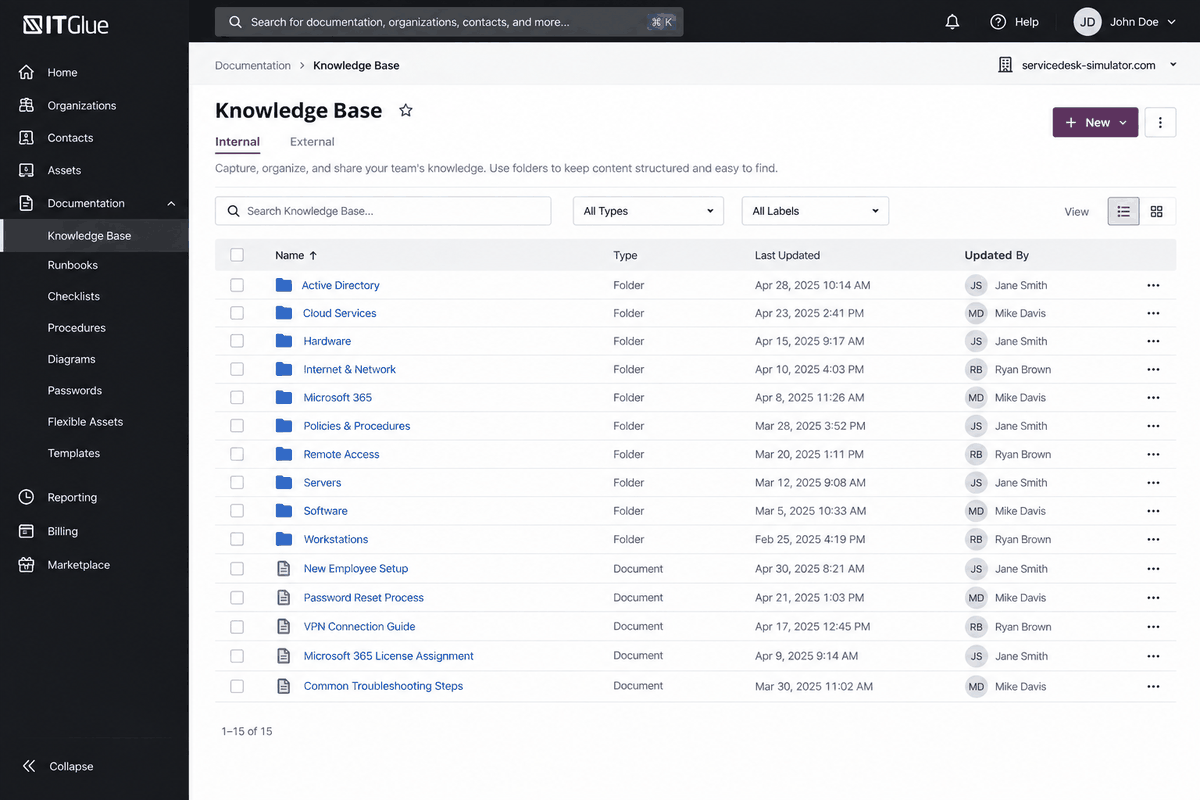
An illustration of a documentation library. Last Updated is what an experienced technician reads first, because a runbook nobody has touched in two years describes an environment that no longer exists, and following that confidently is worse than having nothing to follow.
IT Glue is a trademark of Kaseya Limited. ServiceDesk Simulator is not affiliated with, endorsed by, or sponsored by them.
Written down, an answer belongs to the whole desk, including everybody hired after you.
Runbooks, SOPs and the checklist test
Four words get used for overlapping things. In an interview it helps to be precise about them.
The word
What it is, and what it belongs to
Standard operating procedure
The agreed way this organization does a repeating task: onboarding a starter, offboarding a leaver, granting access to a restricted share. It belongs to the process, and says what must happen and in what order.
Runbook
The operational steps for a system. How to restart the service, how to fail over, what to check first when it alerts.
Work instruction
The click-by-click for one task inside a procedure, and the level of detail where screenshots belong.
Checklist
The SOP stripped to boxes you tick in the ticket. The version that actually gets used under pressure, and the version an auditor asks to see.
The test for whether you have written a real procedure: hand it to somebody who has never done the task. If they finish without asking you anything, it is a procedure. If they ask you three questions, it is a set of notes with a title on it.
Onboarding and offboarding are the two that get audited hardest. Offboarding especially, because an account nobody disabled is a finding, and the desk owns that finding however the handover was meant to work.
Known errors, workarounds and fixes
Your first shift separated the incident from the service request. ITIL, the common playbook most IT departments organize their service work around, draws a second line: an incident is the interruption and your job is to restore service, while a problem is the underlying cause and its job is to stop the incidents happening. Different records, different owners, and the same fault can be open as both at once.
Known error
A fault whose cause is understood and whose permanent fix has not shipped yet. It gets a record so the desk stops re-investigating it.
Known error database
Where those records live. Often shortened to KEDB. The entry pairs the symptom a user reports with the workaround that gets them working.
Workaround
Something that restores service without removing the cause. It is a legitimate answer, and a temporary one.
From one report to a permanent fix
Incident
Problem
Known error
Workaround
Permanent fix
After a patch, the finance application fails to open the first time every morning and works on the second attempt. The workaround is one line, open it twice. The permanent fix removes the cause, and it is a vendor hotfix three weeks out, on somebody else's schedule.
An entry like that turns a forty-minute investigation into a two-minute call, and it gives whoever owns the problem a count of how many people are living on the workaround, which is the number that gets the hotfix prioritized.
A workaround applied twenty times and never written down is the same investigation done twenty times, by twenty people who each thought they were the first.
Write it while you solve it
Knowledge-Centered Service, usually written KCS, is the model most large support organizations say they follow. It was called Knowledge-Centered Support for years, and both names are still in circulation, so you will meet either one. Most of it is one decision about when you write the article.
Two moments to write it
Later, as a project
1Later is another ticket, and it joins the back of a queue that is already full.
2By then you are reconstructing the fault, the fix and the user's own wording from memory.
Now, inside the ticket
1You search the base as the first step of the ticket.
2You capture what you learned in the words the user used.
3An article that was wrong gets fixed there and then, by the person who currently knows what right looks like.
The best time to write it is while the fault, the fix and the user's own words are still in front of you.
The rest of KCS follows from that. Confidence in an article grows as it gets reused, and the number worth watching is how often the base answers a ticket.
If you solved something without searching first, you owe the base an article. If you searched, found one, and it was out of date, the fix is part of the ticket.
The article that works at 2am
At 2am the reader is tired, alone, and working from a symptom. Write for that person.
The shape of an article that works
TitleFindable by the symptom, however it is titled. A real base titles by topic, "Mobile Email Setup". What matters is that the words a person in trouble would reach for, "keeps asking for my password", land the article, and that job falls to the tags and the body more than the title. Title it as a topic, and put the symptom somewhere the search can hit.
SymptomWhat the person sees and says, wrong words included. Their phrasing is what gets typed into a search box.
EnvironmentWhich version, which platform, which site. Say where it applies, because an article that works only on laptops will be followed on a desktop.
StepsNumbered, one action each, with the exact name of every control you are telling somebody to click.
VerificationHow the reader knows it worked. An article that ends at "restart the service" leaves the next person restarting it and hoping.
If this does not workWhere to go next, and what to attach when you escalate. Leave it out and you have trained people to escalate blind.
Now the mirror image. "I could not find anything in the KB" is usually a search-terms problem. Users describe what they see. Engineers describe what they believe caused it. If the article was written by the second kind of person and searched by the first, it is invisible while sitting right there.
The user hands you a sentence, and you pull out the noun for the thing that is misbehaving, then search that one word. A caller who says their "mail client keeps asking for my password" has told you to search mail. The password is what it keeps asking for; the mail client is what is broken, and the article that fixes it is filed under mail. Try the user's word for a thing before your word for it, then the exact error string with the variable parts stripped out. Tags exist for the same reason: a well-tagged article is found by somebody who used none of the words in its title.
Naming conventions, and who owns what
The other half of documentation is the environment itself: which server does what, what it is called, and who owns it.
When hostnames encode site, role and instance, a name tells you where the box is and what it does before you have opened anything.
SITE-ROLE-NN e.g. LON-SQL-02, NYC-PRINT-01
What the name tells you, what only the document does
The hostname
1Site, role and instance, read straight off the name.
2Most estates, meaning all of a company's IT taken together, that grew organically end up with DC01 and DC02 for domain controllers, EXCH01 for mail, and a file server nobody can defend.
3Learn the local convention on day one and most hostnames explain themselves.
The document
1Which team owns it.
2Who is on call for it.
3When its maintenance window is.
4What stops working if it goes down.
Ownership is the answer people skip writing down, and an unowned system is the one that goes unpatched. In a mature shop those four answers live in a CMDB, a configuration management database with one record per configuration item, which is Asset Management.
One more thing the document has to answer: which system owns which piece of a user. In a hybrid estate, meaning one running an on-premises directory and a cloud one side by side, the password may live on-premises while MFA (multi-factor authentication) lives in the cloud, and knowing that split decides whether you fix the login or reset the wrong thing twice. A later module, Directory, takes that split apart properly.
This product runs the same idea, so the IDs on your own screen say what they refer to.
INC0012847
A ticket. Every incident here is INC followed by a number, the prefix an IT service management tool gives an incident.
SD2001
A machine, tagged for the asset register. Hardware tags start SD, for the company short name SDSim.
MN2050
A monitor. A separate MN prefix keeps screens apart from the machines they plug into.
Part two
How this works here
The Documentation Station: what is in it, how its search ranks, and which real artifact each section stands in for.
The Documentation Station
Open Tools, then the Knowledge group, then Documentation. The panel header reads Documentation Station.
Ten categories run down the left, each with a count of the articles inside it, forty articles in total. With nothing selected the main pane shows the same list under All Categories, and a breadcrumb along the top tracks where you are as you drill in.
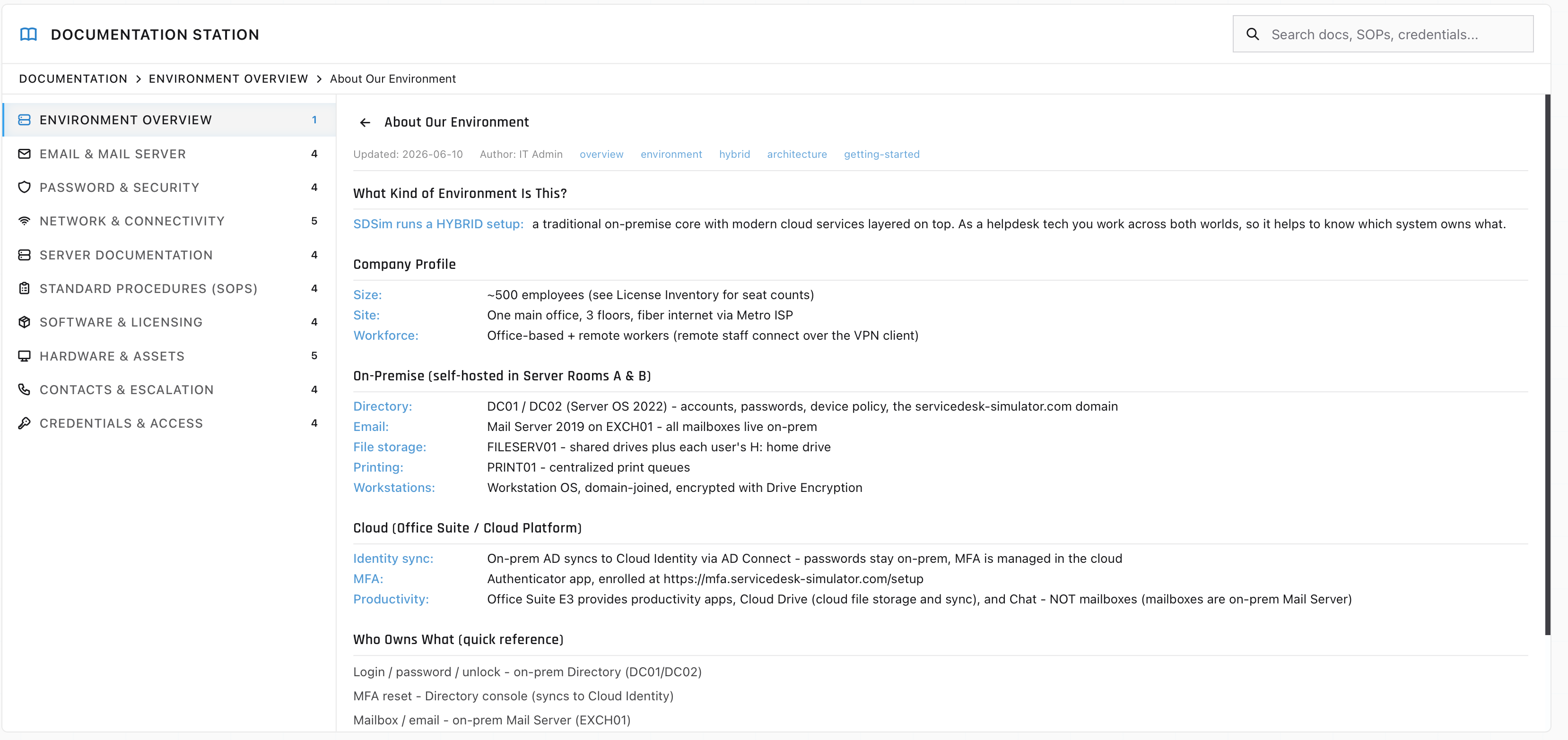
Every article carries Updated: with a date and a row of tags. The environment article is the one to read before any of the others: it says that SDSim runs a hybrid estate, and it has a "Who Owns What" block that tells you which console holds the answer for logins, mailboxes, files and remote access.
Categories on the left with their article counts, the article body on the right, and the breadcrumb across the top.
One thing to notice and then discount: every article is stamped Author: IT Admin. On a real desk the author line is a person you can go and ask, and the age of an article next to the name of somebody who left two years ago is itself a signal.
Each section stands in for something a working desk keeps. The real names are worth learning now.
In this panel
What it is on a real desk
Environment Overview
The environment document a new starter reads on day one: what is on-premises, what is cloud, and which system owns which part of a user.
Server Documentation
CMDB records or server build sheets. Hostname, role, address, location, operating system.
Standard Procedures (SOPs)
The SOP library. The onboarding and offboarding checklists are the two an auditor asks for.
Password & Security
Published policy. The numbers you read out to a caller who asks how long a password has to be.
Network & Connectivity
Network diagrams, wireless build notes, the VPN client guide and the address-allocation reference.
Contacts & Escalation
The escalation matrix, the on-call rota and the vendor support contracts, including the contract numbers.
Credentials & Access
A privileged-access vault. On a real desk this is the one section that sits behind a login of its own.
Email & Mail Server
Mail platform runbooks and mailbox procedures: server settings, ActiveSync, distribution lists, and the mobile-email setup users ask about most.
Software & Licensing
What is licensed, to whom, and how many seats are left. The record you read before promising somebody an install.
Hardware & Assets
The asset register: which machine is which, its tag, and who holds it. The same records a CMDB keeps.
Article tags
Keywords on a knowledge article, which is what most search ranking leans on.
The Credentials & Access row needs a caveat. This panel keeps domain and local administrator credentials on a readable page because the simulation needs you to be able to find them. In a real environment that material sits in a vault with checkout, expiry and an audit trail, and finding the same thing on an internal wiki is a ticket you raise.
What the search matches, and how it ranks
The box at the top right reads Search docs, SOPs, credentials... and it matches three things: the article title, the full body text, and the tags.
Results come back ranked. An exact title match wins, then a title that starts with your term, then a title that contains it, then a tag hit, and last an article that only mentions your term somewhere in its body. So searching "admin" puts the elevated-access article at the top, above everything that merely says admin in a sentence.
Search the noun. "printer" finds things; the whole sentence "the printer in the cafeteria will not print anything" finds nothing, because no title, tag or body string looks like that.
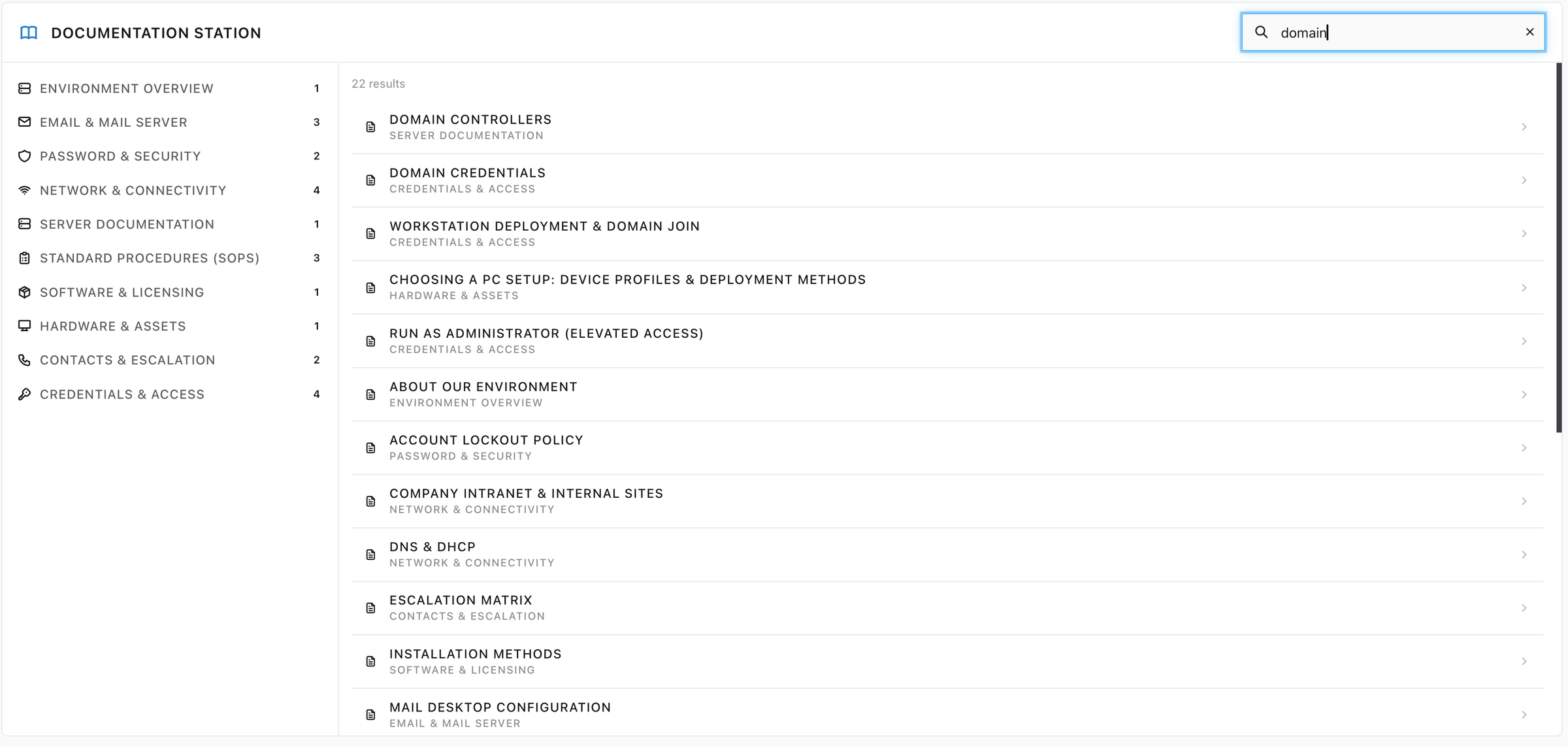
One noun, twenty-two articles: this is "domain" typed into the box, hitting across Server Documentation, Credentials & Access and more. Two minutes of reading here answers questions you would otherwise escalate.
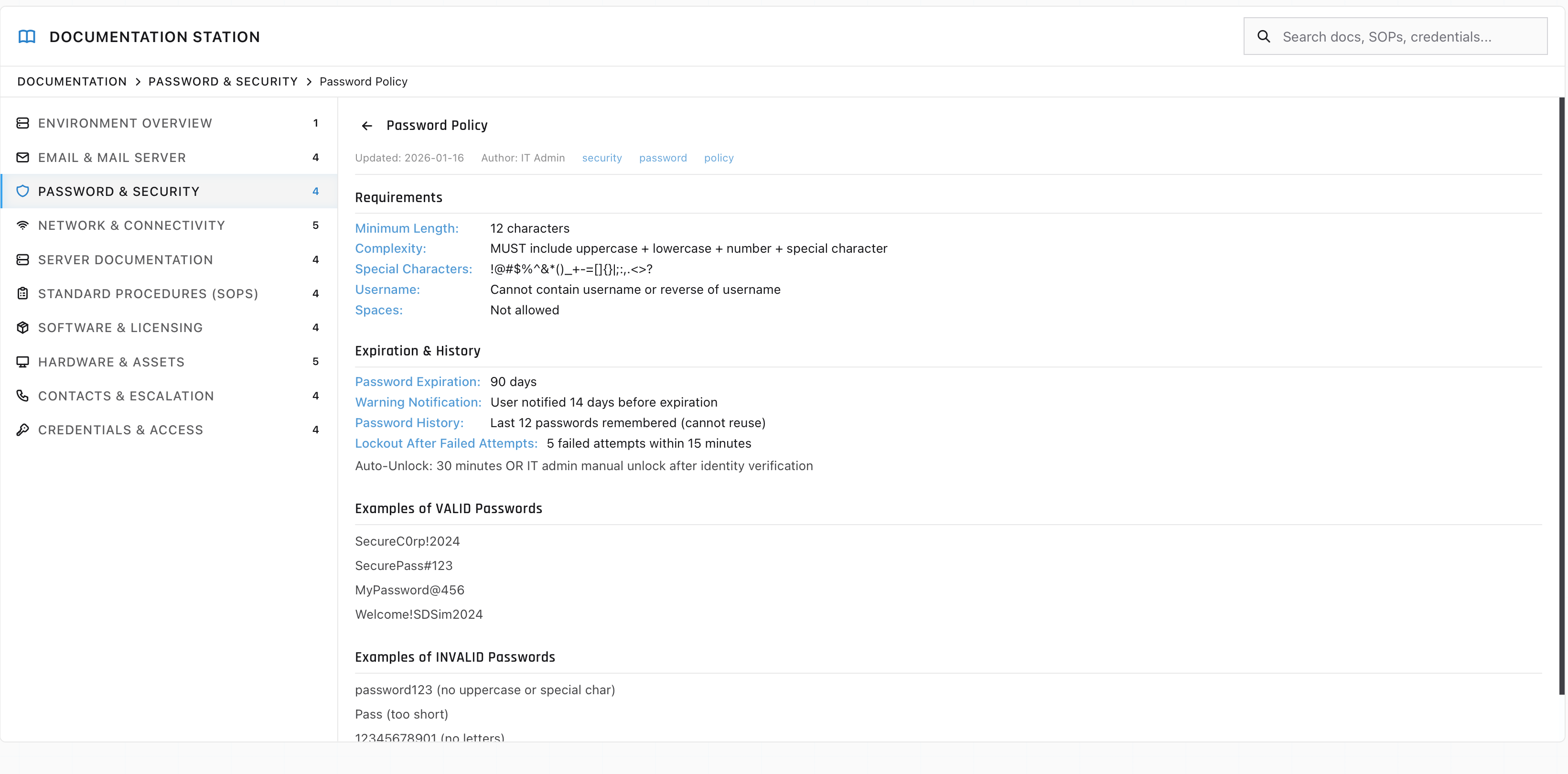
Password Policy: minimum length, complexity, expiry, history and the lockout threshold. One search away, so you can read the real numbers out on a call.
Sometimes the honest result is nothing at all. Search "name change" and the panel comes back empty, because no article covers it. Some tickets arrive ahead of the documentation, and that one is yours to judge: read the closest policy, ask the person who would know, or escalate.
This panel is a reader. A real knowledge base has a writing side too, and that is where the rest of part one happens: an article you can correct in place, a rating control that tells the owner which articles are failing people, a version history naming who changed what and when, and a review date that expires an article nobody has confirmed lately. Alongside it sits the known error database, where a fault with no fix yet is written down with its workaround so the next twenty tickets are answered in a minute each.
Read before you touch a tool, and write down what you found so the next person gets to read it. This panel drills the reading half.
Part three
Practice
Take a symptom to the docs before you take it to a tool.