The window a technician lives in. What ADUC is, what the tabs are for, and what you are allowed to change from a first-line seat.
Almost every account problem you will be handed is answered by reading one record properly, in one console, before you touch a single control.
Part one
Active Directory Users and Computers
The console a working technician spends the day in: how to get it onto a machine, what the tabs hold, which of a person's several names the directory answers to, and how to find out what your own account is allowed to change.
What the directory is holding
When someone signs in to a work computer, the computer hands the attempt to a server and waits for an answer. That server is a domain controller, and the database it answers from is Active Directory. One account works on every machine in the building because it lives on that server, which puts a login failure on the account and the server that answers for it.
Domain
A set of users, computers and resources sharing one authentication database. Written like a DNS name, for example example.com.
Domain controller
A server holding a copy of that database and answering sign-in requests. There are normally at least two, and they replicate to each other.
AD DS
Active Directory Domain Services, the Microsoft product providing all of the above. When a job posting says "Active Directory", this is what it means.
LDAP
Lightweight Directory Access Protocol, the protocol used to query the directory. On a first-line desk you meet it in error messages; configuring it belongs to another team.
Kerberos
The protocol that issues the ticket proving who you are once the password has been accepted. Same again: recognize the name and what it does.
The directory holds more than people. Anything the domain needs to know about gets a record, and four object types cover almost everything you will meet.
The four object types
UserA person's account. The thing a password belongs to.
ComputerA joined machine, trusted or distrusted independently of whoever is sitting at it.
GroupA named bag of accounts, and how access is actually granted: permissions go on the group, people go in the group, and nobody gets a permission of their own.
Organizational unitA container holding the others, always shortened to OU. Group Policy attaches to it and administrative rights are delegated over it, so moving an account between OUs can quietly change what that person's desktop does.
When one person can open a share and a colleague cannot, the difference is almost always a group.
The two words nobody senior uses interchangeably
Authentication
1Proving who you are.
2This is the login.
3Fails as a password that will not take.
Authorization
1What you are then allowed to open.
2This is the groups.
3Fails as access denied on something you reached.
A person can authenticate perfectly and still be refused: the password did its job and the groups are the fault.
Getting the console onto your machine
The console is Active Directory Users and Computers. Nobody says that out loud. Everyone says ADUC, and everyone launches it by pressing Win+R and typing the name of the snap-in file.
dsa.msc
From a bare workstation to a usable console
Install RSAT
Launch dsa.msc
Run as admin
Advanced Features
Four steps, once per machine. Skipping the last one is why a senior tech can see an attribute you swear is not there.
The console ships on every domain controller, and on a healthy network first-line staff hold no logon rights there, so it goes on your own machine as part of RSAT, the Remote Server Administration Tools: Settings, then System, then Optional features, then add "RSAT: Active Directory Domain Services and Lightweight Directory Services Tools". From an elevated PowerShell prompt it is one line.
If that fails, the machine is usually pointed at an internal update server that has not been told to offer optional features, which is a question for whoever runs patching.
Your everyday account is an ordinary user account, and most organizations issue a second, separate one for administrative work. runas launches the console as that account while you stay signed in as yourself.
runas /user:EXAMPLE\adm-jsmith "mmc dsa.msc"
Advanced Features is under View. Without it the console hides several containers and, more usefully, hides the Attribute Editor tab, which shows the raw attribute names behind every field on every other tab. When a senior tech tells you to "check the attribute", that tab is where they mean.
The tabs on a user's properties
Find a person in ADUC, double-click them, and you get a properties dialog with somewhere around fifteen tabs. Three carry nearly everything a first-line ticket needs.
General
Who the person is, as a human. First name, last name, display name, description, office, telephone number, email address, web page. This is the tab that answers "is this the right Chen?".
Account
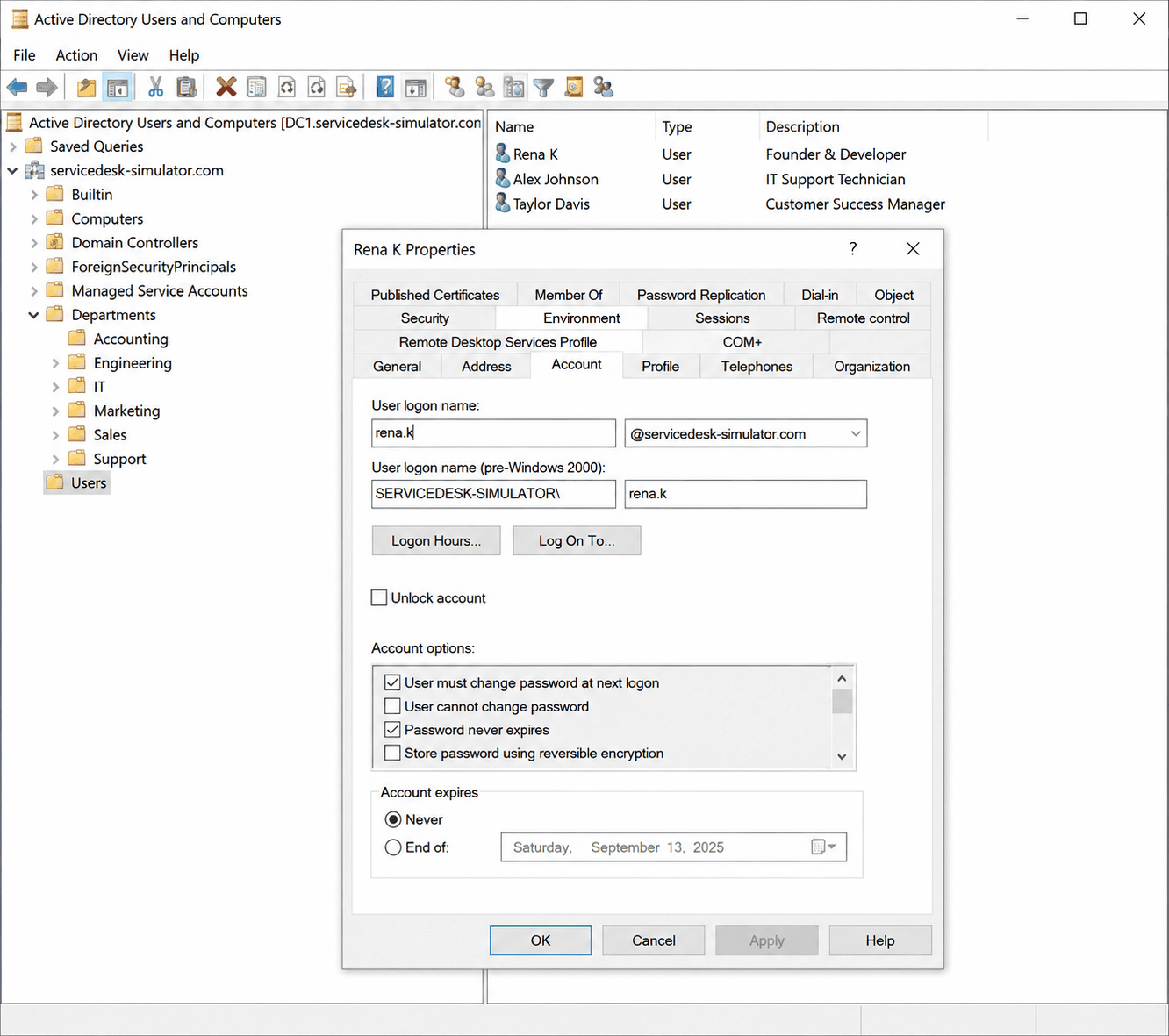
The tab that actually does work. Both logon names live here, along with the Unlock account checkbox, the account options, logon hours, the list of workstations the account may sign in to, and the account expiry date.
Member Of
Every group the account belongs to, plus its primary group. When a ticket says someone cannot open a share, this is the tab you are going to, and comparing it against a colleague who can open the share is the fastest diagnosis in the job.
An illustration of the console rather than a capture of it, and close enough to the window a first-line technician lives in. Both logon names, the lockout state and the password flags sit together on the Account tab, which is why almost every access ticket ends up there and why answering one from the General tab wastes the call.
Windows and Active Directory are trademarks of Microsoft Corporation. ServiceDesk Simulator is not affiliated with, endorsed by, or sponsored by them.
The four controls that refuse a login
Four separate controls sit on the Account tab and beginners conflate them constantly. Each refuses a login in its own way.
Control on the Account tab
What it does
Account options
Checkboxes: "User must change password at next logon", "User cannot change password", "Password never expires", "Account is disabled".
Logon Hours
Which hours of which days the account may sign in.
Log On To
Which machines it may sign in from.
Account expires
A hard end date on the account itself, normally set on a contractor so nobody has to remember to switch them off.
The collision that catches everybody once
Expired account
1Passed its end date and stopped working.
2Extending it is a contract decision with a paper trail.
3Belongs to whoever owns the contract.
Expired password
1The account is fine, the password is simply old.
2A reset and a forced change at next logon.
3Changing it at the sign-in screen needs a domain controller in reach, so somebody at home and off the VPN usually cannot, and that call is a common one.
4Ordinary first-line work.
Two states share one word, so say which of them you mean.
Unlock account is a checkbox on the Account tab, separate from the password field. A locked account is one the lockout policy switched off after too many wrong attempts, and clearing that lock is its own action. If you reset a locked account's password and hand the person a temporary one, they will try it, it will be refused, and they will call back angrier. Unlock, then reset if the password was also the problem, and tell them which of the two you did.
Note which direction that checkbox works in. ADUC clears a lockout, and creating one is the policy's job, done on its own after a threshold of wrong passwords, so every locked account you meet at work has a story behind it. Reading that story, five failed attempts at 08:55 against forty overnight, is usually the difference between a user who fumbled their new password and an account somebody is guessing at.
One person, several names
A ticket arrives from "John Smith". You search for John Smith, find nothing useful, and conclude the account is missing. You searched with the wrong one of his names, and the directory holds at least four.
sAMAccountName
The short logon name, jsmith, sometimes written EXAMPLE\jsmith. Hard limit of twenty characters, still enforced for backward compatibility, and it cannot contain characters like / \ [ ] : ; | = , + * ? < >. This is the one ADUC labels "pre-Windows 2000" on the Account tab.
userPrincipalName
The long logon name, jsmith@example.com, universally shortened to UPN. It looks exactly like an email address and is frequently a different string from the person's mailbox address. The part before the @ is free to differ from the short name. UPNs exist largely as the escape hatch from the twenty-character cap.
displayName
What chat, mail and your ticket queue show. John M. Smith. It is the name a ticket gives you, and the one you search with last.
distinguishedName
The full path of the object in the directory, always shortened to DN. Unique, and the only one of the four that tells you where the account sits.
CN=John Smith,OU=Sales,OU=Users,DC=example,DC=com
That DN, read right to left
DC=example,DC=comThe domain. DC is a domain component here, not a domain controller. Right to left is the direction a DN is built in, so this is where you start reading.
OU=UsersA container inside the domain.
OU=SalesA container inside that one.
CN=John SmithThe object itself. CN stands for common name.
Read one on sight and you can tell whether you found the staff account, the contractor account or the service account.
Since Windows 2000 a user can sign in with either logon name, which is exactly why users cannot tell you which one they use. It is also why the useful question after "my username doesn't work" is what they typed, character for character. Half of those tickets close themselves on the answer.
When you cannot find someone, you are usually searching with the wrong one of their names. Search on the surname alone and read the results. It is faster than guessing at a logon format, and it shows you the near-misses, which is how you catch the two Chens before you reset the wrong one.
Computers are objects, and groups have a shape
Two of the four object types carry more than their name suggests, and both come up in tickets that look like something else.
A computer is a record you can open, the same way a person is. Search for the hostname in ADUC and you get its own properties: which OU it sits in, its description, its operating system, and controls to disable or reset it. The machine holds an account and a password of its own, rotated every thirty days without anybody watching, and that account is what proves the machine to the domain. When the two ends stop agreeing, usually because the machine was rolled back to an older snapshot, you get "the trust relationship between this workstation and the primary domain failed", which is a fault on the computer object, whoever happens to be sitting at the machine. Knowing the object exists is what stops you resetting a password for two hours.
Groups carry two settings that sit behind the list of names, and an interviewer may well ask for both.
Type
A security group grants permissions. A distribution group is a mailing list and grants nothing. The names look identical in a list, so somebody added to the distribution group with the right-sounding name still cannot open the share, and the ticket comes back.
Scope
Domain local, global or universal, which decides where the group can be used and what it may contain. The pattern to recognize is people into a global group, the global group into a domain local group, and the permission on the domain local group.
Nesting
A group can be a member of another group, and rights flow down. So somebody can hold a permission nobody granted them directly, which is why "why can this person open that" is answered by walking the chain.
A new membership takes effect at the person's next sign-in. Group membership is written into the Kerberos ticket issued at logon, and that ticket stands until the next one is issued. So the honest close on an access ticket is: I have added you, sign out and back in, then try it. Skip that sentence and they test it immediately, it fails, and you both spend the afternoon looking for a fault that is not there.
What you are allowed to change
Real first-line job postings contain the phrase "within delegated permissions", and what those permissions are is a decision somebody at your company made. Rights in Active Directory are handed out over specific containers for specific tasks, through the Delegation of Control Wizard. The tasks themselves are ordinary first-line work: resetting a password, unlocking an account, forcing a change at next logon, adding and removing group memberships. Access requests are one of the highest-volume ticket types on any service desk, and the desk is normally the team that fulfills them.
Where it stops is the part that varies, and it varies enormously. Some desks, smaller companies and managed service providers especially, delegate reset and unlock across the whole directory, executives and IT staff included, because there is nobody else to do it at eight in the morning. Some fence first line to staff accounts and keep privileged ones behind a separate team. Plenty sit in between, where you hold the right and policy still asks for a second approver, or a manager's written approval, before you use it on a sensitive account. All three are real arrangements, and which one you have walked into is a question for your first week. Whichever it is, every change you make is written down: a real directory logs the action, the object it landed on and the admin account behind it, which is most of why that second account exists.
The three questions to have answered in your first week
What am I delegated?Which actions, on which accounts. Ask for it in writing if you can, so that under pressure you are reading a list. Then test one harmless case, a reset on your own second account, so you know.
Where does it stop, and what needs approval?Two different boundaries and people confuse them. One is a right somebody else holds, where the console refuses you. The other is a right you hold and are expected to get sign-off before using. The second is the dangerous one, because the console will let you.
Who takes over at that line?A name or a queue, known before you need it. The functional escalation Your first shift described only works when the name is already in your head.
Ask these three in your first week. Assume the answers from a course and the assumption fails in both directions: refusing work you were hired to do reads as badly as doing work nobody gave you.
The one caution that holds on every desk is about risk. Resetting a second factor hands whoever calls next a working credential, so it is the action to slow down on regardless of whose account it is. The MGM breach in The phone was exactly this: a help desk talked into resetting multi-factor authentication for someone who turned out to be an attacker. Verify who is actually on the line before you clear a second factor, and hand the request on if you cannot.
The same reasoning is why any organization thinks about this at all, and it is worth understanding. Helpdesk accounts are among the most phished accounts anywhere, because everybody knows what they can do. A company that tiers its delegation is limiting what a stolen helpdesk account is worth; a company that does not has decided the speed is worth more. Both are real positions. Either way the job is the same: use what you were given, on requests you have verified, and hand on the rest.
Read before you write. Open the record and answer four questions in order before your hand goes anywhere near a button.
Four questions, in this order, before anything is pressed
Enabled?
Past its end date?
Locked?
Password expired?
The first two rarely end with you pressing a button: a disabled account and an expired end date are somebody's decision, and your job is to find out whose before undoing it. The second two are the ordinary work. Guessing that order wrong is how an account gets quietly re-enabled two days after security disabled it on purpose.
An admin console has no undo. Every action you take in one is applied immediately and stands. Select the wrong Chen and the wrong Chen stays reset, because a directory acts on the click and asks nothing. Read the record, confirm the person, then act.
The four commands worth knowing, and where this is heading
Deep dive, optional on a first read. Nothing later in this module leans on this page. Come back to it once the tabs and the four controls that refuse a login feel automatic.
You will be asked about PowerShell in an interview for a first-line role, and the honest scope is small: four cmdlets from the ActiveDirectory module that come up constantly, which you should be able to say out loud without looking them up.
That is the read, and it carries the trap that catches everyone exactly once. Get-ADUser returns a small default set of properties, and lockout state sits outside it. An attribute missing from the output is an attribute you asked the directory to leave out. -Properties is the fix, and -Properties * while you are learning is a reasonable habit.
Search-ADAccount finds accounts by state, which is how you answer "is it just me or is everyone locked out this morning". It takes -LockedOut, -AccountDisabled, -PasswordExpired and -AccountExpired. Piping it straight into Unlock-ADAccount is a real thing people do after a bad password-policy change, but run the search on its own first and read the list.
Unlock-ADAccount -Identity jsmith
Set-ADAccountPassword -Identity jsmith -Reset
Those two are the write half, separate on purpose, the same way the checkbox and the password field are separate in the console. A reset is normally paired with Set-ADUser jsmith -ChangePasswordAtLogon $true so the person picks their own password the moment they get in and the temporary one you read out over the phone stops being a credential. The -Identity parameter accepts the short name, the DN, the GUID or the SID, the two identifiers the directory generates for the account itself, which is the practical reason it is worth being able to read a DN.
Now the direction of travel. Most organizations run on-premises Active Directory and cloud identity side by side and synchronize between them, and a 2026 job posting will ask for both by name. Two more words to recognize: Microsoft Entra ID is the current name for Azure AD, and an administrative unit is the cloud's answer to an OU, the thing cloud admin roles get scoped to.
Where a hybrid account actually lives
Entra IDThe cloud directory. Owns MFA and access to cloud services. Reset a synced account here and it succeeds, which is the trap: the cloud takes the new password and on-premises keeps the old one.
Entra ConnectFormerly Azure AD Connect. Synchronizes users, groups and credentials upward, on a cycle that runs every thirty minutes by default. Some things can be written back downward, passwords among them, but each is an option somebody has to switch on.
On-premises ADThe source of truth for a hybrid account, so this is where the password reset belongs. Getting this backward is a common first-week mistake.
Because the sync runs on a delay, somebody can be re-enabled on-premises and still be refused by a cloud service for a few minutes. Say so, and give the sync its few minutes.
The cloud reset failure is worth knowing, because it looks like a success. Reset a synced user in the Microsoft 365 admin center and the password changes in Entra ID and stays there: that portal writes to the cloud directory only. So the person signs in to mail with the new password and into their laptop with the old one, which still works, and calls back saying you broke something. The Entra admin center does write back, for federated and password hash synchronized users, where somebody has turned writeback on. The on-premises reset avoids the whole question.
Part two
The Directory panel
The same record in this simulator, field by field, with the real directory attribute sitting behind each one and the differences stated plainly.
Where it lives and what it draws
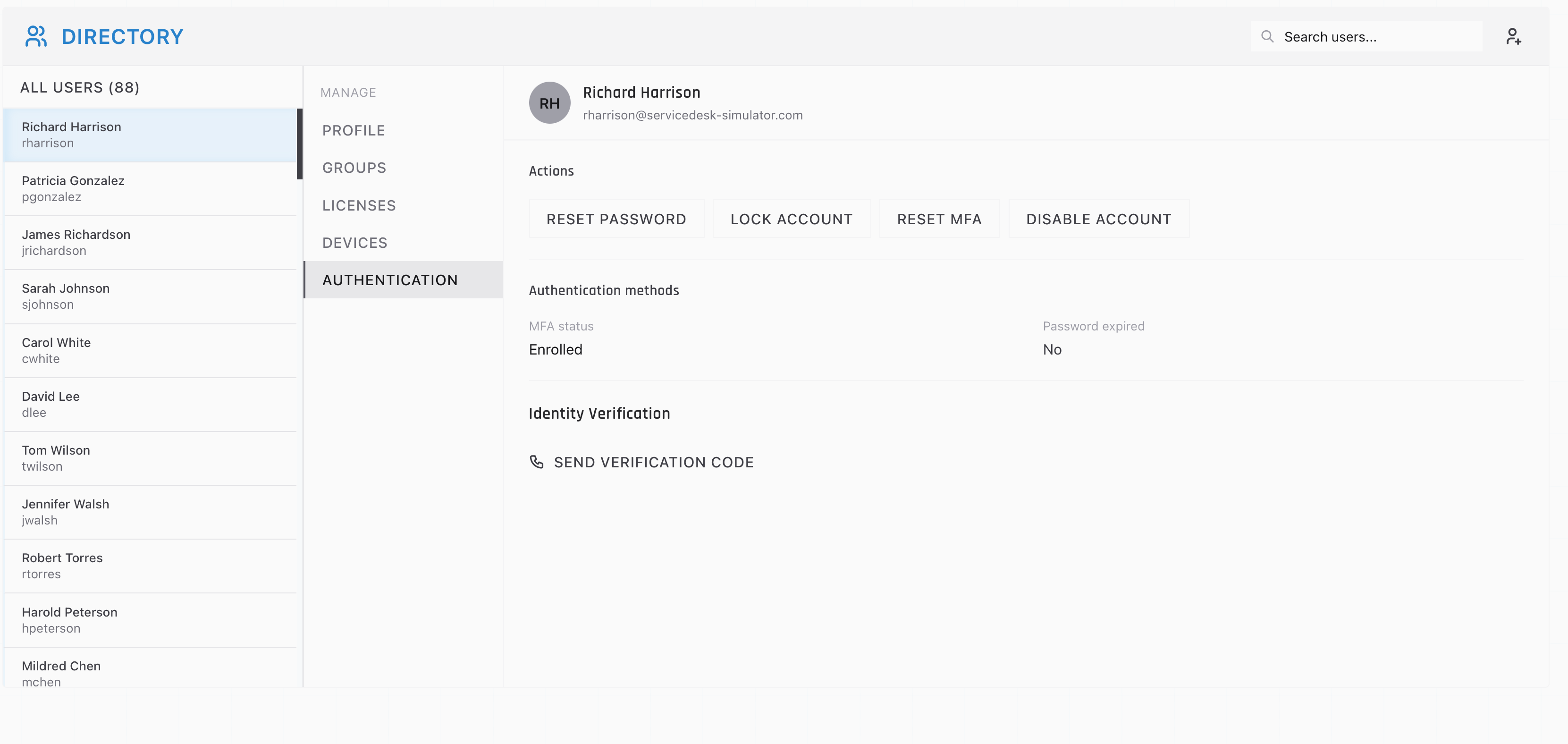
In this simulator the console is at Tools, then Directory, and the panel header says the same word. It holds 88 seeded accounts, a working slice of a company the in-world documentation puts at around five hundred people. It is the tool most of the access tickets in the queue are worked in.
It is one screen where ADUC is a tree plus a dialog. On the left, All Users lists every account by display name with the username underneath. Search users... at the top filters that list on display name, username or email address, so a surname is enough. Pick somebody and the record opens to the right, with a column of tab names in the middle under the heading Manage.
The whole panel. The record here is open on Authentication, which is where the state of the account and everything that changes it live.
There are five tabs and no more. Profile is the account record. Groups is what ADUC calls Member Of. Licenses is the software assigned to the person. Devices is the machine they were issued. Authentication holds the account state, the four action buttons, and the identity check you are expected to run before using them.
The state of an account is readable in two places, both on Authentication. Under Authentication methods you get MFA status and Password expired. In the Actions row, the second button swaps its own label: it reads Unlock Account on a locked account and Lock Account on a healthy one. The button is telling you the state before you press it, and the fourth button does the same thing for enabled and disabled. Those two places are the whole readout.
Field by field
Profile is split into two headings. Identity carries Display Name, Username, Title, Employee ID, Email and Phone. Organization carries Department, Manager, Last Login and Account expires. Every one of those is a real directory attribute wearing a friendlier label. Most you read on ordinary tickets and should be able to name in an interview; a handful are edge cases and cloud concepts you only need to recognize, split out below as a deep dive.
One row under Identity appears only sometimes. Aliases is drawn when the account carries an extra mail address, and every seeded account starts on a single address, so the row turns up once you have created one. You create one through Change Name & Email, the same editor a legal name change ticket sends you to: the new address becomes the primary one, and where the ticket asks you to keep the old address it goes on as an alias so mail sent to it still arrives.
A legal name change is one of the jobs that arrives without a written procedure behind it, here and on a real desk. When that happens you follow the closest policy you can find, ask the requester for anything the record leaves open, and escalate if the change reaches past what your seat is allowed to do.
Interview must-know
Panel field
Real directory attribute
Display Name
displayName. The human-readable name, which is what a ticket gives you.
Username
sAMAccountName. The short logon name, twenty characters maximum in real AD.
Employee ID
employeeID. The HR number, and one weak factor: it is printed on the call card and rides along in voicemail metadata, so confirm it alongside something else.
Email
mail. The mailbox address, free to differ from the UPN in real AD.
Phone
telephoneNumber. The registered desk number. A real verification code goes to a mobile number held on the account, because a desk extension cannot take a text.
Department
department. Also the thing the OU structure is usually built around.
Manager
manager. In real AD a link to another account object.
Last Login
lastLogonTimestamp. Approximate in real AD: it replicates lazily and can lag by days.
Account expires
accountExpires. A hard end date on the account, separate from the password.
Group memberships
memberOf. The Member Of tab in ADUC.
Password expired
pwdLastSet. Real AD works the expired state out from it against the password policy.
Unlock Account
lockoutTime. Non-zero means locked, and clearing it is the unlock.
Disable Account
userAccountControl. Specifically the ACCOUNTDISABLE bit inside it.
MFA status
Held in the cloud directory in a real hybrid setup, alongside the rest of the second-factor configuration.
Deep dive
Panel field
Real directory attribute
Title
title. Job title, free text. Access follows the groups, whatever the title says.
Aliases
proxyAddresses. Additional addresses that still deliver to the same mailbox.
Registered devices
The linked computer object, which in real AD is a separate record of its own.
Drive Encryption Recovery Key
msFVE-RecoveryPassword, stored against the computer object.
Assigned licenses
A cloud directory concept, held in Entra ID against the account.
Groups, licenses and devices
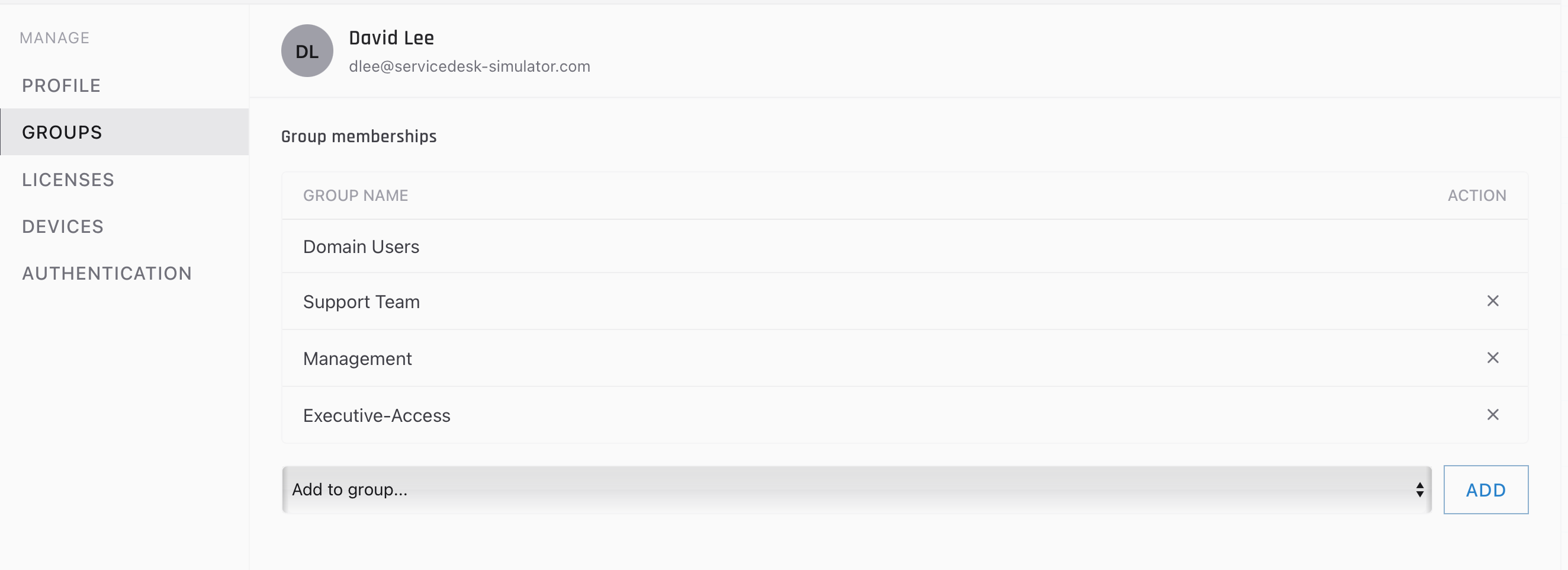
The Groups tab shows Group memberships as a table of group name and an action to remove each one, plus an Add to group... dropdown underneath. Domain Users is the primary group, so the console keeps it where it is. Real AD holds on to a primary group the same way.
Group memberships on one record. The groups a person holds are the whole of their access, which is why comparing this tab against a working colleague answers most "I cannot open the share" tickets.
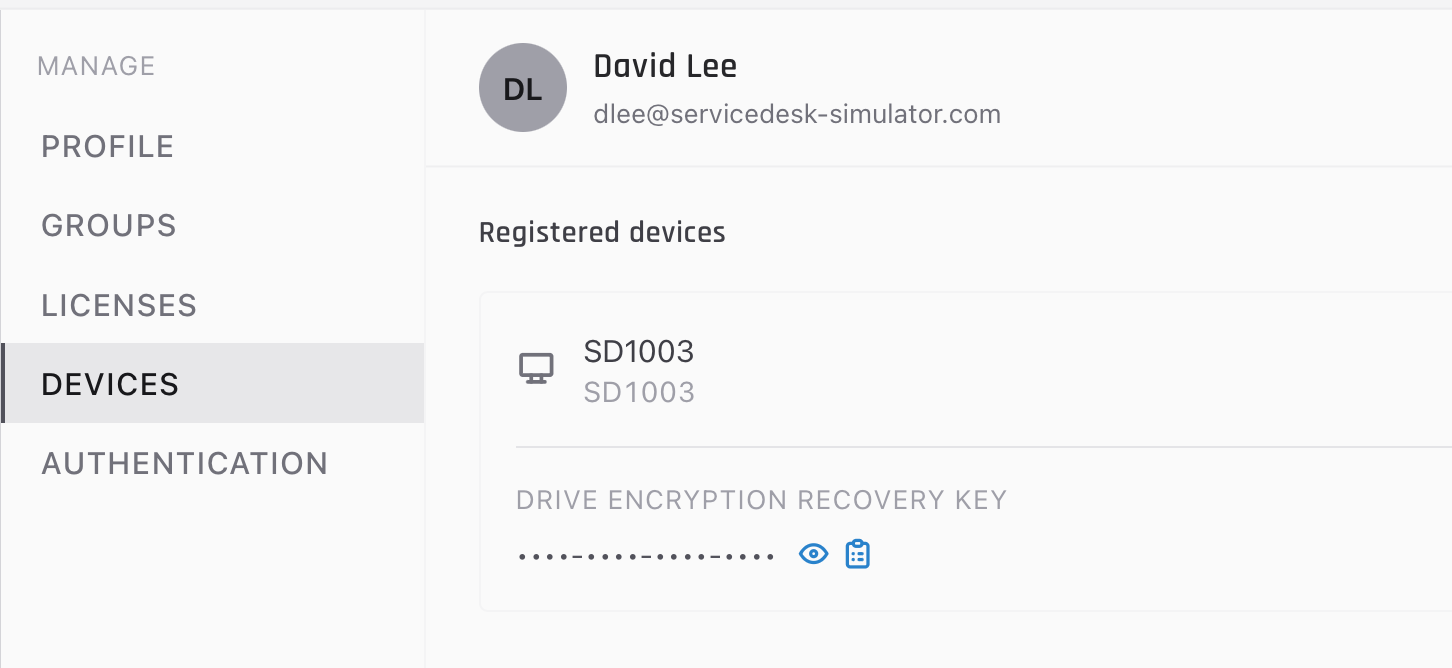
The other three are quick. Licenses lists Assigned licenses with a dropdown to add one. Devices shows Registered devices, meaning the machine assigned to that person and its asset tag, plus the Drive Encryption Recovery Key, masked until you reveal it. Authentication you have already met.
The Devices tab. Hostname and asset tag are the same string in this company, which is deliberate: one machine, one name, wherever you look it up. The recovery key stays masked until you ask for it, and asking for it is the sort of thing that gets logged on a real desk.
The controls that are here so you can practice
Every seeded account carries a real OU path behind it. A Sales record sits at OU=Sales,OU=Users,DC=servicedesk-simulator,DC=com, built the way part one taught you to read one, so the company under this panel has the shape a real domain has, behind tabs that draw a slice of it.
Two of the buttons on a record are there to give you something to practice on, and it is worth knowing which two.
Lock Account is the first. Part one made the point that in real AD the policy is what creates a lockout and ADUC is what clears it. Here the second action button flips to Lock Account on a healthy record, which is how you manufacture a locked account any time you want one to work on. Press it, then unlock it in the order part one gave you and watch what each control actually changed.
Disable Account is the second, and it has a longer tail than people expect. None of the 88 accounts starts disabled, so the only disabled account in this company is one you made, and it stays that way until you enable it again. The person it belongs to may raise a ticket asking why they cannot sign in, which is the four-questions habit coming back at you as homework.
Two fields read the same on every record and are worth reading anyway, because they are half of what a healthy account looks like: Account expires says Never for all 88, and MFA status says Enrolled for all 88. Part one has the states on the other side of both, the contractor whose end date arrived and the account whose second factor has to be reset, and those are the ones worth being able to name.
One thing about this panel is a deliberate choice: your account holds every action here over all 88 records, executives included. That is a real configuration, and on plenty of desks it is the one you will be handed. Part one is where the variation lives, and it is a question about your employer: password resets, unlocks, group membership and the device view are ordinary first-line tasks wherever you end up.
A ticket asking you to reset the CEO's password before the board meeting is asking one thing: did you check who was asking. The Identity Verification section on the Authentication tab is how you answer it.
Part three
Practice
Open a record, read it from the top, and say out loud what it is telling you before a control gets pressed.