Peripheral tickets are where IT support stays stubbornly physical. The cloud took the files, SSO took the passwords, but a monitor showing nothing is still a thing on a desk with a cable in the back, and no amount of modern architecture changes what “have you tried reseating it” means. These tickets are unglamorous, constant, and beloved by exactly nobody, so here is how to be quick at them.
The dock is the main character
Understand one device and half of this category falls into place: the docking station, the little brick that lets a laptop drive two monitors, wired network, a headset, and its own charging through a single connector. Convenient, and a textbook single point of failure. When a dock glitches, the user experiences a plague, screens dark, internet gone, headset dead, battery not charging, all at once, and the ticket arrives written like an obituary for the laptop.
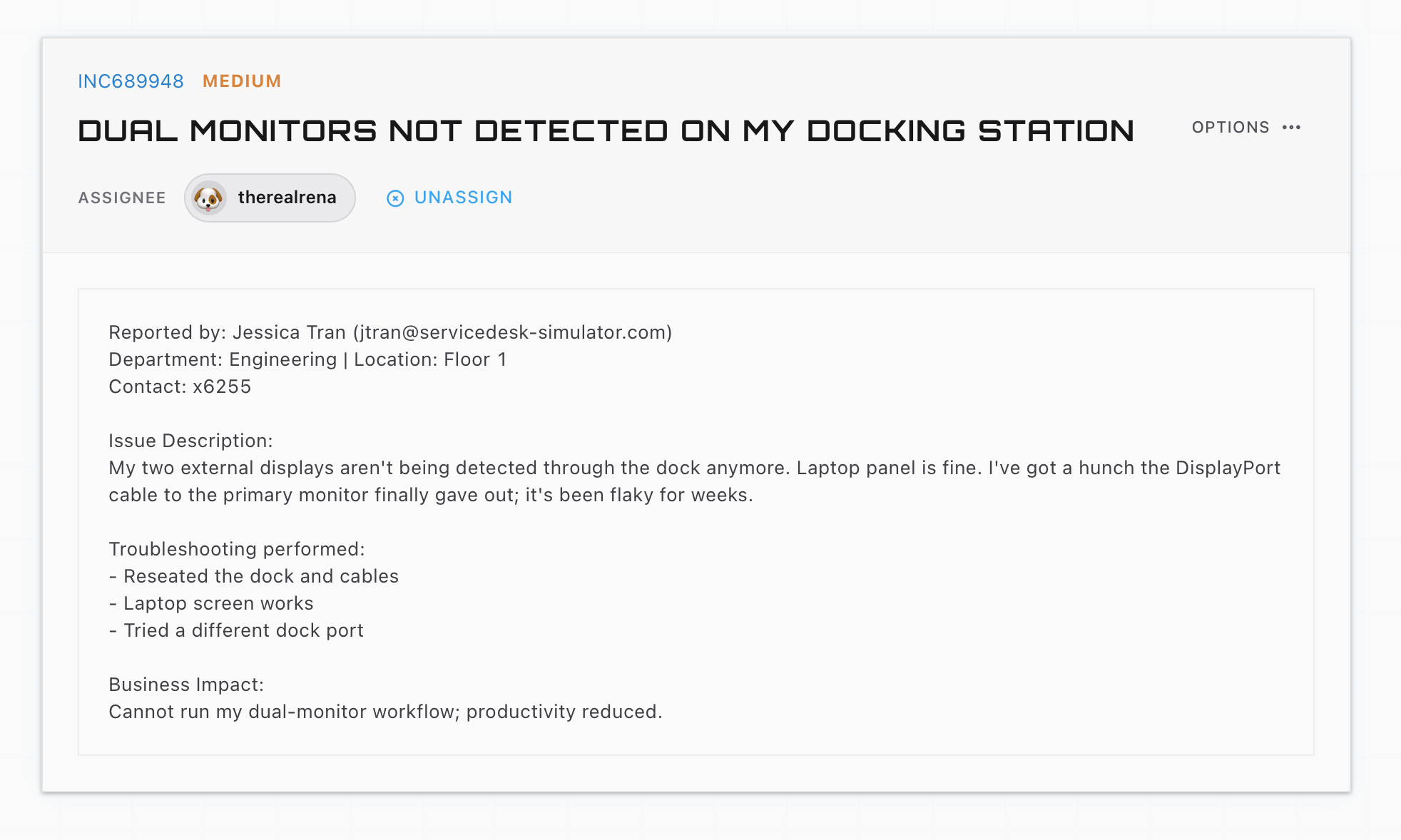
Which is why the correct first response to “everything on my desk died” is relief, not dread: multiple simultaneous failures through one connector point straight at the connector. The ritual is unglamorous and effective. Unplug the dock from the laptop, unplug its power, count to ten, reconnect in reverse order. That clears the majority of dock possessions on the spot, and the stubborn remainder are usually firmware updates or a dock that has genuinely earned retirement, since docks live hard lives of daily plugging and run warm around the clock.
Monitors: the suspects in order
For a display showing nothing, run the suspects cheapest-first. The physical path leads: cable fully seated at both ends, correct port, and if the hardware allows, swap the cable or port and see whether the fault follows. Then the one everyone forgets, the monitor’s own input selection: a monitor listening on HDMI while the laptop talks DisplayPort shows exactly nothing, and one button press on the monitor’s menu ends a ticket that was headed for a driver reinstall.
Only then move into software: the detect control in display settings for connections that dozed off, and graphics drivers for the patterns that smell of software, a second screen that died right after an update, or displays that work until the laptop sleeps and never wake. The order matters because the physical causes are both most common and fastest to test, and a tech who reaches for driver surgery before checking the input source is doing the method backwards.
One honest caveat for remote work: you can remote in to check settings and drivers, but you cannot reseat a cable from another building. Peripheral tickets over the phone become guided work where the caller is your hands, which quietly makes them communication tickets as much as hardware ones. “Trace the cable from the screen to the laptop and tell me what it passes through” gets you the desk’s topology without needing a site visit.
Audio: the sound went somewhere, find it
No-audio tickets have a beautiful secret: the sound is almost never gone, it is playing somewhere else. Windows reassigns the default audio device as things connect and disconnect, enthusiastically and without asking, so the meeting audio is pouring into a monitor that has no speakers, or a Bluetooth headset that is paired but sitting in a drawer, or yesterday’s conference-room gadget the laptop still dreams about.
So the fix lives in the output device picker, bottom-right, one click from the volume icon: look at which device is selected, and select the one with actual speakers attached to actual ears. The refinement worth teaching users is that communication apps complicate it, because Teams keeps its own device settings separate from the system’s, which produces the classic “I can hear YouTube but not my meeting” ticket, system pointed one place, Teams pointed another. Microphones run the same logic in reverse, with a bonus suspect: the physical mute button on the headset itself, responsible for a truly humbling share of “my mic is broken” tickets.
Fast, kind, and gone
Peripheral tickets will never be the interesting part of the queue, and that is the professional insight about them: the game is closing them fast while keeping the user’s dignity intact when the fix was an input button, and saving your energy for the tickets that deserve it. A tidy dock-reseat script, the monitor suspects in order, and the audio picker reflex cover most of what this category throws.
The rhythm of working down a suspect list while a caller waits is the same rhythm as every other ticket, and it is trainable in volume on the ServiceDesk Simulator, where hardware misbehaves generously and no real monitor has to be harmed while you learn the order.