
“My computer is slow” might be the most common sentence a help desk hears, and on its own it is almost useless. Slow is a symptom, not a cause, and the cause could be any of half a dozen things. The skill is not knowing one fix. It is knowing how to find which problem you actually have.
The usual suspects
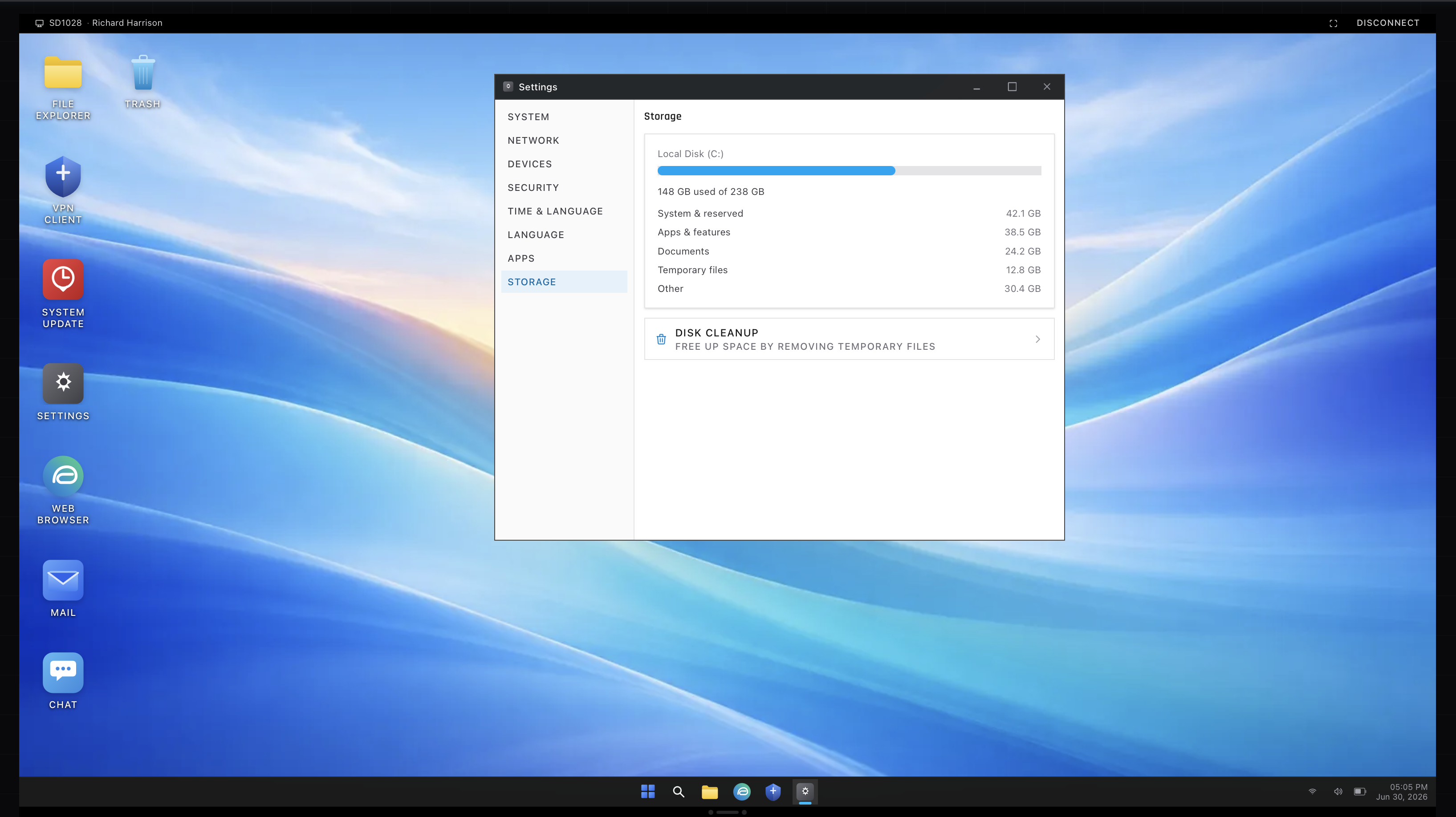
A few causes come up over and over. The disk is full, so Windows has no room to work and everything crawls. Too many programs launch at startup and fight over resources. The machine is overdue for a restart and has not been rebooted in weeks. A driver or update went sideways. Or something unwanted is running, which is its own category worth pulling out on its own.
When it is malware
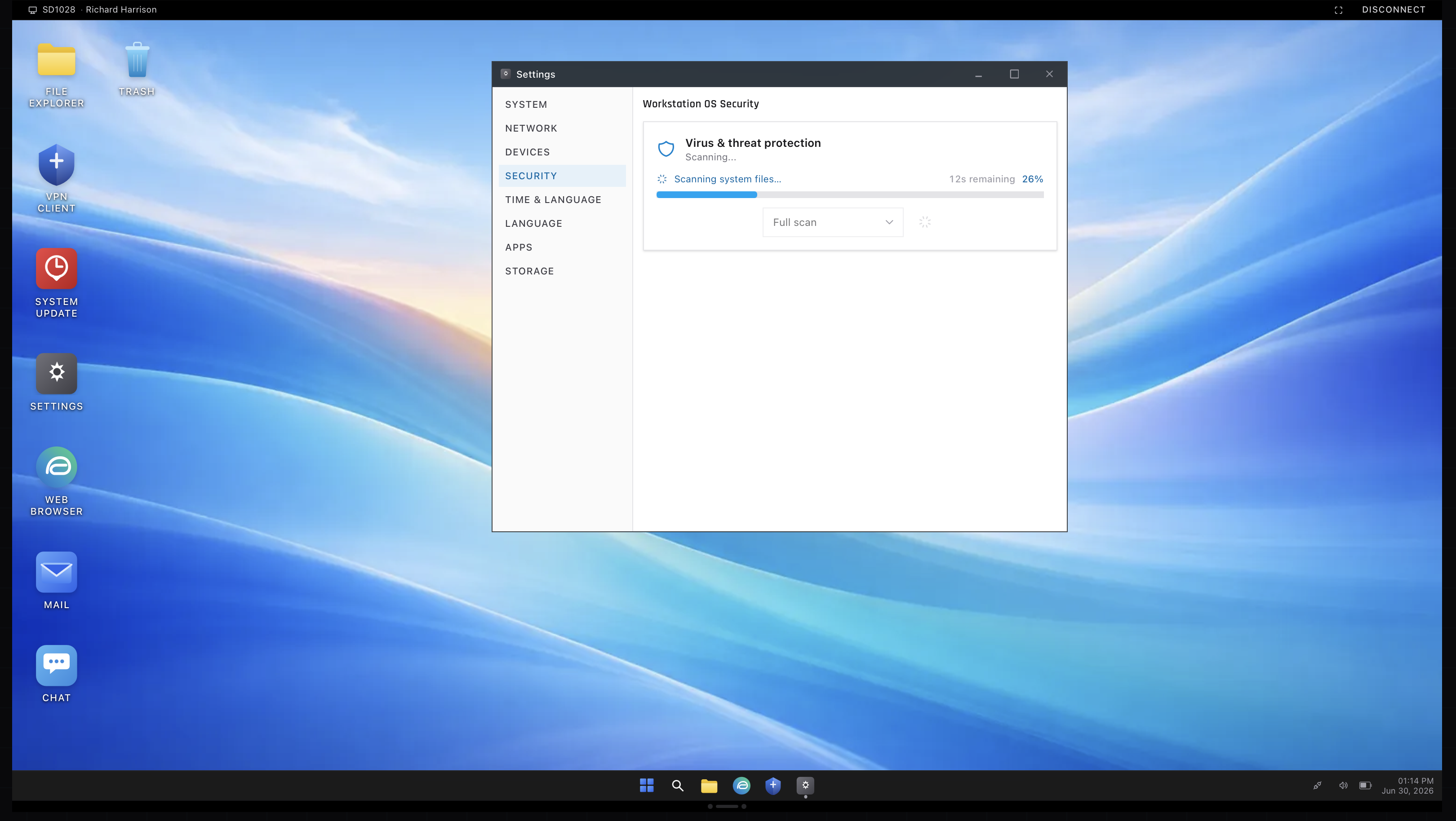
Sometimes slow is not innocent. Adware, potentially unwanted programs, and outright malware all eat resources, and a machine that got slow suddenly, with popups or a changed browser alongside, has earned a closer look. The fix is to run a security scan, identify what should not be there, and remove it. The trap is calling the machine clean too early. A half-removed infection comes straight back, and the ticket reopens a day later.
Why one fix is a trap
The mistake new techs make is reaching for a single action, clearing temporary files, and closing the ticket. If the slowdown had more than one cause, and slow PCs often do, the machine is still slow and the user is now annoyed twice. The better habit is to check the obvious things in order, the disk space, the startup load, the last restart, any sign of malware, and to confirm the machine is genuinely faster before you call it done.
Practicing the hunt
A slow-PC ticket rewards a methodical head, and that is hard to build on your own machine, which is probably running fine. In the simulator, slow-PC tickets deliberately stack more than one cause, so clearing a single thing does not resolve them. The cleanup tools above are part of how you work the problem. It trains the habit that matters most here, which is checking everything before declaring victory.