
“The internet is down” is the least accurate sentence a help desk receives, and it arrives daily. Sometimes it means the company’s connection is truly out. Far more often it means one laptop cannot load one website. The whole job is telling those apart quickly, because they get opposite responses.
One user or everyone
Before touching a single setting, answer this: is it just the caller, or is it spreading?
One user with a dead connection is a device problem until proven otherwise, something local to that laptop. Meanwhile five tickets in ten minutes from the same floor is not five device problems. That pattern means shared infrastructure, an access point, a switch, the building uplink, and the correct move changes completely. You stop troubleshooting individual laptops and start confirming the scope, because someone needs to check the equipment or call the provider, and everyone else needs to be told.
Experienced techs do this scoping reflexively. New techs burn forty minutes on one laptop while the queue fills up behind them with the clue they needed.
Connected is not the same as working
The most common Wi-Fi confusion: the laptop says connected, and nothing loads. Users read “connected” as a promise, but all it promises is that the laptop and the access point are talking to each other. The traffic still has to get an IP address, resolve names through DNS, and travel out through the building’s connection, and any link in that chain can be the broken one.
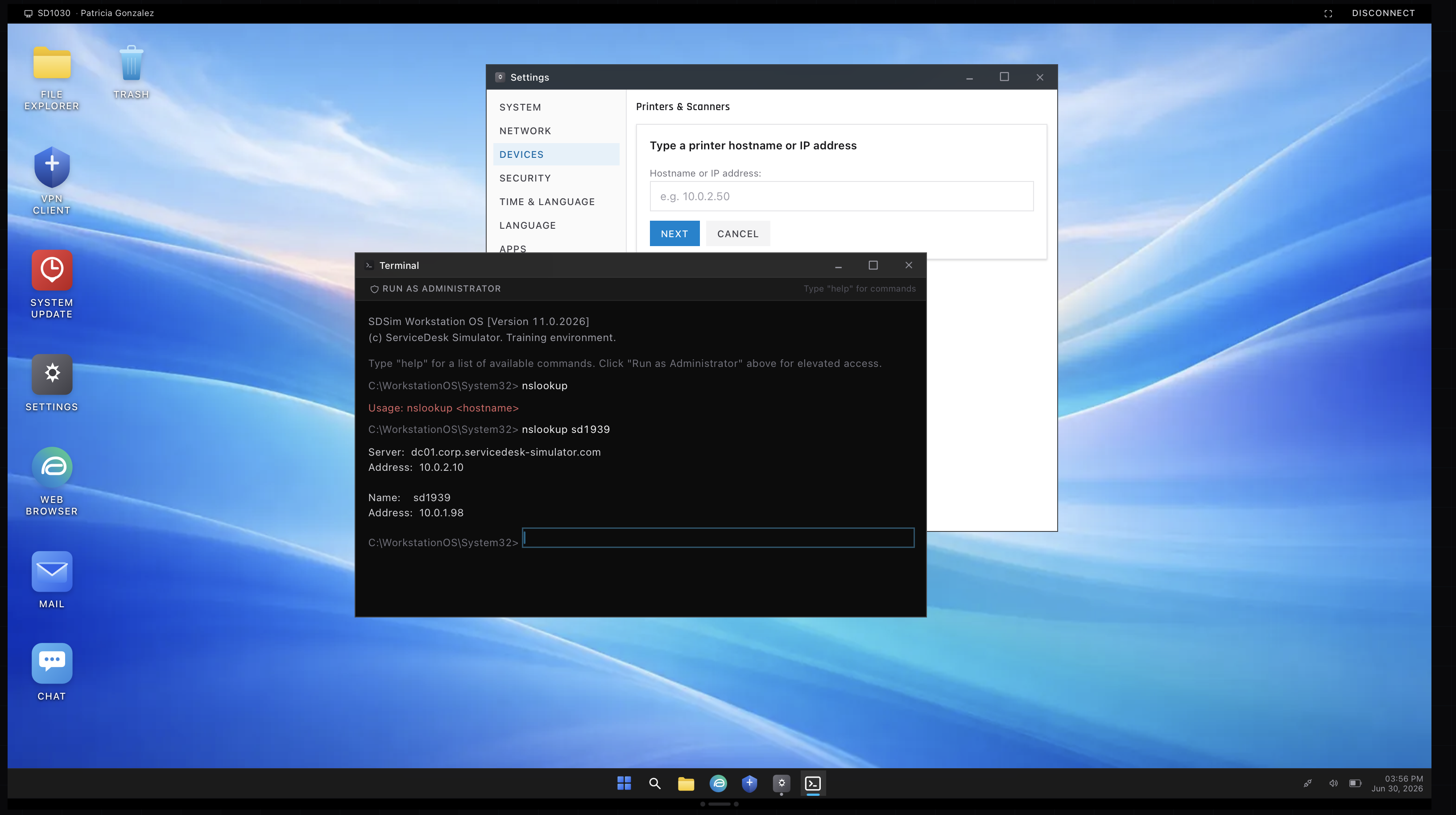
This is why the classic checks work. ipconfig shows whether the machine got a real IP address or gave up and assigned itself a useless 169.254 one, which is DHCP failing. A ping to a known address proves whether traffic leaves the machine at all. If pinging an IP address works but websites will not load, the connection is fine and DNS is the problem, which narrows things enormously. A few command line tools turn “the internet is down” from a mystery into a five-minute diagnosis.
The unglamorous fixes that actually close tickets
A big share of single-user Wi-Fi tickets end with fixes that feel almost embarrassing. Wi-Fi toggled off with a function key the user did not know existed. Airplane mode. Connected to the guest network instead of the corporate one, so nothing internal loads. A hotel-style captive portal quietly waiting for a click behind the browser. A laptop clinging to a distant access point at one bar of signal instead of roaming to the near one.
Do not resent these tickets. Closing them fast and kindly is the job, and the user does not care that the fix was a keystroke. To them the network was broken and you fixed it. Also, resist the urge to skip the basics because they are basic. “Is Wi-Fi actually on” has solved more tickets than packet captures ever will.
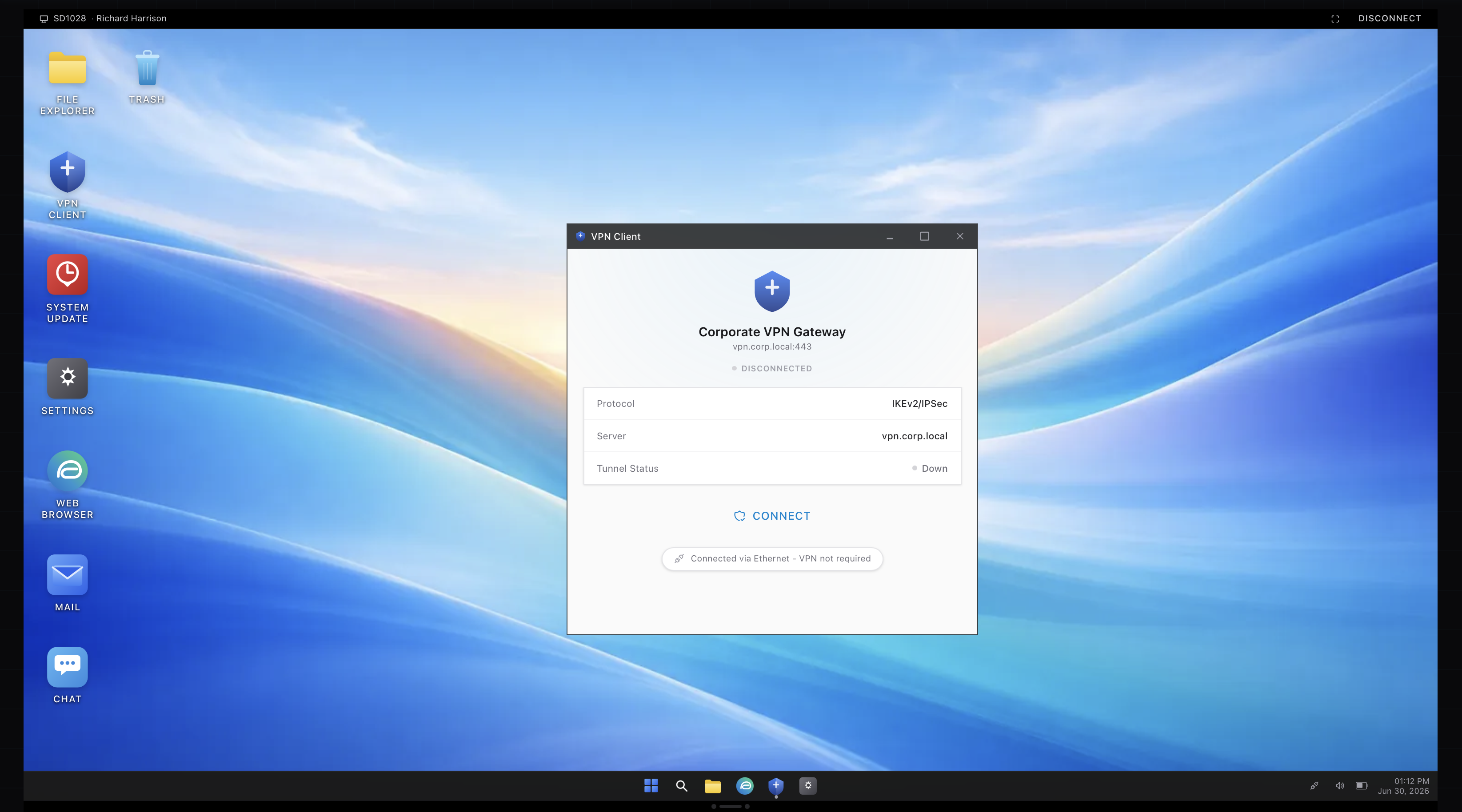
Remote workers add their own layer, because their home router is part of your problem now. Having them restart it is not a joke fix, it renews the connection and clears wedged hardware state, and it works often enough that every provider on earth opens with it. And when a remote user can reach the internet but not company systems, the ticket is usually not the network at all, it is the VPN.
When it really is an outage
Sometimes the answer to “is it everyone” is yes. The uplink is dead, the provider has a cut fiber somewhere, and no setting on any laptop will help.

Here the job flips from fixing to communicating. Confirm the outage against the provider’s status page or support line, then tell people, visibly, with an estimated time if you can get one. A short announcement in the company chat with an ETA does more good in that moment than any technical skill, because it stops the flood of duplicate tickets and lets three hundred people plan their next hour. Desks that go silent during outages get remembered for it, and not fondly.
Practicing the triage
The judgment in this post, one user or many, connected versus working, fix versus communicate, only becomes fast with repetition. The ServiceDesk Simulator throws these exact tickets at you, from a single flaky laptop up to a full ISP outage where the right answer is checking the provider status and posting an announcement with an ETA rather than fiddling with settings. It is the rare kind of practice where doing the wrong thing teaches you as much as doing the right one, at zero cost.