A user calls and says their screen has gone black, or their printer will not install, or a popup is screaming that their PC has a virus. You could talk them through the fix one slow step at a time. Or you could connect to their computer, take control of the mouse, and just do it yourself. That second option is Remote Desktop.
What Remote Desktop is
Remote Desktop lets you see and control another computer over the network as if you were sitting in front of it. Microsoft builds it into Windows, where the protocol behind it is called RDP, short for Remote Desktop Protocol. The app you open to start a session is called mstsc, which is why older techs still say “just mstsc into it.”
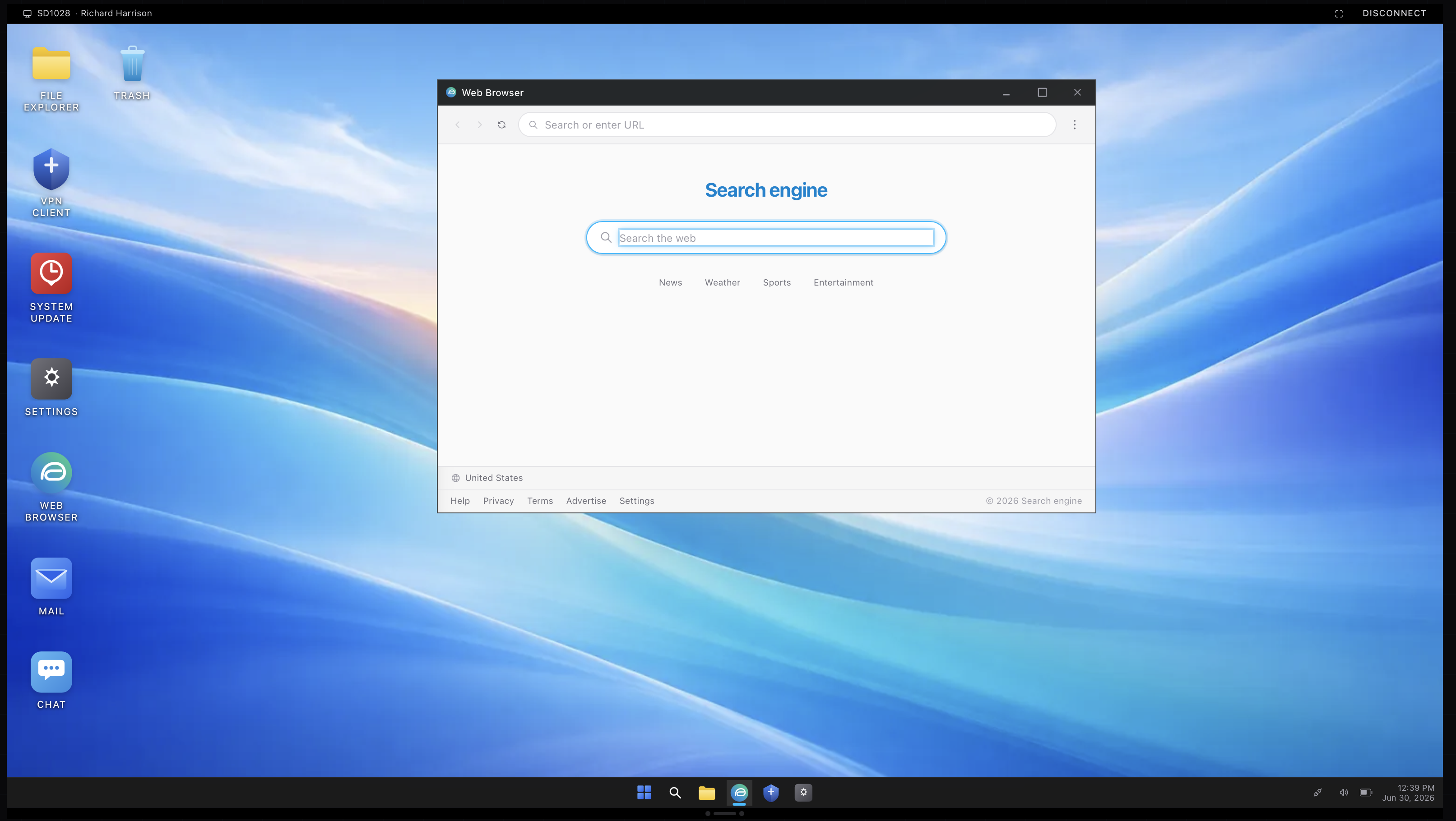
When you connect, the other machine’s desktop fills your screen. Your keyboard and mouse drive their computer. You can open their settings, read the exact error they have been staring at, and fix it without a single “okay now click the blue button, no the other blue one” exchange.
RDP is not the only option
RDP is the Microsoft built-in, so it is the one you meet first in a Windows shop and it costs nothing extra. Companies use other remote tools too. TeamViewer and AnyDesk show up a lot for support over the public internet, and many help desks rely on a remote feature baked into their device management software. The idea holds across all of them. What changes is the security model and which machines you can reach.
A security note worth learning early
You will hear this on the job, so get it now. You do not expose RDP straight to the internet. An RDP port left open to the world is one of the most common ways companies end up with ransomware. The normal setup is that you connect to the company network first, usually through a VPN, and only then RDP across to the machine. If some tool seems to let you skip that step, treat it as a question to ask, not a shortcut to be glad about.
What you actually do once you are in
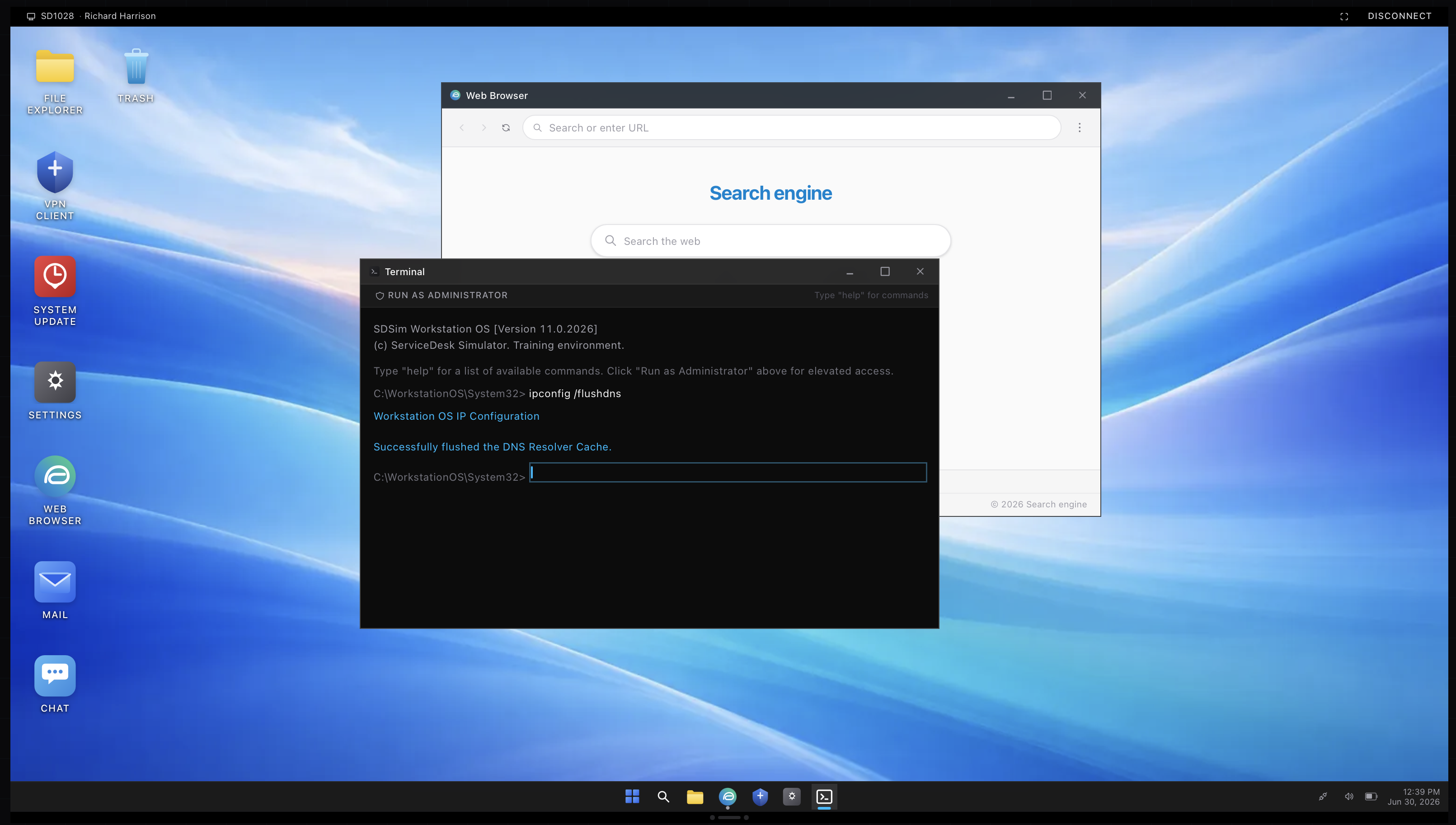
Connecting is the easy part. The skill is knowing what to do on the other person’s machine. You might open a command prompt and run ipconfig to check the network, or ping a server to see whether it answers. You might open settings to reconnect their Wi-Fi, check Windows Update, or uninstall a program that is dragging the whole machine to a crawl. Plenty of help desk work is this loop: connect, look, fix, confirm it worked, then disconnect.
Practicing without a real machine to break
The problem with learning remote support is obvious. You need a broken computer and permission to take control of it, and you get neither at home.
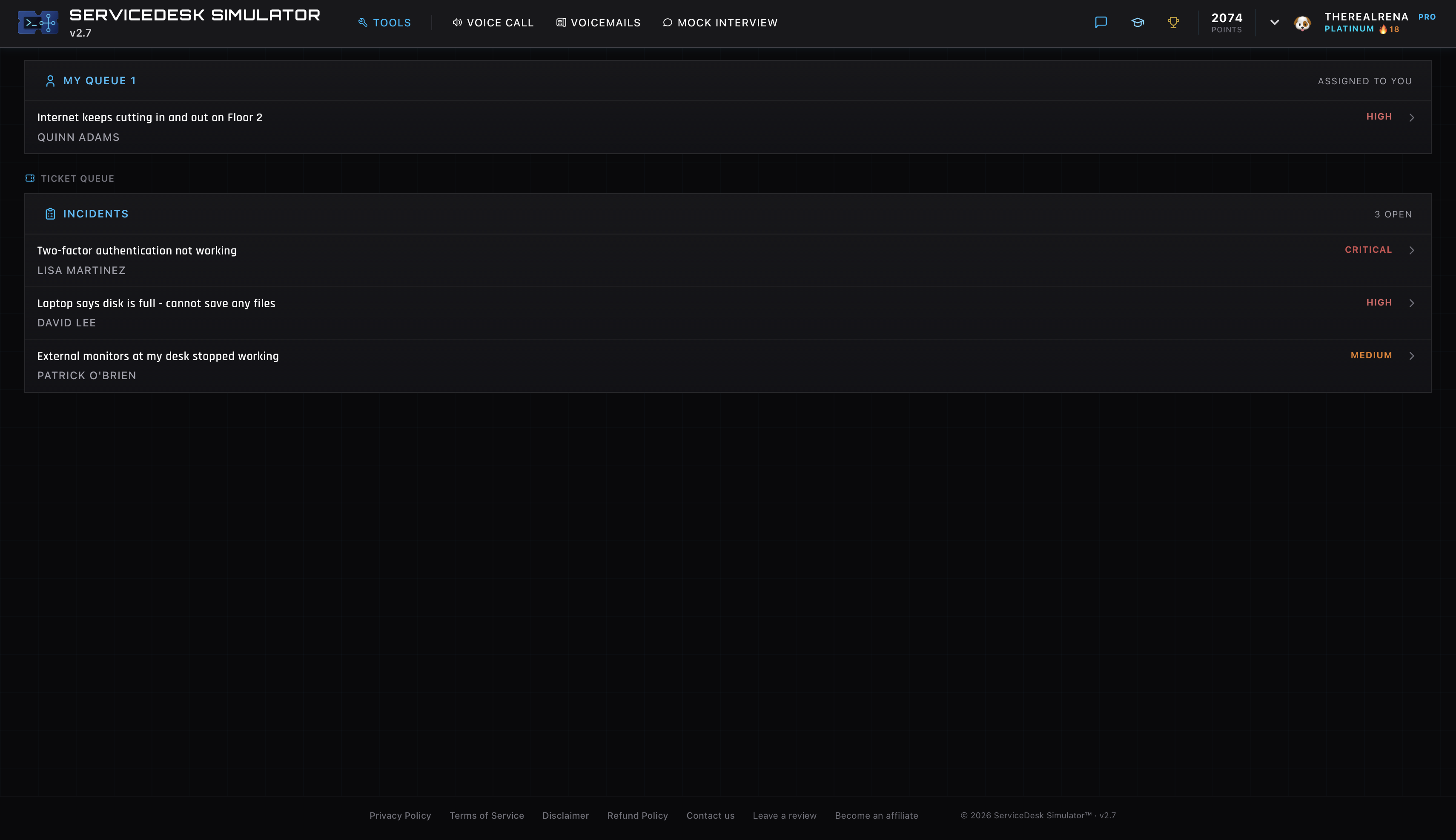
That is the gap the ServiceDesk Simulator fills. A ticket comes in, you remote into the user’s PC, and you land on a Windows desktop that is yours to break and repair. Run the commands, clear the popup, fix the mapped drive, and the connect-look-fix loop starts to feel automatic. The screenshots here come from a remote session inside it.
Break things, fix them, and build the instinct for what to check first, long before any of it counts for real.