
File tickets arrive in exactly one flavor of panic: “my files are gone.” Someone’s H: drive vanished from This PC, or their Documents folder shows little cloud icons where files used to be, and they are certain a decade of work just evaporated.
Almost always, the files are fine. What broke is the path to them, and the tech who understands the two file worlds a company runs finds them in minutes.
Two generations of file storage, running side by side
Most companies store files in two ways at once, and the tickets look completely different.
The older way is the network share. Files sit on a server, and each user’s machine maps a drive letter to it, the H: drive, the S: drive, whatever the local tradition is. The letter looks like a disk inside the computer. It is actually a shortcut across the network, and that distinction is the entire troubleshooting story.
The newer way is OneDrive, or SharePoint behind it, where files sync between the laptop and Microsoft’s cloud. No drive letters, no server down the hall, and a completely different set of failure modes.
New techs get tripped up by treating them as one thing. A missing H: drive and a stuck OneDrive icon are unrelated problems that happen to share the sentence “my files are gone.”
When the mapped drive vanishes
Since the drive letter is a shortcut to a server, it disappears whenever the connection behind it is not there. Working from home without the VPN connected is the classic case, and reconnecting the VPN brings the drive back like nothing happened. The login script that maps the letters can fail quietly at startup, which a sign-out and sign-in usually cures. And when one specific person cannot reach one specific share while their neighbor can, stop touching the laptop, because that pattern is permissions, usually a missing group membership on the account.
The order of checks writes itself from there. On the network or not? All drives missing, or one? Just this user, or everyone? Three questions, and you have usually found the layer before opening a single settings panel.
When OneDrive will not sync
OneDrive tickets are quieter and sneakier. The user worked all week, the laptop died, and the new laptop shows files from last month, because sync had been silently stuck the whole time.
The tray icon tells the story if anyone looks at it. Paused, waiting for sign-in after a password change, or wedged on one problem file. That last one has a few classic causes: a file locked open by an application, names containing characters OneDrive refuses, folder paths grown absurdly long, or a disk with no room left. One stubborn file can hold up the queue behind it, so the error list in the OneDrive client is worth reading instead of just restarting things and hoping.
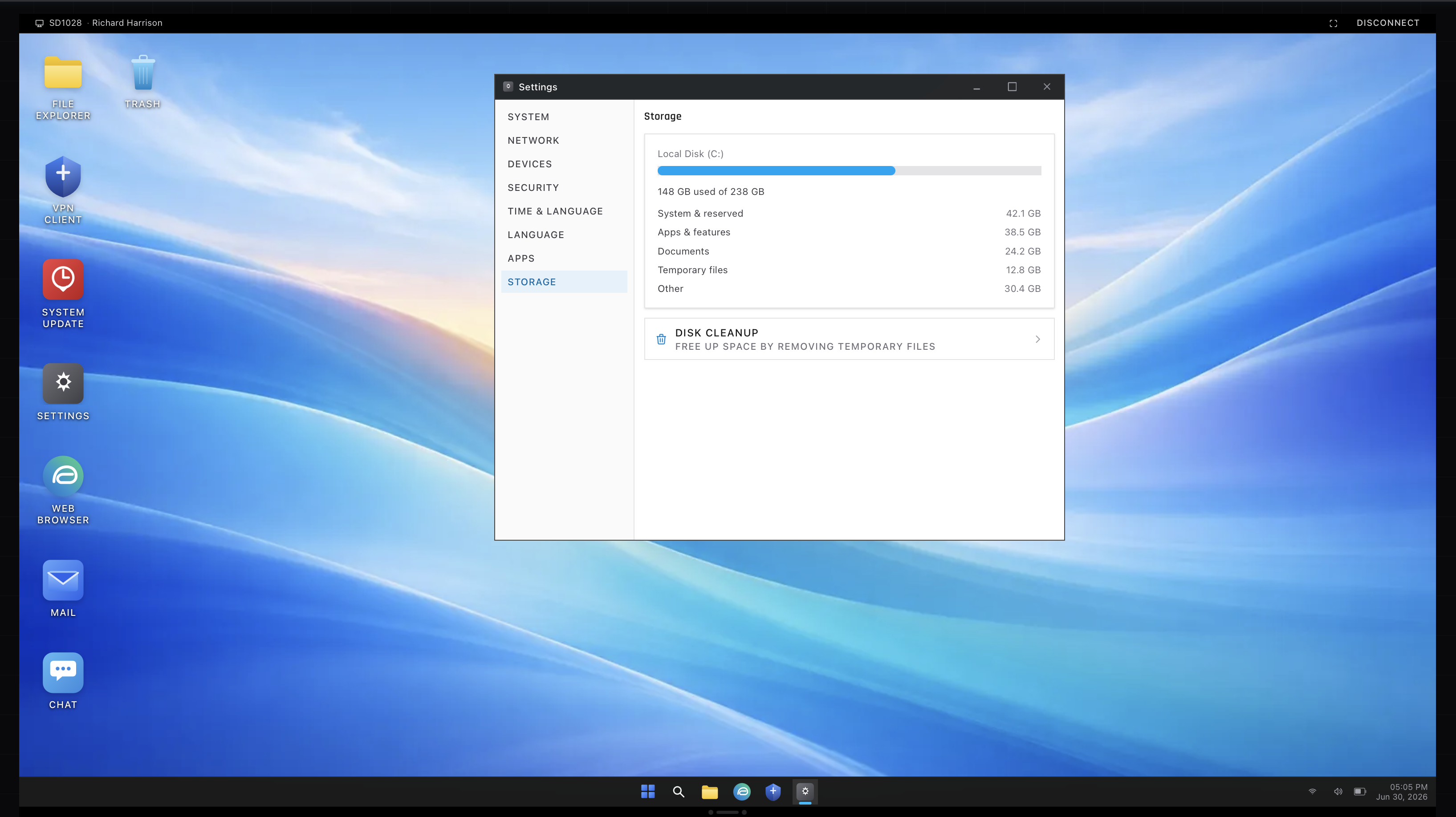
Then there is Files On-Demand, which generates tickets without anything being broken. The little cloud icon next to a file means it lives online and will download the moment it is opened. Users read the cloud icon as “my file is not on my computer anymore” and call in a mild panic. Nothing is wrong. Explaining the icons calmly, once, turns a recurring caller into someone who never files that ticket again.
The other genuinely useful thing to know is the conflict copy, the mysterious duplicate named after the person’s computer. It appears when the same file was edited in two places before sync could reconcile them. OneDrive keeps both rather than guessing, which is the right call, and the fix is a human comparing the two, not a tech deleting one at random.
Why these tickets are worth respecting
File tickets feel unglamorous next to security incidents, but consider what they are from the user’s side: the closest thing an office worker has to “the fire is at my desk.” The tech who calmly walks the chain from drive letter to VPN to server share, or reads the sync error instead of shrugging, is delivering the most reassurance per minute the job offers.
The habit that gets you there is the same triage running through every ticket type: find the layer before touching the settings. The ServiceDesk Simulator is built for drilling exactly that reflex, across storage, network, and account tickets, with a caller on the line who just wants their files back.