
Printers are the running joke of IT support, and the joke holds up because they break in so many small, annoying ways. The good news is that the failures repeat. Once you have seen the handful of things that go wrong, most printer tickets resolve along a short, predictable path.
Why printers are fussy
A printer is more moving parts than people give it credit for. There is the physical device, the driver that tells Windows how to talk to that exact model, the network connection if it is shared, the print server that may sit in between, and the spooler that holds jobs in line. Any one of those can fall over on its own, and the symptom is almost always the same useless message. Nothing prints. The skill is not panicking at the vague symptom and instead checking the parts in order.
The print spooler
The spooler is the Windows service that lines up print jobs and feeds them to the printer. When it jams, jobs stack up and nothing comes out, even though everything looks connected. Restarting the spooler, which clears that stuck queue, is one of the most reliable fixes in all of help desk work. A surprising share of printer tickets end right there.
Drivers and connections
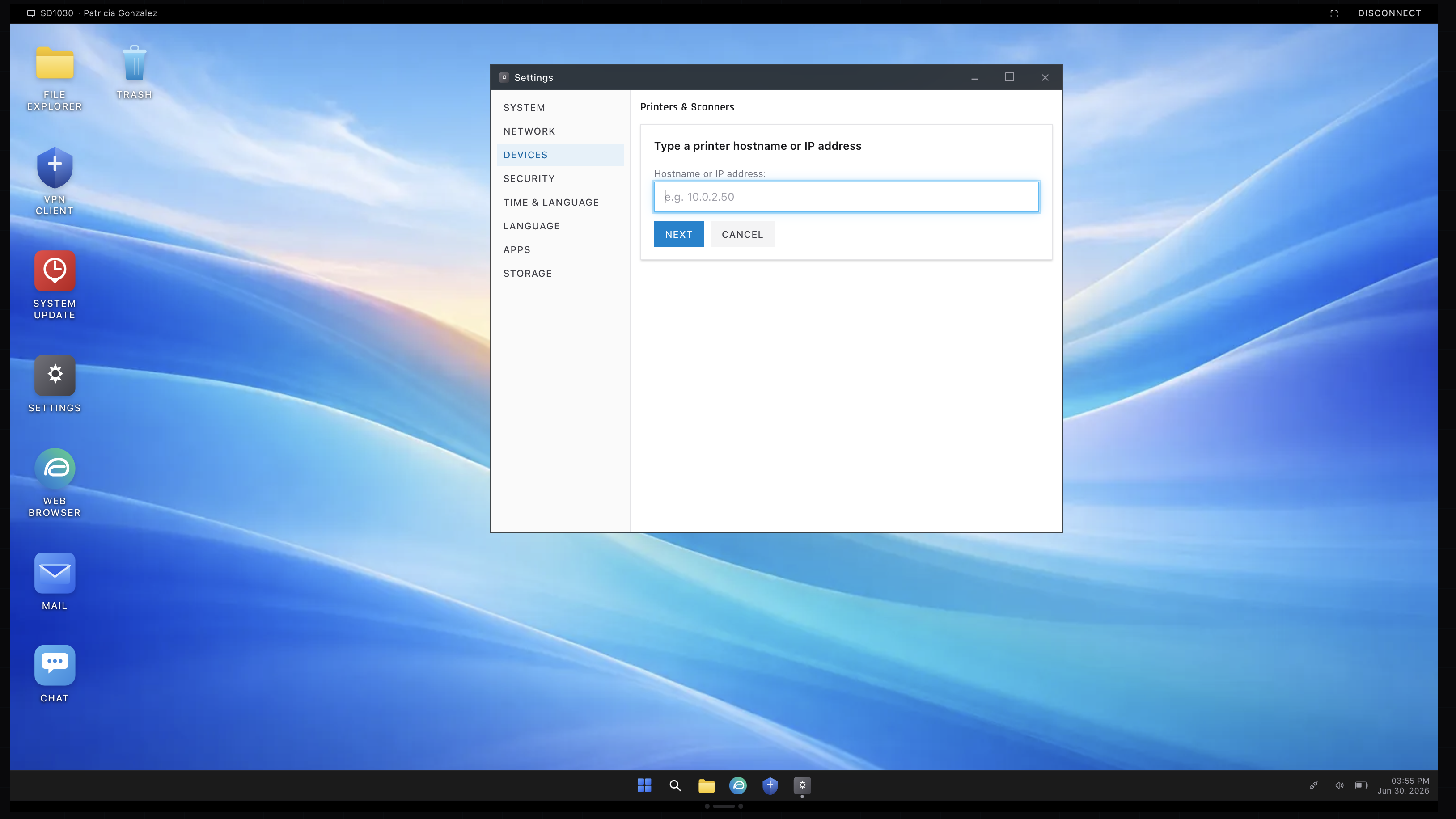
If the spooler is healthy, suspicion moves to the driver and the connection. A wrong or corrupted driver produces garbage or nothing, and reinstalling the correct one for that model sorts it. For a network printer, the machine has to be able to reach the printer at all, which usually means adding it by its IP address through a TCP/IP port. Get Windows talking to the right address with the right driver and the printer behaves.
When the whole floor cannot print
A single user with a printer problem is routine. A whole department that suddenly cannot print points somewhere else, often the shared print server. As with email and Teams, spotting that the issue is shared rather than local is what stops you wasting time on one person’s settings when the real fault sits upstream.
Practicing the fixes
The simulator throws printer tickets that want the actual fix, adding the printer by its address or clearing a jammed spooler, rather than a reboot and a hopeful look. The settings panel above is where that happens. Run a few and the printer ticket stops being the one you dread.