
Two services run quietly underneath every network, and most users never hear their names. DNS and DHCP. They work so reliably that the only time anyone notices them is when one stumbles, at which point the help desk gets a flurry of “the internet is down” tickets that are really nothing of the sort.
DHCP gets you onto the network
When a laptop joins a network, it needs an address before it can do anything, the network equivalent of a return address on an envelope. DHCP is the service that hands those out automatically. The device asks, DHCP assigns it an address from a pool, and the machine is on. Without it, every device would need an address set by hand, which is why DHCP fading out causes such fast, broad chaos.
The tell for a DHCP problem is a machine with an address starting 169.254. That is Windows giving up and assigning itself a fallback because nothing answered its request. The device is physically connected but never got a real address, so it cannot reach anything. The fix usually starts with releasing and renewing the address, and if that fails, looking at whether the DHCP service itself ran out of addresses or stopped.
DNS helps you find things
DNS is the network’s directory. People and apps use names, like a website or a server name, but machines route traffic by address. DNS does the translation, taking the name and returning the address behind it. Every time you open a site by name, DNS quietly resolved it first.
A DNS problem has a distinctive shape. The connection is fine, but names do not resolve. The giveaway is being able to reach something by its address while the name fails. When you see that, you stop suspecting the connection and start looking at name resolution, usually by flushing the local DNS cache or checking the DNS server the machine is pointed at.
Telling them apart on a ticket
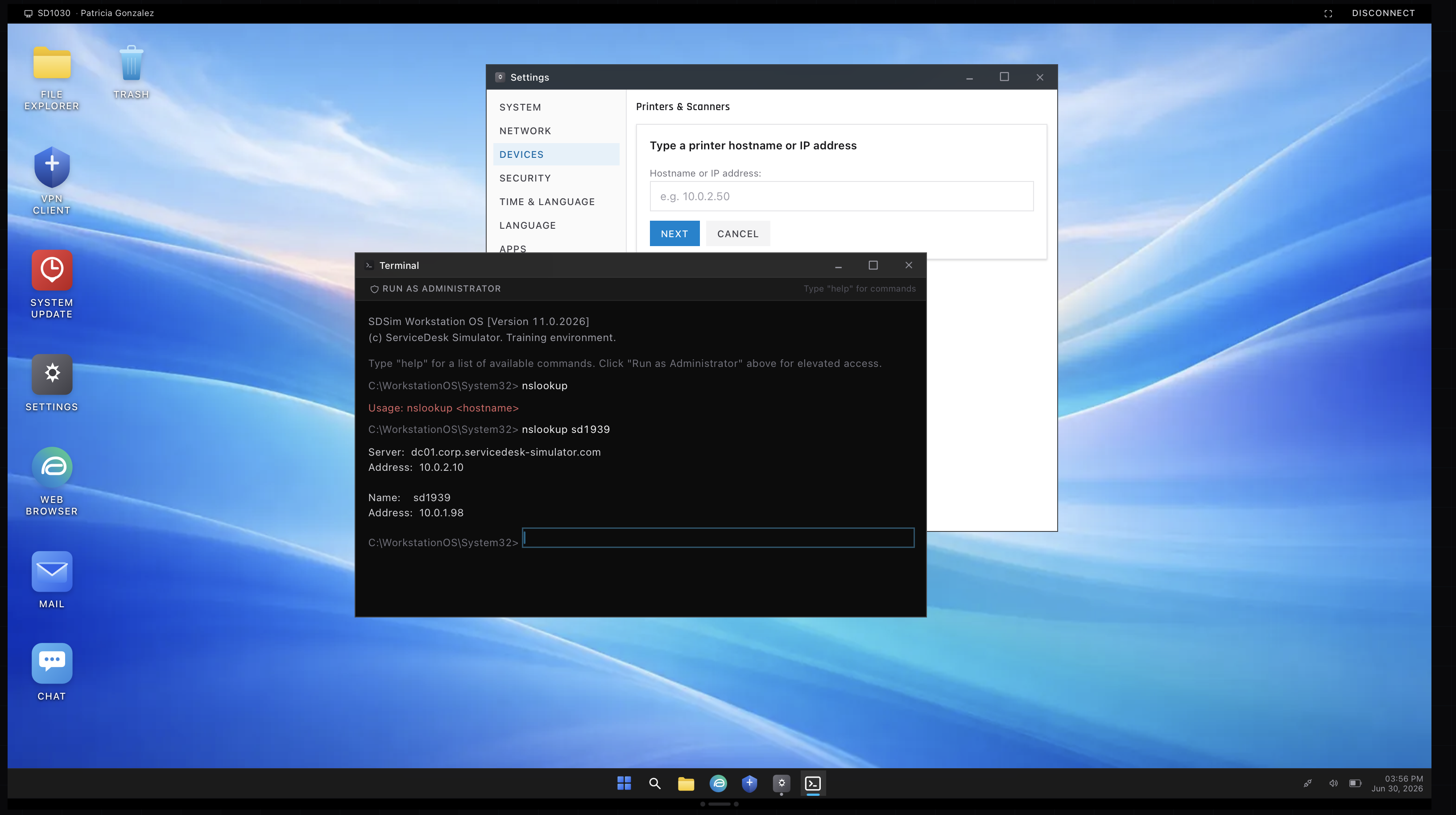
The two failures feel identical to the user and both arrive as “I have no internet.” Your job is to separate them quickly. No address at all, especially a 169.254 one, points at DHCP. An address that works by number but not by name points at DNS. The command line tools you reach for, ipconfig and nslookup, are exactly the ones that make that call.
Practicing the diagnosis
In the simulator you can flush a DNS cache or chase a machine that grabbed no address, on a network built to misbehave on cue. The lookup above is from that terminal. Working a few of these is how the two failure shapes stop blurring together and start being obvious at a glance.