Every IT instructor I have talked to describes the same gap. The lecture material is solid, the cert objectives are covered, and then a student asks what the job is actually like, and the honest answer is that nothing in the room resembles it. A worksheet about DNS is not a user on the phone who cannot reach anything and has a meeting in ten minutes.
The simulator exists to close that gap. This post is a plain description of what it looks like when a class uses it, so you can decide whether it fits the course you already teach.
What a student sees
A student signs in and lands inside a working IT environment, not a menu of quizzes. There is a ticket queue where users report problems: an account locked out before a shift, a laptop that will not boot, a printer the whole floor has opinions about. The phone rings and there is a caller on the other end who answers questions, gets impatient, and reacts to what the student says. The tickets are not multiple choice. Resolving one means using the same tools a technician would.
Those tools work. There is a real Active Directory with users, groups, and machines in it, so a password reset means finding the account and resetting it, not clicking a button labeled “reset password” and collecting a point. There is remote desktop for reaching a user’s machine, a deployment system for imaging new PCs, a server room when the network itself is the problem. A student who resolves fifty tickets has performed the motions of the job fifty times.
What you see
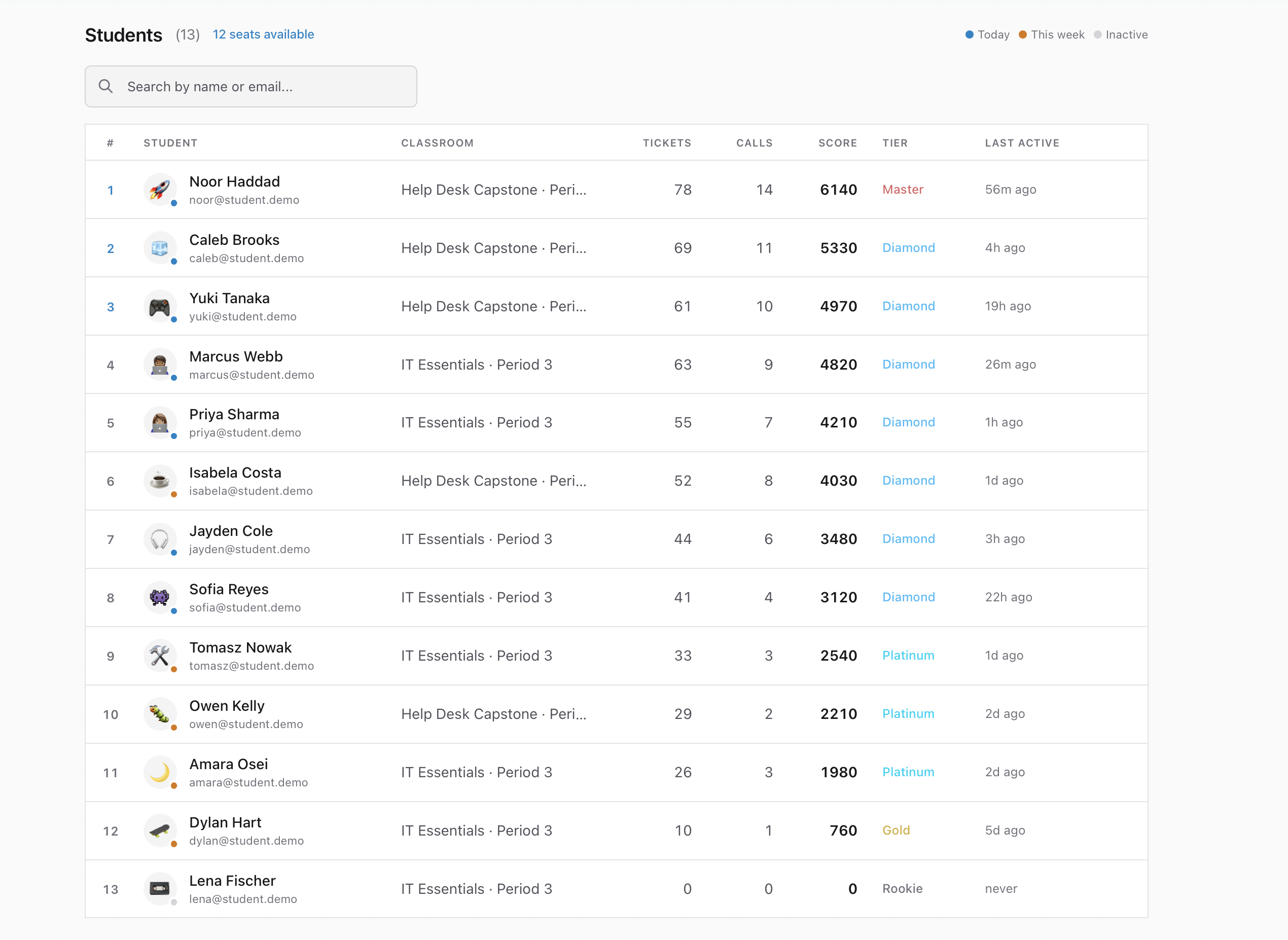
The instructor side is a dashboard, and it answers the question that eats most lab time: who is actually working? Scores, tickets resolved, and activity per student, live. The strong students are visible because their numbers move. The stuck ones are visible because theirs stopped twenty minutes ago on the same ticket, which is your cue to walk over before frustration turns into a shut laptop.
I will be honest about my favorite part, because instructors bring it up unprompted: nobody can claim the lab was done when the dashboard says otherwise. The dog cannot eat a ticket queue.
Setup is one lesson
You create a classroom and get a join code. Students sign up free in the browser and enter it. That is the whole procedure. It runs on whatever machines the room already has, Chromebooks included, because there is nothing to install. If you have ever spent a semester waiting for a district to approve a software image, you already know why the entire product runs in a browser.
Fitting the course you already teach
The tickets cover the troubleshooting ground of CompTIA A+ and ITF+: operating systems, accounts and access, networking, hardware. The natural fit is as the lab hours next to your existing curriculum, so the week you lecture on password policy and lockouts is the week students field lockout tickets from users who need to be back in five minutes ago. If you are teaching toward the A+ specifically, the exam objectives and the ticket queue overlap on purpose.
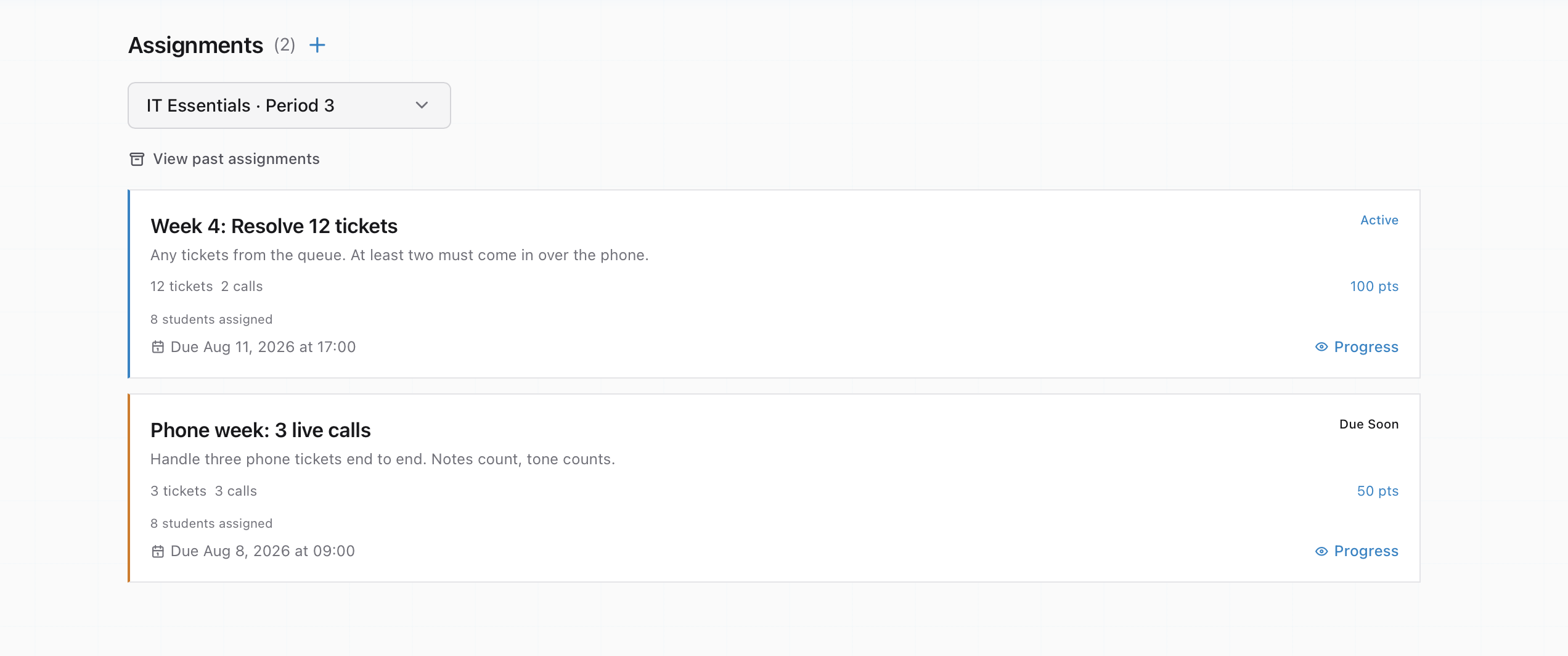
Assignments turn that into gradeable weekly work. You set a target, resolve twelve tickets with at least two over the phone, attach a due date and points, and the simulator tracks each student’s progress against it automatically.
Purchasing is built for schools because schools told us what they needed. Classroom licenses are per student, billed monthly or annually, payable by purchase order, and we supply the W-9, official quotes, and vendor forms your district asks for. Many US programs fund classroom software through Perkins V CTE budgets, though your state plan and district process govern the details. Request a quote and we email you a 7-day classroom trial, no card and no contract, so you can run it with a real class before anyone talks to a business office.
If that sounds like the lab component your course is missing, request access on the teachers page. You tell us where you teach and your class size, confirm your school email, and your classroom is set up automatically. Your students can be working tickets by the end of the week.