
Ask a help desk which tickets they see most under the malware heading, and it is not ransomware and it is not anything sophisticated. It is ads. Pop-ups appearing over other windows, a search engine nobody chose, a browser that has been getting slower for a fortnight and a user who is certain they changed nothing.
They usually did change something, months ago, by clicking Allow on a prompt they no longer remember. That is the part that makes these tickets interesting, because the standard response, run a scan, frequently comes back clean and fixes nothing.
The ads that are not malware at all
A large share of pop-up tickets are browser notifications. At some point a site asked for permission to send them and the user clicked through the prompt on the way to what they actually wanted. Every one after that is the browser doing exactly what it was told, by the user, in writing.
The tell is that the ads appear whatever the user is doing, including when the browser looks closed but is still running, and closing one seems to summon another. The cure is in the browser’s notification settings, where the permitted sites are listed and can be removed. Nothing needs uninstalling, because nothing was installed.
This is worth understanding rather than memorizing, because an antivirus scan will never fix it. Nothing on that machine is malicious. A setting is being honored. Techs who only know how to run scans will scan, find nothing, tell the user the machine is clean, and get the same ticket again next week under a different subject line.
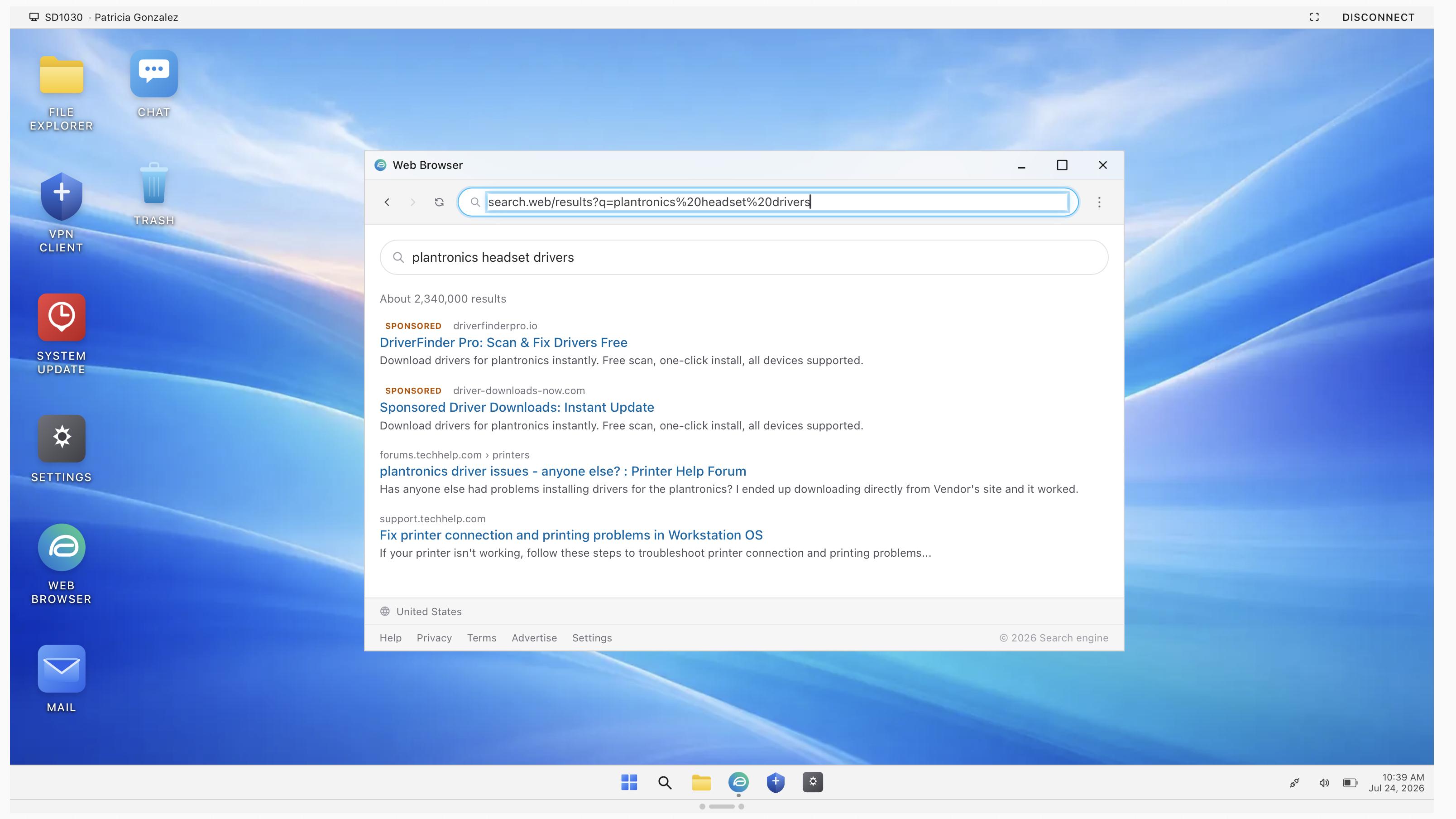
When the search engine changed itself
The hijack version is different in kind. The new tab page belongs to a search site the user has never heard of, the results are mostly advertising, and the browser has been sluggish since it started. Somewhere behind that is an extension, and behind the extension is usually an application that installed it.
The order matters more than the steps here. The instinctive move is to fix the visible symptom first, reset the search engine, remove the extension, and confirm with the user that the new tab looks normal again. It does, for a while. Then the extension returns, because the installer that put it there is still on the machine and still runs.
So work backwards instead. Find the extension, note it, then look at installed applications sorted by date. Something arrived around the time the user says the trouble started, usually with a name built to sound like a utility. Remove that first, remove the extension second, and only then reset the browser settings that were changed. Reset before removal and you are simply undoing settings that are about to be set again.
Sorting applications by install date is the underrated part of that. Users cannot tell you what they installed, but the machine remembers precisely, and a cluster of unfamiliar entries on the same afternoon is both your answer and the story of how it happened.
Knowing what is meant to be there
All of this depends on being able to tell an unfamiliar name from a bad one, which is where new techs stall. The organization’s own tools look just as strange as the junk when you have been there three weeks.
That is what an approved list is for. A knowledge base that records which extensions and applications are expected turns an anxious judgment call into a lookup. Where no such list exists, building one is a genuinely valuable thing for a junior tech to do, and it is the sort of contribution that gets noticed far more than another closed ticket.
The scan still has a place at the end. It confirms nothing heavier came along for the ride, and it gives the user the reassurance they are actually asking for. It is the verification step, not the fix, which is the same shape as every other troubleshooting method that works.
The conversation at the end
Finish these tickets with the explanation, always. Not a lecture, thirty seconds: this is where the ads were coming from, this is the prompt that grants it, and here is what it looks like next time. Users click Allow because the prompt appears while they are trying to do something else and dismissing it seems like the fast way past. Once someone has seen the connection between that click and a fortnight of pop-ups, they stop, and one ticket has prevented several.
There is a boundary here too. Adware is a cleanup. A machine also showing signs of something worse, disabled security software, unfamiliar services, credentials in play, is not a cleanup, and treating it as one is how a real intrusion gets closed as resolved.
Getting the reps without wrecking a laptop
Nobody wants to learn this on a machine that matters, and infecting your own laptop for practice is a poor career plan. ServiceDesk Simulator runs the whole family as tickets: pop-ups fed by a notification permission, a hijacked search with an extension that comes back if you remove it in the wrong order, and a full screen scare page that is only a web page pretending to be a crisis. The scanner behaves like a real one, which is to say it tells you what it cannot fix, and finding out where the fix actually lives is the entire exercise.