A company does not hand a new hire a laptop straight out of the box. Someone takes that bare machine, loads the standard Windows build, joins it to the company, and stocks it on a shelf ready to go. That process is imaging, and it sits behind a lot of the work a help desk touches.
What imaging means
Imaging is installing a known, standard version of Windows along with the company’s apps and settings onto a computer, so every machine starts life identical. Rather than click through Windows setup by hand on each laptop, IT pushes a prepared build that already has the right software, the security settings, and the connection to the company network. A hundred laptops come out the same way, which is the entire point.
The tools behind it
The long-standing tool in Microsoft shops is Configuration Manager, which almost everyone still calls SCCM after its older name, System Center Configuration Manager. It stores the build and runs the steps that lay it down. The newer cloud-first option is Microsoft Intune, often paired with Windows Autopilot, which provisions a machine over the internet without a traditional image. A lot of companies run both the old and new approaches side by side.
How a machine gets its build
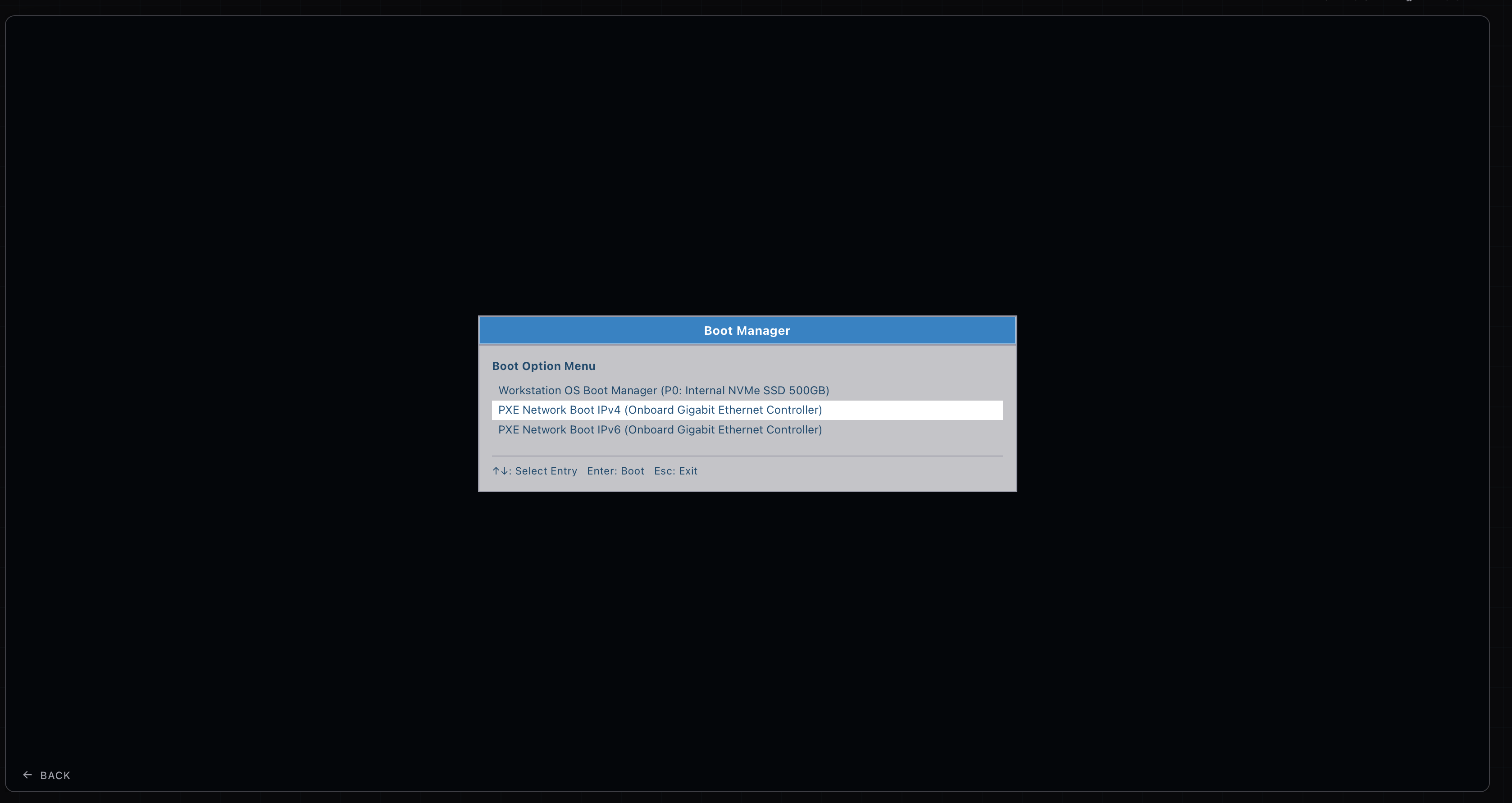
A bare computer has no operating system to boot from, so it boots off the network instead. That trick is called PXE, the preboot execution environment. You set the machine to boot from the network, it reaches the deployment server, and it pulls down the build.
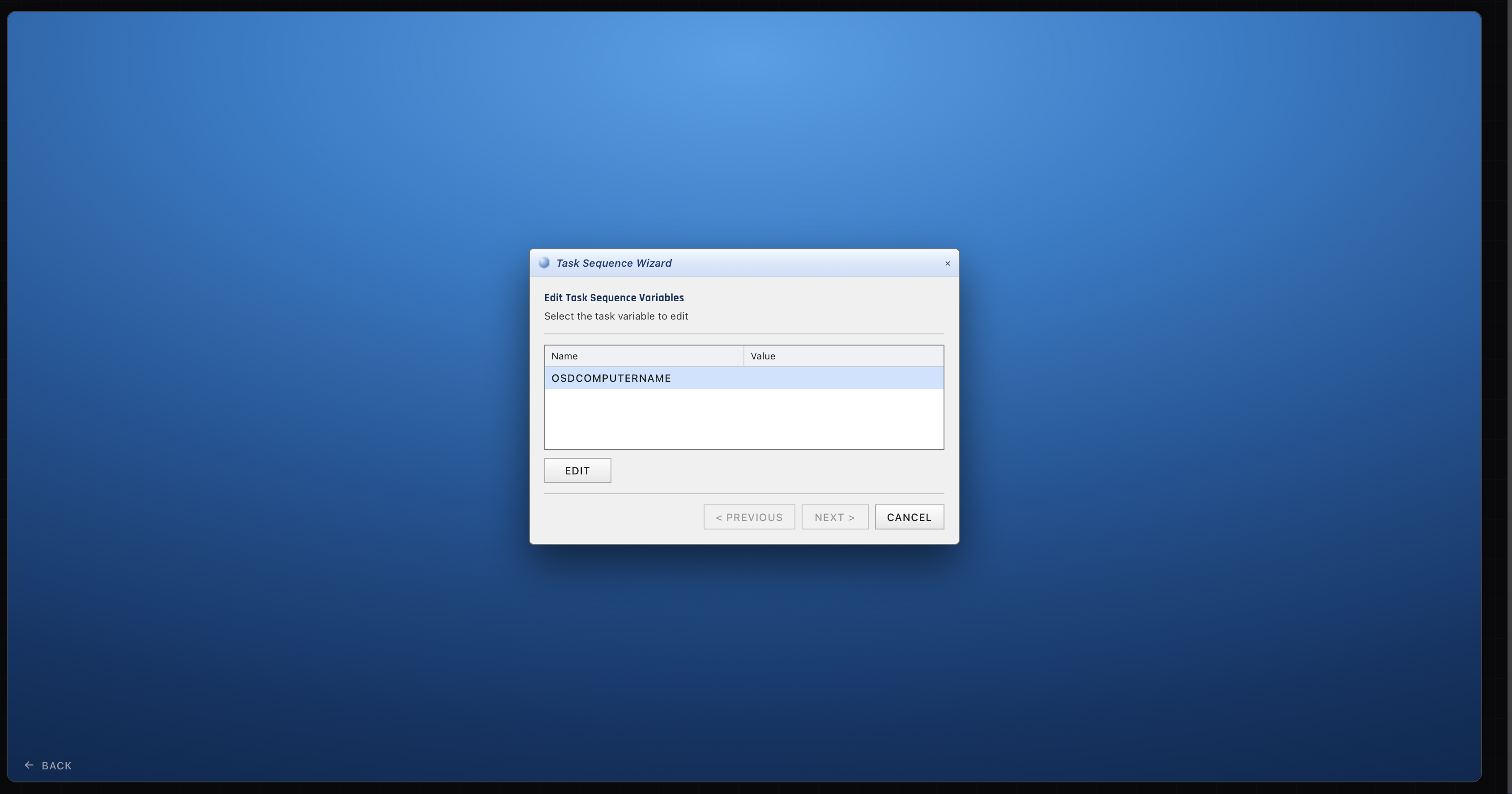
From there a task sequence takes over. That is the scripted list of steps that installs Windows, adds the apps, applies the settings, and joins the machine to the company so staff can sign in with their normal accounts.
Joining the company
Part of deployment is connecting the machine to the company’s identity system, so employees log in with their work accounts and IT can manage the device. The traditional version is a domain join to on-premises Active Directory. The modern version connects to Microsoft Entra ID, the cloud identity service. Which one a site uses is one of the first details you pick up when you start there.
Practicing a deploy end to end
You are not going to stand up SCCM on your home PC, and you would not want to. The deployment screen above is from the simulator, where you take a fresh machine from a network boot through the task sequence to a finished, joined computer ready for a user. Doing it a few times makes the real thing far less daunting the first time a stack of new laptops lands on your desk.